
The time on an iPad is changed in Settings > General > Date & Time. For an incorrect clock, check automatic time and the time zone first. For a different display style, use 24-Hour Time without changing the actual hour.
Recent iPadOS versions also expose a separate automatic time-zone control. Choose the control for the problem on screen rather than moving the clock forward to compensate for the wrong city.
Set the clock or time zone manually
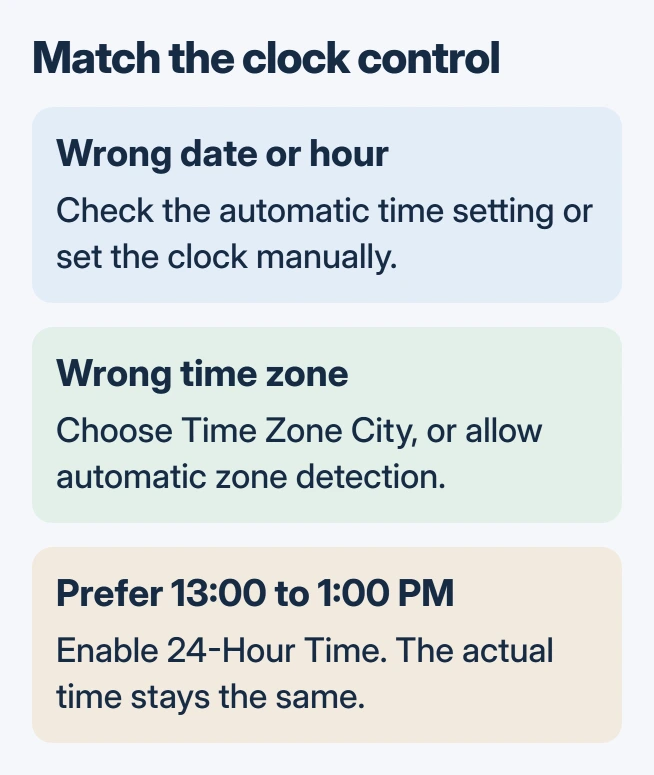
Open Settings > General > Date & Time. Turn off the automatic clock setting, then adjust the displayed date or time. Apple's iPad guide calls it Set Automatically; its general troubleshooting page also uses Set Time Automatically.
For the current guide's time-zone controls, turn Set Time Zone Automatically off, tap Time Zone City, and search for a city in the required zone. Check the resulting time against a reliable clock.
Status: Apple's iPadOS 27 time guide and date/time troubleshooting checked November 1, 2026. Control names differ across versions; no device clock was changed.
Apple documents the separate controls in its iPad date and time guide. Older screens can instead show Time Zone after Set Automatically is switched off; search for the city there.
The current guide also permits Set By > Time Zone Offset, with plus and minus controls. A city is the clearer choice when the intended location is known. Our recommendation is to verify both the date and hour after a manual change.
Restore automatic adjustment for travel
Connect the iPad to the internet and install its available iPadOS update. In Date & Time, enable the automatic time setting and the separate automatic time-zone setting if shown.
Then open Settings > Privacy & Security > Location Services > System Services and enable Setting Time Zone. Apple says that this permission lets the device use its location to determine its zone.
Its incorrect-time troubleshooting also calls for a restart when a message announces updated time-zone information. Follow that message rather than repeatedly setting the time by hand.
If the iPad cannot reach the internet, use the iPad Wi-Fi connection checks first. An enabled automatic setting still needs the conditions Apple lists.
Change the clock's format without moving the time
In Date & Time, enable 24-Hour Time for a clock that uses 13:00 instead of 1:00 PM. The same screen can offer Show AM/PM and Show Date for the status bar.
For regional date formatting, use Settings > General > Language & Region. Apple's regional settings reference lists date format and calendar settings separately from clock time.
To change the Lock Screen clock's appearance, follow the iPad wallpaper customization steps. Changing its type style or color does not correct a wrong time zone.
Why is the automatic setting locked?
Apple states that a restricted corporate profile can dim this setting; a Screen Time passcode can do so too. Availability can also vary by carrier or region. Ask the parent or administrator responsible for that restriction to review it.
Do not remove a work profile just to move the clock. If the clock remains wrong despite working internet and correct settings, contact Apple Support. Include the selected city, iPadOS release and how far the displayed time is off.
The Short Version
Use Date & Time for the clock, city and 24-hour display. For automatic adjustment, check internet access and Setting Time Zone in Location Services. A locked control may require the person managing the iPad to change its restriction.

Isaac Smith is the founder and editor of PC Glance, a website that covers computers, laptops, and technology. He is a tech enthusiast and a computer geek who loves to share his insights and help his readers make smart choices when buying tech gadgets or laptops. He is always curious and updated about the latest tech trends.