
Combining Word documents is an insertion task: desktop Word's Text from File command places another document's contents at the cursor. Start with a separate destination file, then insert each document in the order it should appear.
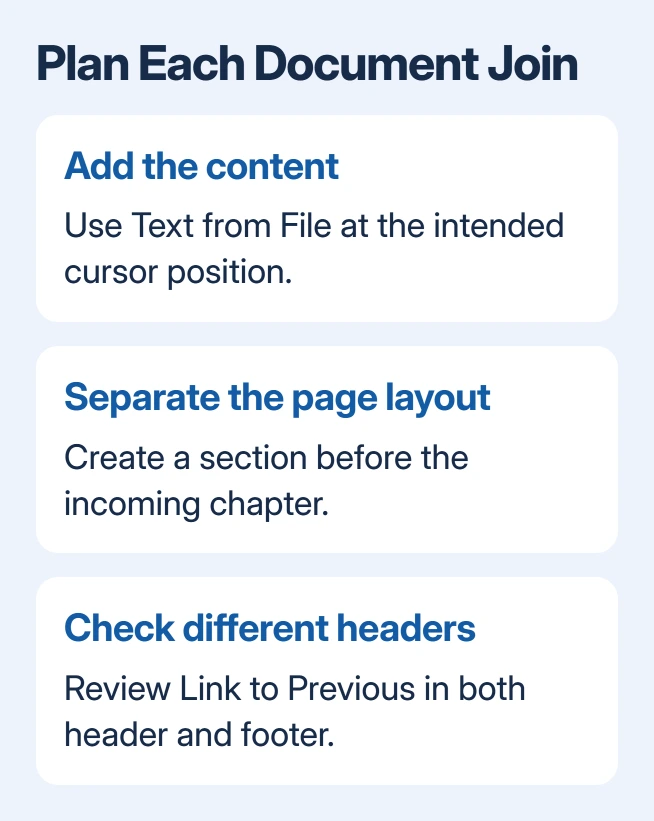
Documents with different headers or page layouts need section planning as well. Inserting their text does not remove the need to check the boundaries and formatting in the finished file.
Prepare the destination and document order
Create a blank document, or copy the first Word document when its content should begin the result. Give the destination a distinct name before inserting anything else.
Microsoft documents insertion into a new or existing file in its document insertion instructions. These steps use the Windows desktop application, including Microsoft 365 and Word 2024.
Status: Document insertion documented by Microsoft, reviewed November 1, 2026. This is content assembly in desktop Word, not mail merge or tracked-revision comparison.
Decide the order before selecting files. Inserting one file at a time makes the result easier to verify when filenames do not sort in the desired chapter order.
Insert the next file at the cursor
- Click the exact point where the next document should begin.
- Open Insert and expand the menu beside Object.
- Choose Text from File.
- Locate the document and double-click its filename.
The inserted content should appear at that position. Check its opening heading and final paragraph before adding another file. Move the cursor to the next intended insertion point, then repeat the procedure.
Choose Text from File when the words should become part of the destination document. The neighboring object-insertion controls serve a different purpose; an embedded file is not the same result as inserted editable text.
If the material lands in the middle of a paragraph, undo that insertion immediately with Ctrl+Z. Click where that material belongs and repeat the import before making further changes.
Give separate headers their own section
Microsoft says to insert the incoming text in a new section when its header and footer should apply only to those pages. Add that boundary before importing a chapter that needs separate page settings.
Use Layout > Breaks > Next Page when the new section should begin on another page. The Word section-break guide explains the other break types and how to inspect their labels.
After insertion, inspect the header and footer of the new section. Microsoft states that their links must be disabled separately when they should differ from the preceding section.
Double-click the header area and turn off Link to Previous before changing its text. Repeat in the footer when it also needs to be independent, following Microsoft's header and footer instructions.
A boundary creates a section; it does not guarantee that every header setting is already correct. Check the first page after each insertion, especially when the source used a different first-page header.
Review the assembled file before sharing
Read across every join. Confirm that no source file was inserted twice and that no ending paragraph is missing. Check heading appearance, page numbering, tables and image placement throughout the result.
If a layout change affects the preceding chapter, Microsoft's section formatting guidance says to undo it and retry with the cursor after the section break.
Save the combined document and reopen it for a final check. Keep the original files available until the result has been approved; they provide a clear reference if a page or heading has changed unexpectedly.
When one incoming document repeatedly causes a problem, keep a nonprivate sample of that file and the destination for Microsoft Support. Name the installed Word release and specify whether importing or saving triggers the failure.
The Short Version
Use Insert's Object menu, choose Text from File, and add the documents in the required order. Create sections for independent page layouts, inspect header links, and review each join before sharing the combined file.

Isaac Smith is the founder and editor of PC Glance, a website that covers computers, laptops, and technology. He is a tech enthusiast and a computer geek who loves to share his insights and help his readers make smart choices when buying tech gadgets or laptops. He is always curious and updated about the latest tech trends.