
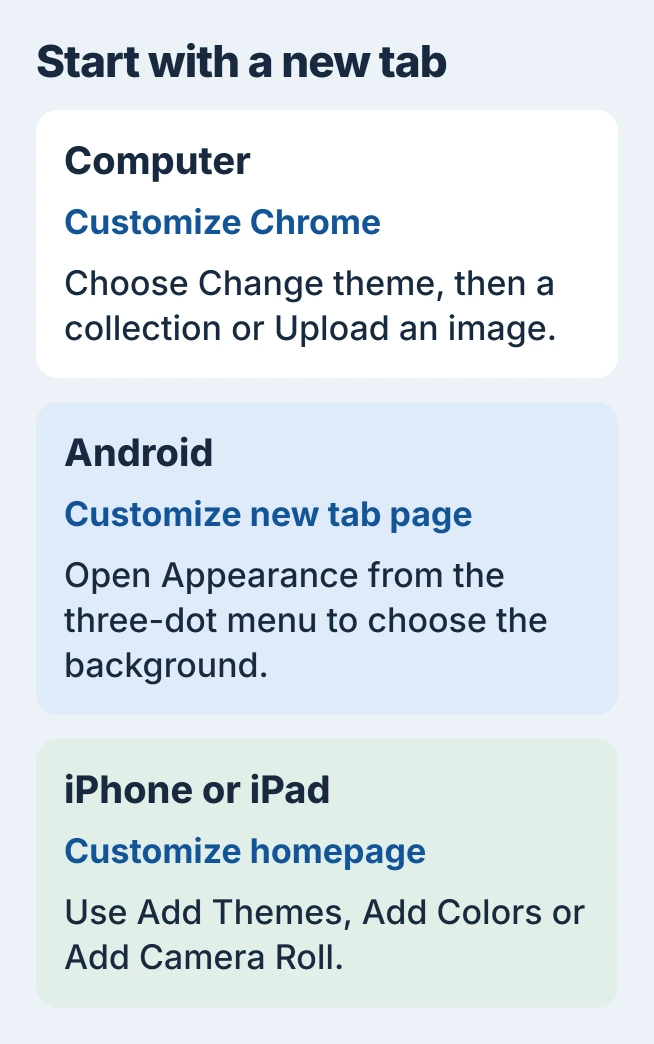
Google Chrome's background is changed on a New Tab page. On a computer, click Customize Chrome, then Change theme to pick a collection or upload a picture. This customizes new tabs; ordinary websites keep their own backgrounds.
The browser color can be adjusted separately. Phone versions have their own customization menus, so the desktop button is not the right control to look for on every device.
Choose a picture on Windows, Mac or Chromebook
Open a new tab and click Customize Chrome in its bottom-right corner. Under Appearance, select Change theme. Choose a gallery theme, or select Upload an image and pick a local picture.
Google says its desktop customization panel suggests a browser color from the picture. Pick another color under Appearance if that suggestion is unsuitable.
Status: Google's desktop, Android and iPhone/iPad background instructions checked November 1, 2026. Mobile controls are documented separately. No browser was customized.
For a changing background, open a collection and enable Refresh daily. To return to the standard desktop appearance, use Reset to Default Chrome at the bottom of the customization panel.
Open another new tab to inspect the result. Our recommendation is to choose a picture whose crop leaves shortcuts and search controls easy to see, rather than judging only the uncropped file.
Use the Android background controls
On Android, open a new Chrome tab. Tap the three-dot menu, then Customize new tab page > Appearance. Google's Android instructions offer Upload an image, Chrome Colors and Theme Collections there.
Google adds that a personal photo needs Save after selection. Chrome Default restores the default background. On a tablet, Google also lists an edit control at the bottom right.
Google advises restarting the app or refreshing the page if saving the image or returning to New Tab fails. Use the controls actually offered by the installed version; the phone menu differs from desktop Chrome.
Set a background on iPhone or iPad
Open a new tab and tap Customize homepage at the top left. Choose a preset, Add Themes, Add Colors or Add Camera Roll, following Google's iPhone and iPad guide.
For a personal image, grant access to the intended photo when prompted. Select it, pinch to adjust the crop and tap Save. Limited photo access is enough when Chrome only needs the pictures selected for this purpose.
To remove a saved background option later, touch and hold it in Customize homepage and choose Delete Background. Use that background-menu control; deleting the source picture in Photos is a separate action.
Why Customize Chrome may be unavailable
Check that the page is Chrome's New Tab page, not a website opened at startup. The Chrome homepage and startup guide explains which setting chooses that destination.
Google states two desktop customization requirements: sign in to a Google Account and make Google the browser's default search provider. Check those conditions when the expected panel is missing.
An extension can supply a different New Tab page. Chrome's footer can identify that extension. Review it through Extensions > Manage Extensions, then open a new tab after disabling it if that change is wanted.
Google's extension management instructions document the enable/disable control. On a managed computer, ask IT before changing a required extension.
Organizations can also block background customization. Google's browser policy reference explicitly lists that restriction; a missing option may need the administrator's decision.
Restore the theme without resetting everything
Use the theme's own default option for an unwanted picture. A broader Chrome settings reset changes other preferences too, so it is a separate choice for wider browser problems.
If customization still fails on a personal browser, report the platform, Chrome version and whether a built-in theme works. Include the missing button or error in a Chrome Help request instead of repeating an unsuccessful upload.
The Short Version
Start on New Tab and use the customization menu for the device. Choose a collection or personal photo, inspect the crop, and use the theme reset to undo it. Check extensions and management restrictions when the controls are missing.

Isaac Smith is the founder and editor of PC Glance, a website that covers computers, laptops, and technology. He is a tech enthusiast and a computer geek who loves to share his insights and help his readers make smart choices when buying tech gadgets or laptops. He is always curious and updated about the latest tech trends.