

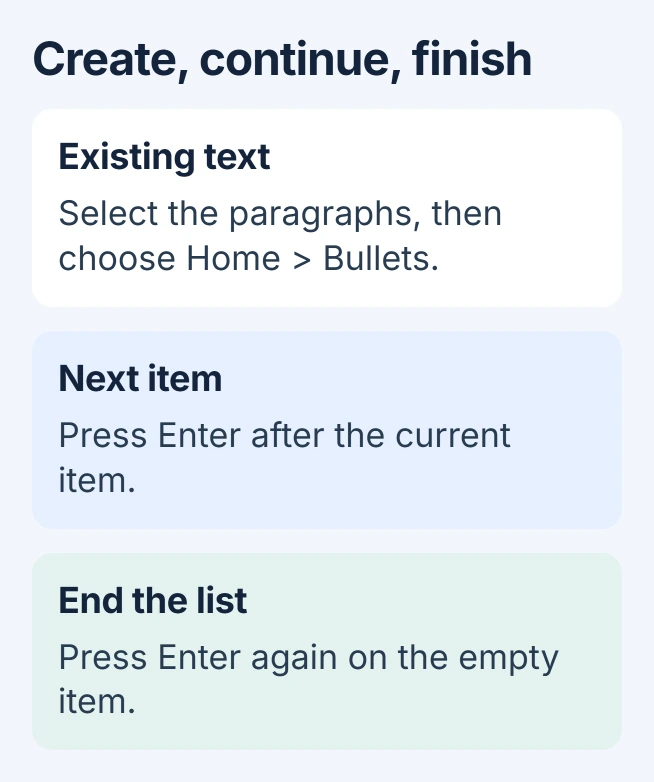
Bullet points in Word belong to a list format. Select the paragraphs that need bullets, then choose Home > Bullets. For a new list, use that button before typing the first item; Word adds the next bullet when Enter starts another item.
Use the list command instead of typing a dot and spaces at the start of every line. It keeps the marker separate from the text and makes later list changes easier.
Turn existing paragraphs into a list
Put each intended item in its own paragraph, using Enter between items. Select those paragraphs and choose Bullets in the Paragraph group of the Home tab. Check that every intended item receives a marker.
Microsoft documents this selection-first method in its Word list instructions. If a sentence wraps naturally, it remains part of its existing item.
Status: Microsoft instructions for Word lists on Windows, Mac and the web reviewed November 1, 2026. The guide uses standard paragraph bullets; no document was edited.
If every item becomes one bullet, check the paragraph breaks. Pressing Shift + Enter continues the current paragraph on another line, instead of making a new list item. Use Enter where each separate item should begin.
Start a list while writing
Click where the list should begin, choose Home > Bullets, and type the first item. Press Enter to continue. When the list is finished, press Enter twice so the next paragraph has no bullet.
Typing an asterisk and a space at the start of a paragraph activates Word's automatic bullet formatting. If that automation is disabled, use the ribbon button to start the list directly.
Microsoft says the web version also supports selecting existing text or choosing the bullet style before typing in its browser list guide.
Change the marker without retyping the list
Select the affected list items and open the menu beside Bullets on the Home tab. Choose a standard marker from the displayed library. Check all selected items afterward, including any that wrap.
A clickable task box requires a different feature. Use the Word checkbox instructions when readers need to mark completion rather than read an ordinary list.
On Mac, the Home tab also holds Bullets. Microsoft states that Return continues a list and pressing it twice finishes one in its Mac list reference.
Remove unwanted bullets or fix the list level
Select the paragraphs whose bullets should disappear, then click Bullets again to turn that formatting off. Keep the text selected when removing formatting, rather than deleting the paragraphs themselves.
When the problem is a sub-item that will not indent, follow the Word Tab and list-level checks. Replacing the bullet symbol does not repair a Tab-key setting.
For a document that still formats differently after saving, compare a short list in a new blank document. Give Microsoft Support the affected file's app/version details and whether the problem occurs in that new document too.
The Short Version
Select existing paragraphs and apply Home > Bullets, or choose the button before typing a new list. Enter makes another item; a second Enter on the empty item ends the list. Change or remove bullets with the same ribbon control.

Isaac Smith is the founder and editor of PC Glance, a website that covers computers, laptops, and technology. He is a tech enthusiast and a computer geek who loves to share his insights and help his readers make smart choices when buying tech gadgets or laptops. He is always curious and updated about the latest tech trends.