
Changing the notification sound on Android starts in Settings > Sound & vibration > Default notification sound. Save a tone there, or use an app's notification category when only that app needs a different sound.
The phone-wide choice is a default, so it need not replace every app's custom alert. Samsung phones also use different menu wording and may hide category controls until they are enabled.
Set the default alert sound
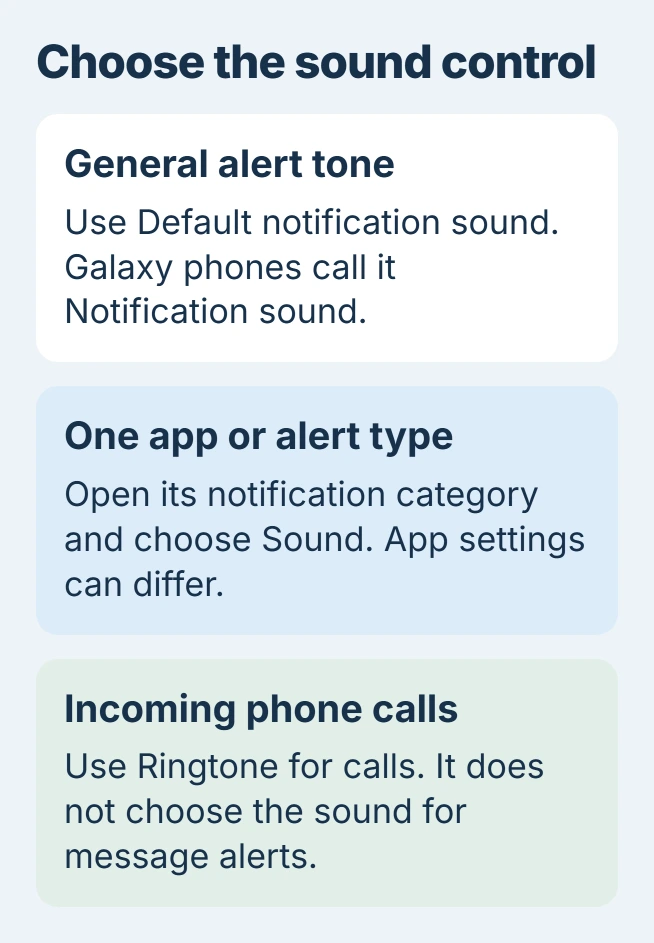
Open Settings > Sound & vibration > Default notification sound, preview a tone and tap Save. Google documents this selection under notification sounds in its Android sound instructions.
On a Samsung Galaxy, use Settings > Sounds and vibration > Notification sound and select a tone. Samsung says this menu sets the general alert tone in its Galaxy sound settings.
Status: Google and Samsung sound settings checked November 2, 2026. App categories and menu names vary. No phone sound was changed or previewed here.
Return to the sound selector to confirm the chosen entry remains selected. Then check a new notification from the app that matters; its own sound preference may still take priority.
An incoming telephone call uses a different control. The Android call-tone instructions explain the default ringtone and individual-contact choices.
Change one app's sound through its alert category
Touch and hold the app icon, open its information page, then choose Notifications. Look for an alert category such as Incoming messages, open the category's settings and choose Sound when that option is offered.
An owner seeking a distinct Google Messages tone confirmed this category route in 2023. The accepted answer used Incoming messages instead of an individual-contact setting.
Category names come from the app, so do not expect every app to contain Incoming messages. An email app might divide alerts by account or notification type. Select the category matching the alert being changed.
Google says some apps expose separate notification sounds in their own settings. Check there when the Android information page lacks a sound choice. A missing category is not, by itself, a reason to reinstall the app.
Reveal Samsung's notification categories first
On Galaxy phones with hidden categories, open Settings > Notifications > Advanced settings. Enable the switch whose label starts Manage notification categories. This makes the detailed controls available for each app.
Return to Notifications > App notifications, select the app, then open Notification categories. Tap the category name to enter its settings, rather than only operating the switch beside it.
Ensure Allow notifications is enabled and Alert is selected, then tap Sound. Choose the tone for that category. Samsung states these requirements in its category customization guide.
Leave other categories alone if their sounds are already suitable. A new message and a promotional alert from the same app can have different controls, so changing one need not change the other.
When the new sound is selected but alerts stay quiet
Check notification volume and whether the phone is in Sound, Vibrate or Mute mode. Raising media volume while a video plays does not necessarily raise notification volume.
Review Do Not Disturb or an active Mode that filters the app. On current Pixels, Google places those controls under Settings > Modes in its interruption settings.
If alerts themselves have been blocked, use the Android notification permission controls to locate the relevant switch. Choosing a sound does not enable a disabled sender.
For a tone that previews correctly but never plays for new alerts, send the developer your phone model, Android version and affected category. For failures across apps, give the same details to the phone maker.
The Short Version
Save a default notification tone, then adjust the individual app when its old sound persists. Galaxy category controls may need enabling first. Check notification volume and interruption modes when the selected tone stays silent.

Isaac Smith is the founder and editor of PC Glance, a website that covers computers, laptops, and technology. He is a tech enthusiast and a computer geek who loves to share his insights and help his readers make smart choices when buying tech gadgets or laptops. He is always curious and updated about the latest tech trends.