
Yes, Chrome can type on a PDF using its Add text tool, and it can fill supported form fields. Open the PDF in its own tab, choose the appropriate tool, then download a copy with the changes included.
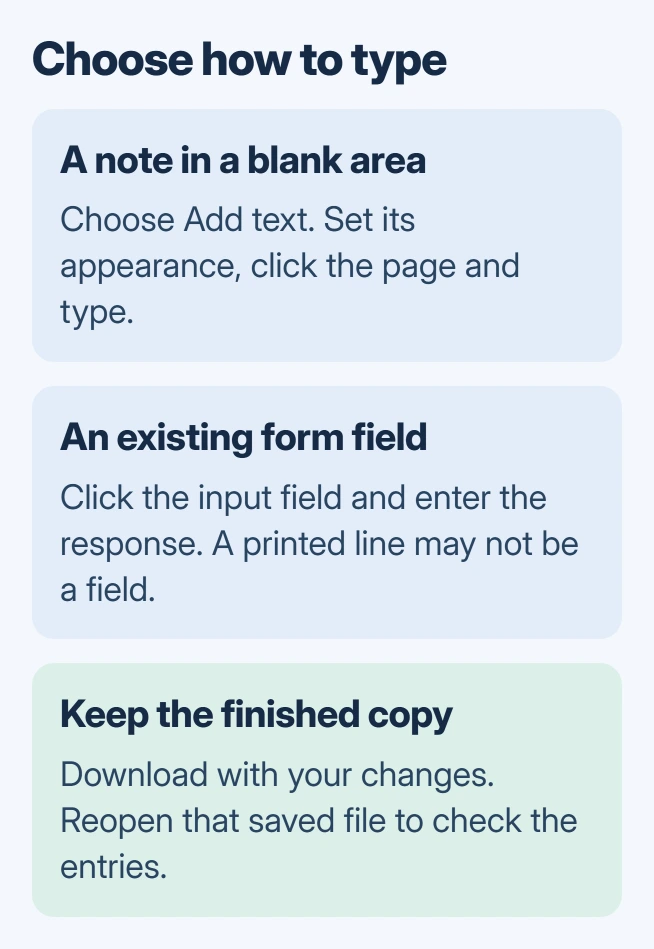
Adding text places an annotation on the page. It does not turn every existing paragraph in the PDF into an editable Word-style document, so use it for labels, notes and entries that belong in blank spaces.
Add text where the PDF needs it
Open the PDF in Chrome. If it is embedded in a webpage with limited controls, use the PDF menu's Open in new tab option when offered, or download the file and open that copy in Chrome.
Google's PDF instructions now include Add text, with its font, style and color controls documented by Google. Select the tool, set those options, then click the intended position on the page and type.
Status: Google's Chrome PDF guide reviewed November 2, 2026. It now documents Add text; availability should be checked in the installed viewer. No PDF was edited here.
Zoom in when placing text in a small space, then check the page at its normal reading size. The annotation should fit without covering nearby instructions or labels.
Google says a narrow browser window can move the editing panel to the bottom. Check that compact panel as well as the right side before deciding that the options are missing.
Is this a form field or just a printed line?
For a fillable PDF form, click the intended input field and enter the response. Press Tab to move between fields where the form supports it, and use its checkboxes or choice lists for the corresponding answers.
A printed line on a scanned form is not necessarily an input field. If clicking it does not produce a text cursor, try Add text for a visible entry instead.
For a form that will be processed electronically, ask the sender whether annotations are accepted. Text placed over a field can look correct while failing to populate the form's actual data field.
Google also describes drawing with its pen tool. A drawn signature is a visual mark; do not assume it satisfies a workflow that requires a verified digital signature.
Save the edited version and reopen it
In the PDF viewer, select Download, then With your changes when Chrome offers that choice. Choose a new filename so the original remains available. Selecting Without your changes saves the unedited version.
Google states that Chromebook users should select Save to retain their edits. Whichever platform is used, locate the saved copy in its folder, reopen it and check the text before attaching or uploading it.
Inspect the pages containing edits, including the last field filled. This catches a forgotten save choice while the original tab is still available to correct it.
If PDFs keep opening in another program before editing starts, use the Chrome PDF-opening settings. That controls which viewer receives the file.
When Add text is missing or the document needs more editing
Open Chrome menu > Help > About Google Chrome and apply an available update, then relaunch when requested. Reopen the PDF in a full tab and look again for Add text. A managed browser may need its administrator to supply the update.
On a Chromebook, open the downloaded PDF from Files in Gallery. Google's Gallery PDF guide documents its Text tool for adding typed notes. Select Save afterward, or use the adjacent save menu to create a new file.
To change the original paragraphs, request the editable source document or use an editor that supports that operation. Being able to copy text from a scanned PDF does not make its printed paragraphs directly editable.
If the saved copy loses entries, retain the original and report the Chrome version, the tool used and whether another PDF saves correctly. Send the form's provider a nonprivate example when other files retain their edits.
The Short Version
Use Add text for notes or fill the form's existing fields. Save with edits included and reopen the downloaded copy. Chromebook owners can also use Gallery's Text tool when Chrome lacks the control.

Isaac Smith is the founder and editor of PC Glance, a website that covers computers, laptops, and technology. He is a tech enthusiast and a computer geek who loves to share his insights and help his readers make smart choices when buying tech gadgets or laptops. He is always curious and updated about the latest tech trends.