
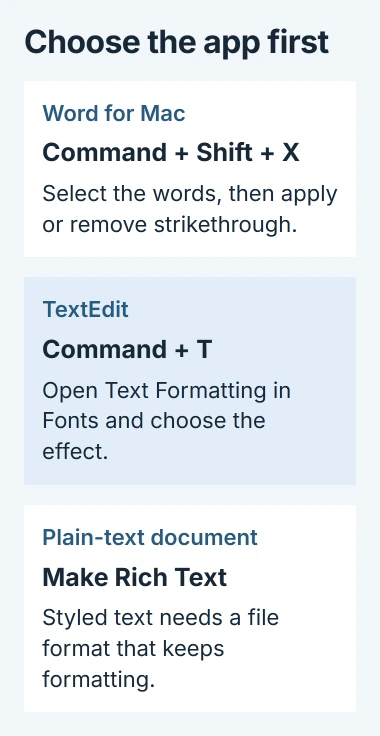
The strikethrough shortcut on a Mac depends on the app. In Word, select the text and press Command + Shift + X. TextEdit provides the effect through its Fonts window, so the Word combination is not a reliable shortcut for every document.
Check which application is active before changing keyboard settings. A plain-text document also cannot retain this formatting, even when the same app supports it in rich text.
In Word, select the words and press the shortcut
Highlight the passage in the document, hold Command and Shift, then tap X. Inspect the selected words for a line through their middle. Press the combination again to remove the effect from text that already has it.
Microsoft lists this command in its Word for Mac shortcut reference. Use Command rather than substituting the Control key from a Windows habit.
Status: Microsoft Word and Apple's current TextEdit controls checked November 2, 2026. The commands belong to the named apps; no Mac document was edited.
Selecting the words first limits the change to that passage. If the command affects the next words typed instead, select the existing text and apply the formatting to that selection.
For spreadsheet cells, use the Excel strikethrough instructions. Crossing out a cell's contents does not remove its value from calculations.
TextEdit uses the Fonts window
Select the text, then press Command + T. The equivalent menu is Format > Font > Show Fonts. In the Fonts window, open Text Formatting and choose the strikethrough option you need.
Apple says this menu includes choices such as Double Strikethrough in its TextEdit formatting guide. Command + T opens the controls; it does not itself cross out the selection.
Inspect the selected passage after choosing the effect. If the font controls cannot apply it, check the document format before assigning another shortcut or replacing the keyboard.
The Fonts window can contain several formatting controls. Choose the text-formatting control rather than the separate shadow or text-color controls, which change a different part of the text's appearance.
Switch a plain-text document to rich text
In TextEdit, choose Format > Make Rich Text when that command is available. Apple documents this conversion for using formatting that plain text does not store.
Keep the original file if its plain-text format matters, such as a configuration file or script. Make a separate rich-text document for styled notes instead of changing the format of a file another program expects to read.
After formatting, save the styled document in a format that preserves it. Open the saved copy and inspect the passage. A successful effect in the editing window is not enough if the final file discards its styling.
Apple's document conversion instructions explain the difference between rich and plain text. Converting rich text back to plain text removes its formatting.
When the same keys do something else
Check the application's menu and its own Help for a strikethrough command. A shortcut that works in Word can have another action in a different editor or website.
Apple states that custom app shortcuts require an existing menu command. They cannot create a formatting feature that the application does not support. The Mac shortcut setup guide covers that separate assignment procedure.
If choosing the command from its menu succeeds, check whether another shortcut uses the same keys. If both fail, report the app version, document format and unavailable command to the app's support team.
The Short Version
Word for Mac uses Command + Shift + X on selected text. TextEdit uses Command + T to reach its font controls. Plain-text files need a suitable rich-text copy before they can preserve a crossed-out appearance.

Isaac Smith is the founder and editor of PC Glance, a website that covers computers, laptops, and technology. He is a tech enthusiast and a computer geek who loves to share his insights and help his readers make smart choices when buying tech gadgets or laptops. He is always curious and updated about the latest tech trends.