
Google Photos can arrange several iPhone pictures into one collage. Select the pictures, open Create > Collage, choose a layout and save the result. Check each frame before saving because a layout can crop part of a photo.
These steps use the Google Photos app, which is separate from Apple's Photos app. Google's newer collage editor requires iOS 18 or later and Google Photos version 7.64 or later.
Select the pictures in Google Photos
Open Google Photos on the iPhone and select up to six photos from its library. Tap Create, then Collage. Google documents the selection limit in its iPhone collage instructions.
Choose pictures that belong together before arranging them. A portrait and a wide landscape can need different frame shapes; selection order alone does not guarantee that every subject will fit the chosen layout.
Status: Google's iPhone collage editor and download instructions checked November 2, 2026. New editor controls require iOS 18 and app version 7.64 or later. No photo library was opened.
For missing device pictures, review Settings > Privacy & Security > Photos > Google Photos. Apple's permission controls let you change which information an app can access.
Fit the photos into the layout
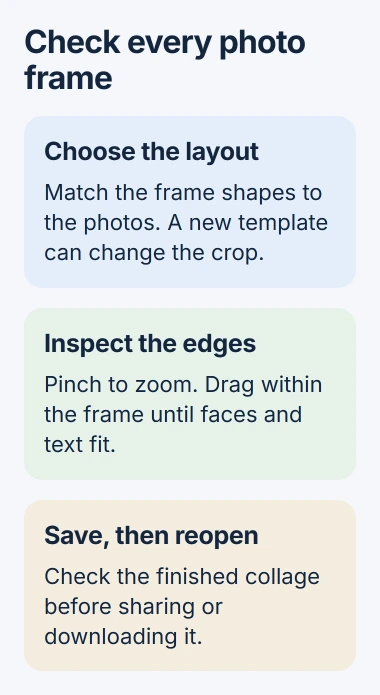
Select a template and inspect its frames. Tap a photo to find Replace or Edit. Pinch to change its zoom, drag within its frame to reposition it, or hold and drag it to another position.
Google says the newer editor also offers Add and Remove for photo slots. These controls depend on the template; a layout that cannot accept another slot needs a different template.
Review faces, text and important edges after changing layouts. A photograph can be present while its main subject is partly cropped, so look at each frame instead of judging only the overall arrangement.
Google states that offline use limits the available layouts to those stored on the device. Connect to the internet when the desired design is missing from the available templates.
Save the collage and find the finished image
Tap Save when the arrangement is ready. To locate it again in Google Photos, open Search, enter Collages, and select that category. Open the result to confirm that the saved composition is the one intended.
Use Share to send it from Google Photos. If a local copy is needed, open the collage and choose More > Download. Google's download instructions describe that separate action.
Download is unavailable when the image already exists in the iPhone's camera roll. Check Apple's Photos app before treating the absent command as a failure.
Once the collage is in Photos, place a sticker on the saved picture if it needs a cutout decoration. That edits the finished image rather than changing the collage's frame arrangement.
For a form that accepts documents, convert the saved picture into a PDF and inspect the exported page before attaching it.
When the collage controls are missing
In the App Store, open the account picture, select App Updates and use Update beside Google Photos. Apple documents manual app updates through these controls.
An app update does not remove the newer collage editor's iOS requirement. Check both versions when the editing controls differ from the documented ones.
If the required versions are installed but the editor still fails, use More > Send feedback in Google Photos. Include the app version, selected-photo count and the action that fails, without sending unrelated private pictures.
The Short Version
Build the collage in Google Photos, check the crop in every frame and save it. Find the result through the Collages search category. Download it separately when a copy is needed in Apple's Photos library.

Isaac Smith is the founder and editor of PC Glance, a website that covers computers, laptops, and technology. He is a tech enthusiast and a computer geek who loves to share his insights and help his readers make smart choices when buying tech gadgets or laptops. He is always curious and updated about the latest tech trends.