
Forward a text on Android by opening its conversation in Google Messages, holding the message bubble and choosing Forward. Select the recipient, check the copied text and tap Send.
The selected bubble has different actions from the conversation menu. These steps use Google Messages, even on Samsung phones; other messaging apps can place Forward elsewhere.
Select the message that should be forwarded
In Google Messages, open the conversation containing the text. Hold the specific bubble until its actions appear, then choose Forward.
Google documents the selection and sending steps in its message forwarding instructions. Holding a conversation in the main inbox is a different selection from holding one message inside it.
Status: Google Messages forwarding and quick-action menus checked November 2, 2026. Older versions can keep Forward in the selected message's three-dot menu. No private message was read or sent.
Google's current touch-and-hold guide places Forward in the message action menu. If the app instead shows a selection toolbar, open its three-dot menu after selecting the bubble.
An owner confirmed the selection order in a Google Messages discussion. They could forward after holding the text first. The conversation-level menu had been the wrong place to look.
For a conversation absent from the inbox, check Android's archived and retained messages before trying to forward it. A message must be accessible in the app before it can be selected.
Choose the recipient and finish sending
Select the intended contact or conversation. Review the destination and the copied content before tapping Send, particularly when contacts share similar names.
Forwarding prepares a new outgoing message. Selecting a recipient alone does not finish the send, so check the destination conversation afterward for the new message or a sending error.
The forwarded text is a copy sent by this phone. If the recipient needs to know who originally wrote it, add that context yourself rather than assuming the copied wording explains its source.
Forward several messages or copy only part
Google says Select more can select multiple messages for actions including forwarding. Hold the first message, choose Select more when offered, select the additional bubbles and use Forward.
Check the resulting content before sending. Selecting nearby messages can include information intended only for the original conversation, so keep the selection limited to what the new recipient needs.
Google adds that the current menu supports copying part of a message. For only a phone number or a few words, paste that selection into a new message instead of forwarding the entire bubble.
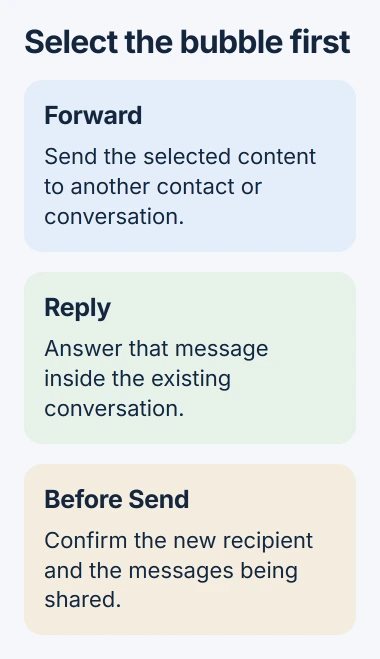
Reply has a different purpose: it answers a particular message within the existing conversation. Use Forward when the content should go to another recipient.
If the source text is on an iPhone, use its More and Share message controls. The receiving phone does not determine which menu appears on the sending device.
When the copy will not send
Google states that its Android messaging checks include the default SMS app, cellular signal and carrier support. A selected message that fails at Send needs a delivery check.
Send a short new text to the same person. If it also fails, record the error for the carrier. When ordinary messages send but Forward stays unavailable, report the app version through Google Messages help.
The Short Version
Select the message bubble before opening its actions. Forward sends a copy to another recipient; Reply stays in the current conversation. Review the selected content and recipient, then finish with Send.

Isaac Smith is the founder and editor of PC Glance, a website that covers computers, laptops, and technology. He is a tech enthusiast and a computer geek who loves to share his insights and help his readers make smart choices when buying tech gadgets or laptops. He is always curious and updated about the latest tech trends.