
An iPhone can keep one home address in Contacts and a different one in Maps. After moving, update My Card for personal details and AutoFill, then check the Home destination in Maps so navigation does not keep using the old place.
Changing a saved destination is different from fixing an inaccurate current-location dot. Check which address is wrong before changing location permissions.
Update the address on My Card
In Contacts, open My Card and tap Edit. Correct the existing home address, including its postal code. If the card has no address, tap Add Address, enter it and set its label to home.
Tap Done, then reopen the card to check the saved details. Apple documents the fields and labels in its Contacts and Maps address guide.
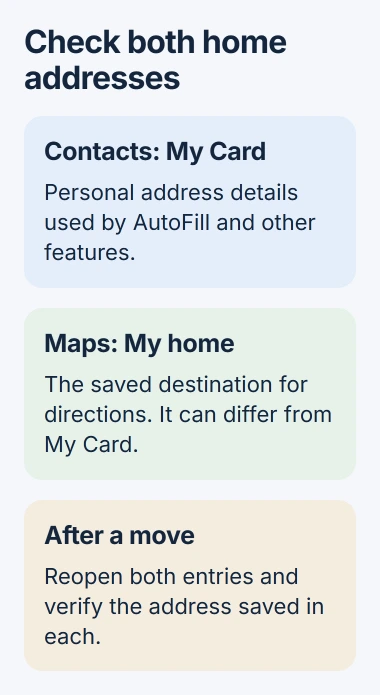
Status: Apple's current Contacts and Maps instructions checked November 2, 2026. Maps can hold a separate address; its iOS 27 guide also offers Add to Contact Card. No address was changed.
If My Card is missing, create a contact with your details. Return to the list, touch and hold that contact, then choose Make This My Card. Make sure the selected card represents you before entering the address.
Apple says editing My Card updates its AutoFill information. That explains why changing only a Maps pin can leave an old address available when filling a form.
When sending the corrected card to someone, choose the contact fields to share. Check that the address is included only when the recipient needs it.
Replace the old Home destination in Maps
Open Maps and find Places. Touch and hold the old Home entry, then choose Unpin. This removes that saved Maps entry; the contact-card address is managed separately.
- In Places, tap Add. Swipe the row if that control is out of view.
- Search for the new street address and select the correct result.
- Under Type, choose My home.
- Review any Add to Contact Card choice, then tap Done.
Apple states that Maps can use an address different from Contacts. Its current iOS 27 instructions include Add to Contact Card, but also warn that later changes may require updating Contacts separately.
Open the new Home entry and inspect its street, town and postal code. Preview a route to confirm the destination, then return to My Card and check that its address is still correct.
The two entries need not be identical when there is a deliberate reason to keep them different. After a house move, checking both prevents an old destination from surviving unnoticed.
Move the pin when the address is already correct
A correct street address can still have its pin at the wrong entrance or part of a property. In Maps, hold the saved place, choose Edit Details, then Refine Location on the Map.
Drag the map to place the pin correctly and tap Done. Apple documents this adjustment separately from the label and the home/work type. Renaming the label alone does not move the pin.
Check the refined location in the place card before requesting directions. If the blue dot showing the phone's position is wrong instead, use the iPhone GPS accuracy checks.
Identify where an old address still appears
Reopen My Card when personal-address suggestions are wrong, and reopen the saved Home place when Maps chooses the wrong destination. This comparison shows which saved entry still needs attention.
An address stored in a shopping account or another map app has its own edit controls. Check that service's saved details when the corrected Apple entries do not explain what it displays.
Report a recurring save failure to Apple Support, including the iOS version. Identify the entry that returns and whether its text, pin position or selected contact card changes back.
The Short Version
Update My Card in Contacts and check Home in Maps separately. Add the new Maps destination as My home after removing the old pin. Use Refine Location on the Map when the address is right but the pin is misplaced.

Isaac Smith is the founder and editor of PC Glance, a website that covers computers, laptops, and technology. He is a tech enthusiast and a computer geek who loves to share his insights and help his readers make smart choices when buying tech gadgets or laptops. He is always curious and updated about the latest tech trends.