
Finder can open Terminal on a Mac with the selected folder already set as its working location. Show Finder's path bar, Control-click the folder there and choose Open in Terminal. This avoids typing a long path before running a command.
The folder matters because commands using relative filenames act from Terminal's current location. Check that location before using a command that changes files.
Open the folder from Finder's path bar
In Finder, navigate to the folder you need. Choose View > Show Path Bar if the row of folder names is absent from the bottom of the window.
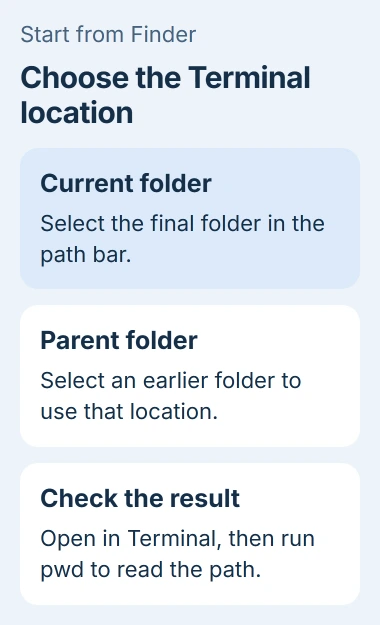
Control-click the desired folder in that row and select Open in Terminal. Apple documents the path-bar command in its Terminal window guide.
Status: Apple's current Finder and Terminal instructions checked November 2, 2026. Services can use different wording on older macOS releases. No Mac session was operated.
The final folder in the path bar represents the window's current location. Choosing an earlier folder opens Terminal there instead. Select the folder needed by the command you intend to run.
For a tab, Apple's guide gives Services > New Terminal Tab at Folder. Some Finder menus show New Terminal at Folder for a window. These choices use the selected folder, rather than merely launching Terminal.
Confirm the location before running another command
Type pwd in the Terminal session that opened and press Return. It prints the current directory's path. Compare the result with the folder selected in Finder, particularly when several folders share a name.
For example, a folder named Projects inside Documents should have a path ending in /Documents/Projects. This is an example, not a path to paste unchanged on another Mac.
Opening Terminal at a folder does not grant extra access to its contents. If a later command fails with a privacy refusal, use the Terminal folder-permission checks.
Move an existing Terminal session into the folder
In an idle Terminal window, type cd followed by a space. Drag the folder from Finder into the Terminal window, inspect the completed command and press Return.
Apple says dragging a folder inserts its absolute path. The preceding cd command changes location; dropping a folder alone only inserts text.
Dragging also avoids manually rebuilding a path containing spaces. Keep the path exactly as Terminal inserts it. Do this at the shell prompt, after any running program has finished.
Restore a missing folder service
Select an actual folder in Finder, then inspect Finder > Services. An empty area of the window and a selected folder are different targets for a contextual command.
Open System Settings > Keyboard > Keyboard Shortcuts > Services. Enable the required Terminal service if listed. Apple states that services appear only for relevant selections.
The same panel allows a keyboard shortcut. After assigning one, try it with a folder selected. A shortcut for the folder service is not a universal command to open Terminal from every app.
For command-line software setup, follow the Homebrew installation instructions separately. Opening a folder does not install a shell, package manager or developer tools.
If the Finder command fails even for an ordinary local folder, report the selected location, exact error and macOS version to Apple Support. The cd-and-drag method remains an alternative when Terminal itself opens normally.
The Short Version
Use Finder's path bar to choose the folder and open Terminal there. Check the resulting path before changing files. An existing shell can switch folders with cd followed by the dragged folder path.

Isaac Smith is the founder and editor of PC Glance, a website that covers computers, laptops, and technology. He is a tech enthusiast and a computer geek who loves to share his insights and help his readers make smart choices when buying tech gadgets or laptops. He is always curious and updated about the latest tech trends.