
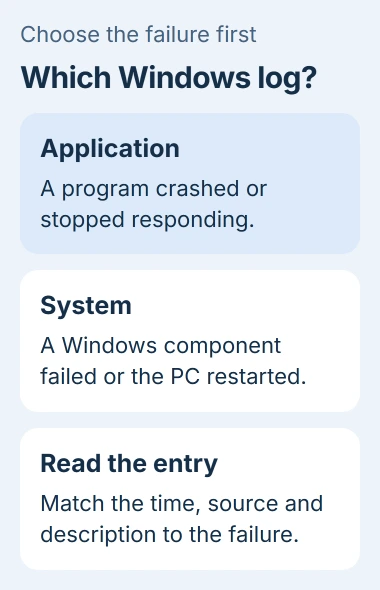
Windows 11 error logs are in Event Viewer. Use Application for a crashing program, or System for a Windows component or unexpected restart. Filter around the time the problem happened to find relevant entries.
An Error label records a failure, but it does not automatically identify the cause of the problem you noticed. Match the time, source and description before acting on it.
Which Windows log should you open?
Search Start for Event Viewer and open it. Expand Windows Logs in the left pane, then select Application or System.
Microsoft documents the Application log route. Despite that page's Windows 10 title, the Windows Logs organization also applies to Windows 11.
Status: Windows event-log documentation reviewed November 2, 2026. The PowerShell query returned records in a read-only check; no log was cleared and no Event Viewer window was opened.
Application contains entries written by programs and their supporting components. System records Windows component events, including many driver and startup problems. A particular fault can leave entries in both.
If the date is uncertain, the Reliability Monitor timeline can help narrow the day before inspecting the detailed logs.
Filter the list by time and severity
With the log selected, choose Filter Current Log in the Actions pane. Set Logged to a suitable period, such as Last 24 hours, then select Critical and Error under Event level and confirm with OK.
Microsoft's event-query guidance identifies this filter and distinguishes the event source, level and ID fields.
Double-click an entry whose timestamp matches the failure. Read General, then record its Source, Event ID, time and description. For an app crash, include any program or faulting-module filename shown.
An event ID needs its source for context. Search using both, plus the exact error text or named program. A number copied from an unrelated event can lead to the wrong repair.
If the filtered view is empty, widen the time period or include Warning and Information. Useful records are not all errors. Select Clear Filter to return to the full list; Clear Log deletes records and is unnecessary here.
Read recent errors with PowerShell
Open Windows PowerShell from Start. This command retrieves up to 20 Application events marked Critical or Error within the past seven days and displays their identifying fields.
Get-WinEvent -FilterHashtable @{
  LogName = 'Application'
  Level = 1, 2
  StartTime = (Get-Date).AddDays(-7)
} -MaxEvents 20 |
  Format-List TimeCreated, ProviderName, Id, LevelDisplayName, Message
Microsoft says Get-WinEvent reads Application and System records. Change Application to System for that log. Level 1 means Critical; level 2 means Error.
A no-matching-events response means this query found no records within those restrictions. Earlier failures or other event levels remain possible. Access denied is a separate permission issue, especially on a managed PC.
Use the event to choose the next repair
Microsoft states that Kernel-Power event 41 alone may not explain a restart. It records an improper shutdown without establishing that the power supply failed.
Look for supporting events immediately before the failure. For a repeatedly closing Store, the Store crash guide shows why the named module matters to the repair.
If the description remains unclear, give the app maker or Microsoft Support the source, ID, timestamp and full event text. Include what was happening then. Remove private account or file details before posting a log publicly.
The Short Version
Open Event Viewer, choose Application or System, and filter the relevant period. Read the event's source and description alongside its ID. Logs narrow the next check; an error count by itself is not a diagnosis.

Isaac Smith is the founder and editor of PC Glance, a website that covers computers, laptops, and technology. He is a tech enthusiast and a computer geek who loves to share his insights and help his readers make smart choices when buying tech gadgets or laptops. He is always curious and updated about the latest tech trends.