
To disable iMessage on a Mac while continuing to use it on an iPhone, sign out inside the Mac's Messages app. Open Messages > Settings > iMessage, choose Sign Out, and confirm. The change applies to Messages on that Mac.
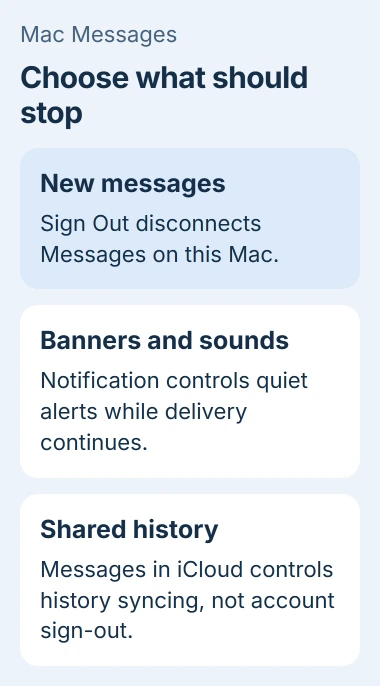
If the goal is only to stop banners or sounds, use notification settings instead. Muting the app and disconnecting its account have different effects on message delivery.
Sign out from the Messages settings
Open Messages, then use Messages > Settings in the menu bar. Select iMessage, check the account shown and click Sign Out. Confirm the request to finish disconnecting it.
Apple documents the confirmation in its Mac Messages setup guide. Older macOS versions may call the menu Preferences rather than Settings.
Status: Mac Messages sign-out, notification and deletion behavior checked against Apple guidance on November 2, 2026. No account was signed out or message removed.
Leave the iPhone's iMessage setting enabled if it should keep receiving messages. Disconnecting this app does not require an Apple Account logout across the whole Mac.
Apple says Sign Out stops messages arriving on the Mac. Closing the window or quitting Messages is not the account-disconnection control.
Open Messages again and check that it offers sign-in instead of the connected account's settings. A fresh message should still reach the intended iPhone, without newly appearing in the Mac app.
Keep delivery but remove interruptions
For alerts alone, open System Settings > Notifications, select Messages, then switch Allow notifications off. The account remains signed in; messages can still be read when the app is opened.
Apple's notification settings reference separates notification permission from an app's account settings. Use this choice when access to the conversations is still wanted.
For a temporary quiet period, use the Mac Focus and sound controls. A timed Focus avoids leaving Messages permanently disconnected after a meeting or work session.
Does turning off iCloud stop incoming messages?
The Enable Messages in iCloud checkbox controls shared message history. Disabling that checkbox alone should not be used as proof that iMessage delivery to the Mac has stopped.
If the intention is to reconnect later and restore shared history, follow the Messages in iCloud setup checks. That is separate from choosing whether notifications appear.
Treat signing out as stopping delivery, not as a method of erasing existing conversations. Review any retained local history separately when preparing a Mac for another person.
Apple states that deletions sync across devices using Messages in iCloud. Deleting chats while syncing is active can therefore remove them from the iPhone too.
Check the exact app if messages still appear
Confirm the banner belongs to Messages rather than another messaging app. Then recheck that Messages remains signed out; another sign-in reconnects the account.
For a Mac that refuses to complete Sign Out, contact Apple Support with its macOS version and the exact screen or error. Do not erase message databases to force an account change.
The Short Version
Sign out inside Mac Messages to stop delivery there while keeping iMessage on the iPhone. Disable notifications for silence without disconnecting. Shared-history settings and deleting chats have different consequences.

Isaac Smith is the founder and editor of PC Glance, a website that covers computers, laptops, and technology. He is a tech enthusiast and a computer geek who loves to share his insights and help his readers make smart choices when buying tech gadgets or laptops. He is always curious and updated about the latest tech trends.