
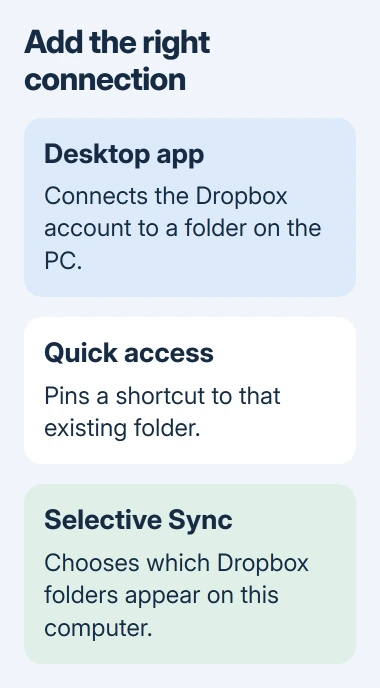
Dropbox appears in File Explorer through the Dropbox desktop app. Install it, sign into the account containing your files, and complete its sync setup. A browser bookmark for Dropbox does not create that folder connection.
If the app is already installed, find its actual folder before installing it again. The folder may have moved, or only its Quick access shortcut may be missing.
Install the desktop app and finish signing in
Download the Windows installer from Dropbox's installation page. Open the installer normally, complete its prompts and sign into Dropbox, then follow the choices for syncing this computer.
Desktop setup for Windows 10 and 11 outside S mode is documented by the vendor. If installation requests administrator credentials on a managed PC, ask the administrator to complete it.
Status: Dropbox's Windows installation, folder-location and Selective Sync controls checked November 3, 2026. No software, account or sync setting was changed on this PC.
Dropbox's desktop overview describes both the File Explorer folder and its taskbar app. Open a familiar document there to check that the intended account's files are available.
For Google's service instead, use the Drive for desktop setup. Each provider needs its own desktop connection; installing one does not add the other's files.
Open the folder from Dropbox's saved location
Click the Dropbox icon near the Windows clock, then open its round account menu. Select Preferences > Sync and locate Dropbox folder location.
Click the displayed path to copy it. Press Windows+E, paste the path into Explorer's address bar, and press Enter. The Dropbox folder-location instructions document this route.
Use that saved path instead of assuming the folder is always under a particular username. Linked work and personal accounts can also have differently named Dropbox folders.
If this opens the correct files, the folder exists and a missing sidebar shortcut can be handled separately. If the path fails, keep the exact message for Dropbox Support rather than creating an empty replacement folder with the same name.
Pin the existing folder for quick access
Navigate to the parent of the Dropbox folder in Explorer, right-click the Dropbox folder itself, and choose Pin to Quick access. Microsoft documents this folder-pinning command.
Microsoft says pinned folders appear in Quick access; on current Windows 11, they are accessible through Home and the navigation pane. The pin opens the existing Dropbox location and does not upload another copy.
For other navigation or file-opening questions, the File Explorer controls guide explains those Windows features. A working pin cannot repair a Dropbox sign-in or synchronization failure.
Bring back a cloud folder excluded by Selective Sync
If Dropbox opens but a folder is absent, first check that folder on dropbox.com using the same account. A folder present online can be excluded from this computer's view by Selective Sync.
In Dropbox, open the account menu, then Preferences > Sync. Under Selective Sync, click Modify, check the wanted folder and choose Update. Allow syncing to finish before comparing the contents.
Dropbox's Selective Sync guide distinguishes excluded folders from online-only items. Online-only items remain visible; excluded folders are kept online without appearing locally.
If the folder is absent online too, check account membership or ask its owner about access. For an app that never completes setup, send Dropbox Support the Windows version, account type and error shown during sign-in.
The Short Version
Install the desktop app to establish the Dropbox folder, use Preferences to find its real path, and pin that folder if easier access is needed. Check Selective Sync when an online folder is missing only on this computer.

Isaac Smith is the founder and editor of PC Glance, a website that covers computers, laptops, and technology. He is a tech enthusiast and a computer geek who loves to share his insights and help his readers make smart choices when buying tech gadgets or laptops. He is always curious and updated about the latest tech trends.