
The direct place to check iCloud email is icloud.com/mail. Use the mailbox owner's Apple Account to sign in, then open Inbox. This works in a browser without installing Apple's Mail app or configuring an email program.
On an iPhone, iPad or Mac, the Mail app can show the same mailbox once iCloud Mail is enabled. An Apple Account alone does not guarantee that an iCloud email address has been created.
Open the mailbox in a browser
Visit iCloud Mail and sign in. Apple documents this browser route for phones, tablets and computers. Complete account verification using the trusted device, phone number or security key offered by your account.
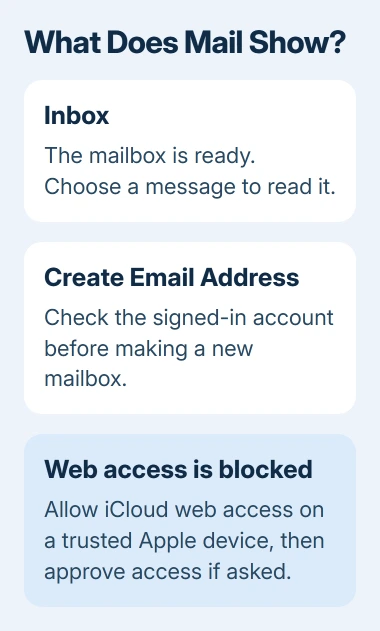
Select Inbox in the Mailboxes list, then select a message. Expand the mailbox list if the small-screen view has hidden it. Other folders, such as Sent and Junk, belong to the same mailbox.
Status: Apple's iCloud Mail and web-access instructions checked November 3, 2026. Current and older web-access setting names are distinguished in this guide.
On a shared computer, finish by selecting the account picture in iCloud.com's upper-right corner, then Sign Out. Apple lists that control in its browser sign-in guide.
Check the account when the mailbox is missing
Apple says a Create Email Address prompt at iCloud.com/mail appears when that account needs its primary iCloud Mail address set up. Before creating one, confirm that you signed in to the account that previously received your mail.
An existing inbox means an address is already configured. A Gmail address used to sign in to Apple does not move that Gmail inbox into iCloud Mail; it still belongs to Gmail.
For a new account, follow the address-creation prompts. Creating an Apple Account and creating its iCloud mailbox are related steps, but the mailbox may still need to be enabled afterward.
Changing the account's login email also differs from opening its mail. The Apple Account email-change guide explains that distinction before changing an address unnecessarily.
Enable iCloud Mail in the Apple Mail app
On iPhone or iPad, open Settings > your name > iCloud > Mail, then turn on Use on this iPhone or Use on this iPad. Open Mail, return to Mailboxes, and select the iCloud inbox.
On a Mac running macOS 13.3 or later, use System Settings > your name > iCloud > Mail or iCloud Mail, then turn on Sync this Mac. Open Mail and select the inbox within the iCloud account.
Apple's iCloud Mail setup guide supplies these device controls. Use the same account as the browser mailbox; switching the app on for another account will not show the first account's messages.
Allow browser access when iCloud blocks it
Apple states that web access can be disabled even while the device apps keep working. Advanced Data Protection turns web access off automatically, but it can be permitted separately without switching that protection off.
For iOS or iPadOS 26.4 and later, open Settings > your name > iCloud > iCloud.com > Allow Data Access. Older versions show Access iCloud Data on the Web within iCloud settings instead.
With Advanced Data Protection, a trusted device must also approve temporary access when requested. Follow that device's prompt, then return to the browser session. The separate web search permission is not required just to read mail.
When signing in still does not open mail
A verification failure needs account-access help from Apple. A browser restriction needs the trusted-device setting just described. Giving those two problems separate descriptions helps Apple Support identify which part failed.
If iCloud.com works but the Windows iCloud app cannot connect, use the Windows iCloud connection checks. That is a separate app-access problem; the browser mailbox remains usable.
The Short Version
Open icloud.com/mail with the mailbox's Apple Account, or enable iCloud Mail in the Apple Mail app. Check the account before creating a new address. For blocked web access, use the trusted device's iCloud settings and any approval prompt.

Isaac Smith is the founder and editor of PC Glance, a website that covers computers, laptops, and technology. He is a tech enthusiast and a computer geek who loves to share his insights and help his readers make smart choices when buying tech gadgets or laptops. He is always curious and updated about the latest tech trends.