
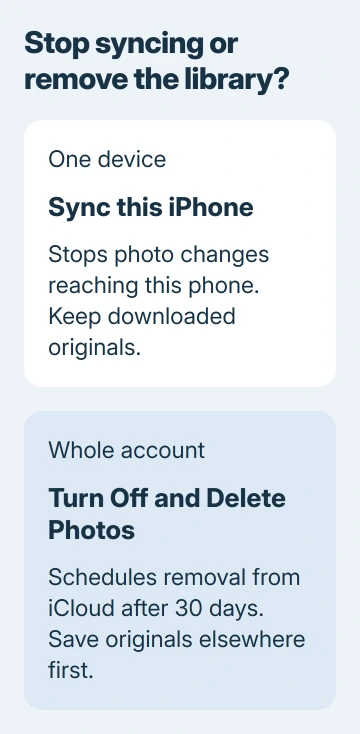
Turning off iCloud Photos for one device leaves the online library available elsewhere. On iPhone, use Sync this iPhone in the account's Photos settings. Download originals first when that phone should keep them.
The account-wide Turn Off and Delete Photos command does something different: it schedules the library's removal from iCloud. Choose the device switch when the goal is simply to disconnect a phone or Mac.
Save the pictures that should stay on the device
Apple says optimized copies can have reduced resolution. A visible thumbnail does not mean its original file is stored on the phone. Check device storage before downloading a large library.
For a separate archive, Apple documents Share > Export Unmodified Originals after selecting pictures in the iPhone Photos app. Choose a destination outside iCloud Drive in Files, such as an attached storage device, then tap Save.
Status: Apple's device-level and account-wide iCloud Photos controls checked November 3, 2026. No photo library was accessed or changed.
The destination matters because another iCloud folder is still cloud storage. Open several exported pictures and videos to check the copies before changing the original library.
On Mac, open Photos > Settings > iCloud and select Download Originals to this Mac. Allow the download to finish before disconnecting the library. The necessary time depends on its size and the connection.
Turn off syncing on an iPhone, iPad or Mac
On iPhone or iPad, return to Settings > your name > iCloud > Photos. Disable the device's Sync switch, labeled Sync this iPhone on a phone. If offered, choose Download Photos & Videos to retain copies locally.
Remove from iPhone removes the device's copies instead. It is the wrong choice when the intention is to keep those pictures on the phone. Apple's switch-off instructions explain both prompts.
On Mac, use System Settings > your name > iCloud > Photos, then turn off Sync this Mac. Choose Download if prompted to keep copies. The removal option may say Delete from Mac or Remove from Mac.
Afterward, new photos, edits and deletions no longer synchronize with that device. The change does not erase the online library. Open iCloud Photos in a browser to check what remains in the account.
Only use account deletion when leaving the service
Apple states that disabling iCloud Photos for the account starts a 30-day period before its stored photos and videos are deleted. This is not required to stop one device syncing.
If the cloud library must also go, keep verified originals elsewhere first, then follow Apple's account-deletion instructions linked earlier. Apple requires Shared Library owners to delete that shared library before proceeding.
During the waiting period, Undo Delete on iPhone can cancel the scheduled removal. For pictures already deleted through Photos itself, use the iCloud photo recovery checks.
If originals will not download, preserve the cloud copy and give Apple Support the storage or sync message. Resolve the download problem before removing the copy that still holds the pictures.
The Short Version
Finish downloading the originals, then disable the device's Sync switch. Keep local copies when prompted. Account-wide deletion is a separate decision with a 30-day removal period.

Isaac Smith is the founder and editor of PC Glance, a website that covers computers, laptops, and technology. He is a tech enthusiast and a computer geek who loves to share his insights and help his readers make smart choices when buying tech gadgets or laptops. He is always curious and updated about the latest tech trends.