
AirPods can be renamed while connected to an iPhone, iPad or Mac. Open their settings, select the current name and replace it. Apple carries the new label across the devices linked to that Apple Account.
A name change does not require resetting the earbuds. Keep them connected during the edit so the device can reach their controls.
Change the name from an iPhone or iPad
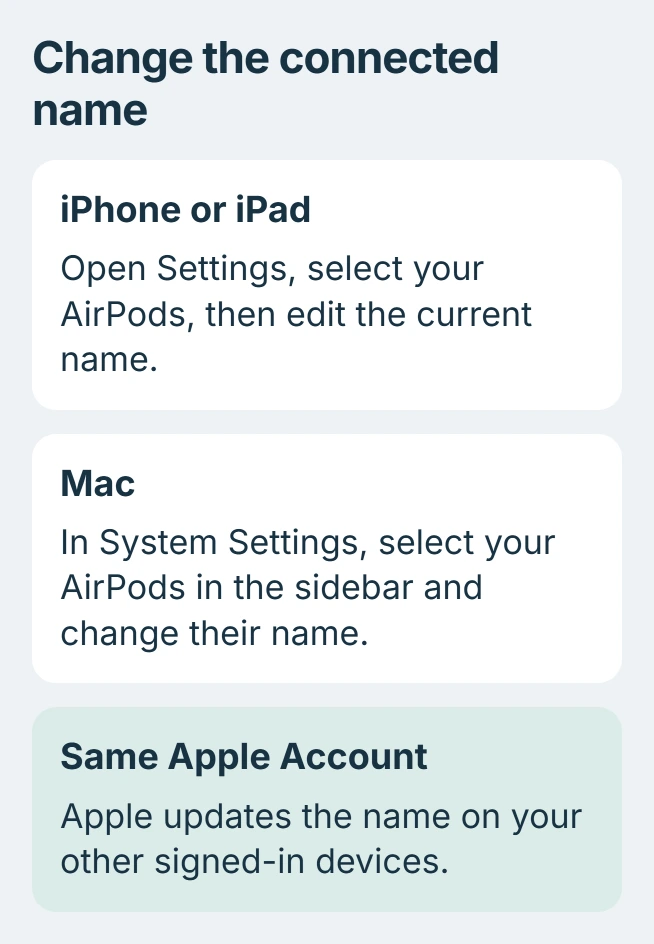
Wear the AirPods and check that they are connected. Open Settings and tap the AirPods entry near the top. Select the current name, type the replacement and tap Done.
Apple documents these controls in the AirPods naming guide. They change the label for the AirPods set, so use a name that helps distinguish it from other nearby pairs.
Status: Apple's AirPods naming controls checked November 3, 2026. The instructions cover connected AirPods on iPhone, iPad and Mac; no earbuds were paired or renamed here.
If the AirPods entry is absent from the main Settings screen, open Settings > Bluetooth. Find the pair and connect it if needed. Open More Info for that pair, choose Name, then replace the label and tap Done.
Apple documents the Bluetooth alternative in its AirPods settings instructions. Check the device list afterward: the new label should identify the same connected pair.
Keep phone numbers and personal contact information out of the label. A second household pair is easier to distinguish with a short nickname than with identical default names.
Rename connected AirPods on a Mac
With the AirPods connected, open the Apple menu > System Settings. Select the AirPods in the sidebar, click their name and enter the replacement.
Apple says the label is carried across your Apple devices when they share an account. Check the iPhone's device list after editing on the Mac instead of immediately repeating the change there.
The Bluetooth controls provide another route. In System Settings > Bluetooth, locate the connected AirPods, open More Info, then edit Name. Apple's Bluetooth guide documents that route for macOS Ventura 13 and later.
For an older Mac using System Preferences > Bluetooth, Control-click the connected pair and choose Rename. The wording differs because these macOS versions use System Preferences.
For PC listening, the AirPods Windows pairing guide covers the connection and its feature limits. Apple's account-sync statement does not describe Windows behavior.
Check the connection when the name control is missing
Open Bluetooth settings and confirm the pair is shown as Connected. Apple states that an active connection is required in its Bluetooth accessory naming guidance; a remembered entry alone is not enough.
For AirPods with a charging case, open the case and select their current name in the Bluetooth list to connect, then return to their information screen. Retry the name edit once the connection is established.
Persistent connection trouble may need the AirPods restart and reset steps. Start with the lighter connection checks there; resetting removes pairing information and settings as well as the name.
If the pair stays connected but the name cannot be changed or will not persist, contact Apple Support with the AirPods model and the device's software version. Report whether the edit fails immediately or disappears after reconnecting.
The Short Version
Connect the AirPods, open their device settings and edit the current name. iPhone and iPad also offer the control through Bluetooth's More Info screen. Other Apple devices receive the updated label through your account.

Isaac Smith is the founder and editor of PC Glance, a website that covers computers, laptops, and technology. He is a tech enthusiast and a computer geek who loves to share his insights and help his readers make smart choices when buying tech gadgets or laptops. He is always curious and updated about the latest tech trends.