

Deleting bookmarks in Chrome removes saved website links from the selected bookmark collection. On a computer, open Bookmark Manager, find the unwanted entry and choose Delete from that entry's menu.
Check the Chrome profile and keep a backup before a large cleanup. Bookmarks saved to a Google Account are shared across signed-in devices, so clearing a collection should not be treated as tidying only one computer.
Find the right bookmark before removing it
Open Chrome's three-dot More menu and choose Bookmarks and lists > Bookmark Manager. Open the folder containing the unwanted link and check its name and address before choosing an action.
Google's steps place the Delete command in the menu beside that bookmark. Its computer bookmark guide also gives a separate deletion route through Show all bookmarks.
Status: Chrome bookmark removal checked November 3, 2026, across computer, Android and iPhone guidance. The iPhone Undo prompt is documented separately. No collection was changed.
For a collection that must be recoverable, export the Chrome bookmarks first. Inspect the exported HTML to make sure the wanted addresses are present before deleting anything in Chrome.
Select the unwanted entry's More menu, then Delete. Check that the intended entry disappears while nearby links remain. Several bookmarks can share a title, so the website address helps distinguish them.
Remove a folder through the bookmarks panel
Choose More > Bookmarks and lists > Show all bookmarks. In that panel, point at the unwanted folder or link, open its More menu and choose Delete.
Inspect a folder's contents first. Deleting the folder also removes the saved links inside it, so move any links that should survive into a different folder before removing the container.
Google says to treat desktop bookmark deletion as unrecoverable. Do not depend on a future recovery button instead of checking the selection and keeping an export.
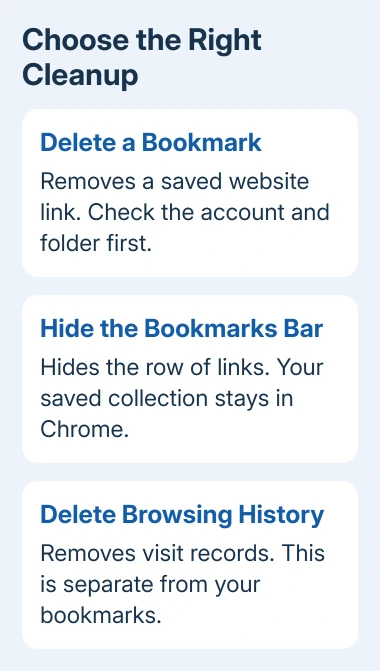
If the purpose is simply a less crowded window, hide Chrome's bookmarks bar instead. That changes visibility without deleting the saved collection.
Delete a bookmark on an Android phone
In Chrome, open More > Bookmarks and find the folder holding the link. Tap More beside the bookmark, then Delete. Return to that folder to confirm the entry is gone.
The Android bookmark instructions use this per-entry menu. Keep this route separate from Android's app-storage controls, which perform a different kind of cleanup.
Remove one or several on iPhone or iPad
Open Chrome, tap More > Bookmarks, then open the relevant folder. For one bookmark, swipe left across its row and choose Delete.
For several, tap Select at the bottom, mark the intended bookmarks, then tap Delete. Review the selection before confirming the removal.
Google states in its iPhone bookmark guide that an Undo prompt appears after an accidental deletion. Use that prompt immediately; otherwise the documented return method is adding the bookmark again.
Check the account when the result is unexpected
Chrome can store bookmarks in a Google Account or only on a device. Google's saved-information guidance explains that account-saved bookmarks are available on other devices using that account.
If an unwanted link remains, confirm the profile and folder before deleting more. Another copy in a different folder is a separate bookmark. A site appearing in history is also separate from a saved bookmark.
For a managed collection that cannot be edited, ask the organization administering Chrome. For a personal collection that will not retain changes, report the Chrome version, profile type and affected folder to Chrome Help.
The Short Version
Delete the intended bookmark from its own menu, or remove a reviewed folder from the bookmarks panel. Check the account and preserve an export for a large cleanup. Hiding the bar and clearing visit history do different jobs.

Isaac Smith is the founder and editor of PC Glance, a website that covers computers, laptops, and technology. He is a tech enthusiast and a computer geek who loves to share his insights and help his readers make smart choices when buying tech gadgets or laptops. He is always curious and updated about the latest tech trends.