Edge lets you delete several favorites at once and keep the rest. Open edge://favorites, select the unwanted entries and delete that group. The full Favorites page makes a large cleanup easier than the small menu.
The full page matters when clicking a favorite only opens its website or makes the menu disappear. There you can select several entries, including links inside your saved folders, before deleting them.
In this guide
Open the full list, then save a backup
Type edge://favorites into Edge's address field and press Enter. A browser tab should show the favorites manager with folders and their saved links. This is different from the slim panel opened by the toolbar's favorites button.
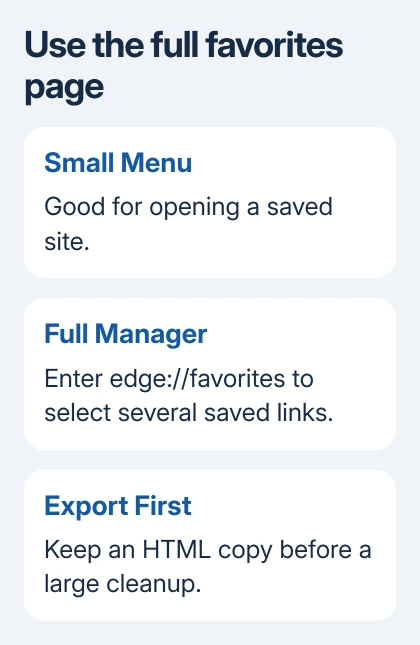
The menu route is Settings and more > Favorites, then More options > Open favorites page. Use the direct address if you can't find that command in your version. You won't have to reopen the panel after every deletion.
Before a large cleanup, use the favorites menu's More options > Export favorites command. Give the HTML backup a recognizable name and save it outside the browser. You'll have a copy of the saved links as they were before the cleanup.
Microsoft explains the favorite export controls as a way to keep a separate copy. This file holds website bookmarks, so don't treat it as a backup of passwords or the pages' actual contents.
Check which Edge profile is active before you continue. Personal and work profiles can hold different lists. Seeing an unfamiliar set of links can mean you're cleaning the wrong profile, rather than that your usual favorites were deleted.
I'd export first even when the cleanup looks obvious. A group selection is much faster than removing links individually, but that also makes it easier to include a folder you intended to keep.
Mark only the favorites you want removed
Choose the folder for this cleanup, such as Favorites bar or a folder you created yourself. Stay in the full manager tab. Move over a saved entry and use its selection checkbox when your layout shows one.
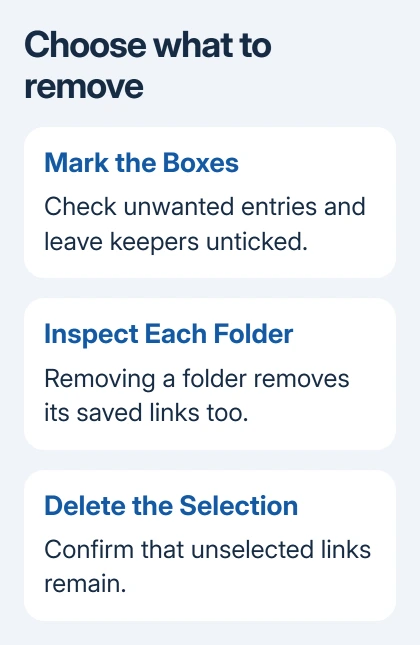
Tick each unwanted link while leaving the useful ones unselected. Review the selected rows before deleting them. Clicking the website's name normally opens it; use the selection control when your goal is to mark it for removal.
Tick scattered entries where they already sit in the folder. You don't need to move them together, and useful links can stay between them. Delete removes the entries you've checked.
If the manager doesn't show its selection controls, make sure the active tab's address is edge://favorites. A small Favorites popup over another website is still the menu, even if it contains the same folder names.
One owner on the bulk-favorites discussion confirmed that edge://favorites opened the page with selection boxes and let them perform multiple deletions.
In earlier replies, owners using the small Favorites menu said clicks opened websites instead of selecting entries. That isn't a reason to clear everything or reset Edge; change to the full page.
Review folders before deleting a group
Read the marked entries, including any folders, before choosing Delete. Deleting a checked folder also removes the links inside it. Open an uncertain folder to inspect its contents before selecting it.
Work through one folder at a time. That makes it easier to review your selection and check what's left as you go. Even a large cleanup doesn't need one enormous selection across every folder.
Ctrl-click and Shift-click failed for another owner. If shortcuts open websites or don't mark entries, use the manager's checkboxes. The confirmed working method used the full page with those boxes.
Delete the selection and check the remaining links
Use Delete for the selected entries. Their rows should disappear while the unselected links remain. Open another folder and return to check the result before you start the next group.
This removes the bookmarks from Edge; it doesn't delete accounts or information stored on the websites. If you also want to close an account, you'll need to do that on the website itself.
When Favorites sync is enabled for this profile, changes can travel to your other signed-in devices. Check your selection on this computer carefully, since those deletions may reach your phone too.
If you meant to tidy Chrome instead, follow its bookmark deletion controls. Chrome and Edge keep separate browser profiles even when you've saved many of the same addresses in both.
For Safari or Chrome on Mac, the bookmark removal guide covers those apps. Use Edge's full manager for the Windows cleanup described here.
Recover from a mistaken cleanup using the saved copy
If Edge immediately offers Undo, use it before doing more cleanup. Otherwise, use Import browser data under Settings > Profiles. Import the exported file as a Favorites or bookmarks HTML file.
Import your pre-cleanup backup and inspect its folder. This adds links rather than restoring the exact earlier browser state. Move the needed links to their proper folders and check for duplicates.
If the manager won't let you select entries even in its full tab, update through edge://settings/help and reopen it. For a managed list you can't edit, ask IT whether those favorites are controlled by policy.
For a persistent personal-profile problem, send a report through Help and feedback. Include the version and exact fault: missing boxes, clicks opening sites, or Delete failing. Those details help explain exactly which part isn't working.
The Short Version
Use edge://favorites for bulk selection. Export first, mark the unwanted links and delete the checked entries. Check folders and synced devices; your HTML backup can recover mistakenly removed links.
Checked November 22, 2026.
 If you have any business, I can build it online