
Undo in iPhone Notes reverses a recent change while the note is still open. Tap the Undo control at the top of the note after accidentally deleting text, typing over a sentence or making an unwanted edit.
Act before closing the note. Undo is an editing tool, so a whole note missing from the folder list needs a different recovery route.
Reverse the latest change in the open note
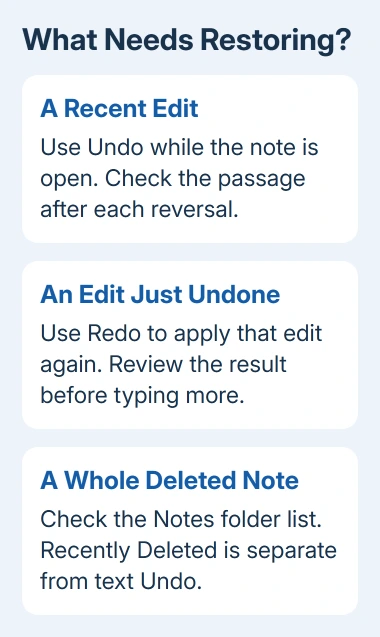
Stop typing when the mistake occurs and leave the affected note open. Tap Undo at the top, then read the changed passage to confirm which action was reversed.
Apple says the button can undo changes made while the current note is open in its Notes instructions. This describes the current editing session, with no promise of a permanent revision archive.
Status: Notes Undo, text-edit gestures and Shake to Undo controls checked against Apple guidance November 3, 2026. No iPhone note was edited or recovered here.
If the first Undo reverses a later keystroke instead of the mistake, inspect the text before trying another. Stop when the intended wording returns, so useful edits made earlier are preserved.
For a note edited by several people, review who shares the note. Do not assume that your current editing history is a complete record of another person's changes.
Use the three-finger gesture for text edits
Swipe left using three fingers in the note to access Undo. If an editing control or confirmation appears, choose Undo. Check the text afterward instead of repeating the gesture without looking.
Apple documents the leftward gesture in its iPhone text-editing guide. A swipe across a row in the Notes folder list is a different action, so work inside the note's text.
To reverse that undo, swipe right with three fingers and choose Redo when offered. Redo reapplies the edit just undone; it is useful when Undo removed a change that should have stayed.
Neither gesture is a way to search old backups. If there is no available editing action, moving between the two gestures will not reconstruct text from a closed note.
Stop accidental Shake to Undo prompts
Shaking the iPhone can bring up an undo prompt when Shake to Undo is enabled. This can be inconvenient if the phone moves frequently while typing.
Apple states that the setting is under Settings > Accessibility > Touch > Shake to Undo in its touch-response guide. Turn it off if accidental shaking triggers the prompt.
That switch controls the shake action. The same Apple page still offers the three-finger left swipe for undoing text, so disabling shaking does not mean giving up the text-edit gesture.
Missing text and a deleted note are different cases
If the note remains but a passage disappeared, try the available Undo while the note is open. Recently Deleted stores deleted notes, not an earlier version of each paragraph inside a surviving note.
For an entire missing note, use the Notes folder and recovery checks. A missing account heading, a note in Recently Deleted and an overwritten passage require different actions.
Avoid erasing the iPhone or removing the Notes account merely to restore an unavailable Undo control. First identify whether the missing material is a whole note or text inside one that still exists.
If a control is unavailable, give Apple Support the iOS release, note account and whether editing ended before Undo was tried. Preserve the remaining text before attempting a broader recovery procedure.
The Short Version
Use Undo promptly inside the open note and inspect each change. The three-finger gestures provide Undo and Redo for text. Shake to Undo is optional; a deleted whole note belongs in the folder-recovery checks.

Isaac Smith is the founder and editor of PC Glance, a website that covers computers, laptops, and technology. He is a tech enthusiast and a computer geek who loves to share his insights and help his readers make smart choices when buying tech gadgets or laptops. He is always curious and updated about the latest tech trends.