
The iPhone's hardware MAC address appears as Wi-Fi Address in Settings > General > About. A router may see a different address because the iPhone normally uses a private address for each Wi-Fi network.
For a network registration form, check which address that network actually uses before submitting the value from About. This avoids registering an identifier the router never sees.
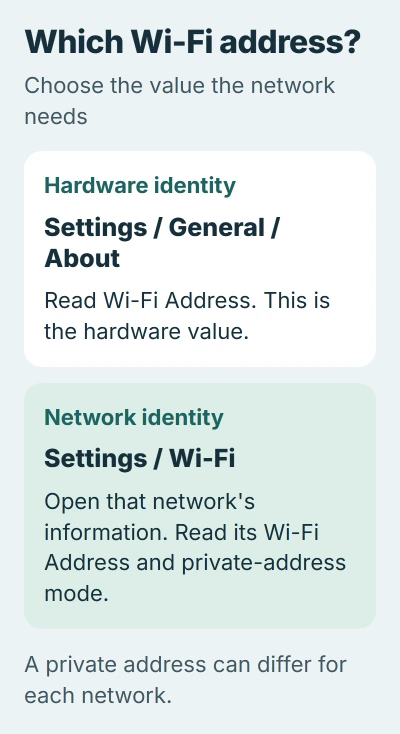
Read the hardware address in About
Open Settings, choose General, then About. Scroll to Wi-Fi Address and read its complete value. Use the Wi-Fi entry, rather than the nearby Bluetooth address or cellular identifiers.
Apple documents Wi-Fi and Bluetooth addresses in its iPhone information guide. Touch and hold an identifier to copy it when Copy appears, then check the pasted value against the original.
Status: Apple's iPhone identifier and private Wi-Fi address documentation checked November 3, 2026. Hardware identity is distinguished from the address used on a particular network.
A MAC address identifies a network interface. An IP address describes its network connection, and an IMEI identifies cellular equipment. A form asking for Wi-Fi MAC should not receive either of those instead.
For a carrier request, the iPhone IMEI instructions cover the different identifier. Check the form's label before sharing any device information.
Check the address used on the chosen Wi-Fi network
Return to Settings > Wi-Fi and open the information control for the intended network. Locate its Wi-Fi Address and check the Private Wi-Fi Address setting on that network's details screen.
For a remembered network that is not currently connected, Apple says to tap Edit in the Wi-Fi list first. Choose the intended network's information control, rather than reading details for another saved network.
Apple's private-address documentation explains why the values differ: a private address belongs to that network, while Off makes the device use its hardware MAC address.
Record the network name beside the copied address when sending it to an administrator. An address read from home Wi-Fi may be different from the one the same phone uses at work.
Match a registration request without changing privacy blindly
On iOS 18 or later, the setting offers Off, Fixed and Rotating. Fixed uses a private address without periodic rotation; Rotating replaces its private address every two weeks.
Apple states that Fixed is selected by default for a new network using WPA2 or stronger security. Weakly secured or open networks default to Rotating. The choice therefore depends on the network, not merely the iPhone model.
For an allow-list or device registration, give the administrator the address used on their network and mention the selected mode. Ask which configuration their registration system supports before changing it.
Leave private addressing enabled where it works. If the network needs a stable private address, its administrator can confirm whether Fixed meets that requirement. Turning privacy off is not necessary just to read an address.
An accompanying Wi-Fi privacy warning has its own checks. Copying an identifier will not clear a warning about the network's security settings.
Recheck after a reset or a change of network
Resetting network settings or erasing the iPhone can cause a new private address to be used. Forgetting a network can also replace its remembered address under Apple's documented timing rules.
If registration stops working after such a change, compare the network's current Wi-Fi Address with its registered entry. Ask the network administrator to correct the entry when they differ.
If the address matches but access still fails, give the administrator the network name and exact connection error. A matching MAC entry does not prove that the password, account or network service is working.
The Short Version
Read About for the hardware Wi-Fi address. Read the chosen Wi-Fi network's details for its active identity, which may be private. Use the identifier the registration system needs and recheck it after relevant network changes.

Isaac Smith is the founder and editor of PC Glance, a website that covers computers, laptops, and technology. He is a tech enthusiast and a computer geek who loves to share his insights and help his readers make smart choices when buying tech gadgets or laptops. He is always curious and updated about the latest tech trends.