
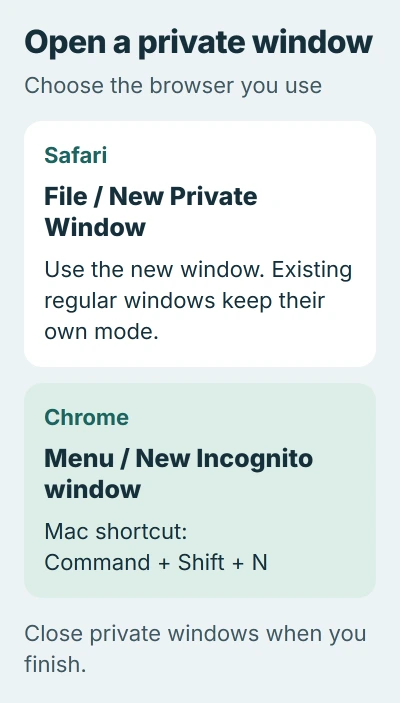
Going incognito on a Mac means opening a private browser window. In Safari, choose File > New Private Window. In Chrome, open the three-dot menu and choose New Incognito window; the Mac shortcut is Command + Shift + N.
The new window has a separate browsing session. Existing regular windows remain regular, so open the intended website inside the private window before signing in or searching.
Open Safari's private window from the File menu
Select Safari so the Mac's menu bar shows its commands. Choose File, then New Private Window. Apple describes a dark search field with white text as the private window's visual indicator.
Apple documents the window command in its Mac Private Browsing guide. Check which window receives your typing; opening a private window does not change another window's mode.
Status: Safari and Chrome private-window instructions checked November 3, 2026. This guide distinguishes local browsing history from website and network visibility.
To return to ordinary Safari browsing, choose File > New Window or select an existing regular window. Close the private windows when their pages should no longer remain available.
Start an Incognito session in Chrome
Open Chrome, select its three-dot menu at the upper right, and choose New Incognito window. Look for the Incognito indicator beside the address bar in the new window.
Google's Mac shortcut list gives Command + Shift + N for the same action. Use Command on a Mac; Ctrl is the corresponding modifier in Windows instructions.
Type the site's address in this new window. A service may ask for a fresh sign-in because the session starts separately from your ordinary Chrome windows.
Google says to close every Incognito window to end the session in its Incognito guide. Closing one tab is insufficient when another Incognito window remains open.
Understand what the private window keeps
Private browsing limits the history and website data saved locally. It does not make activity invisible to a website, an employer or school managing the network, or the internet provider.
Files downloaded during private browsing stay in their destination folder. Chrome also keeps bookmarks saved during an Incognito session. Inspect those items separately when the aim is to leave no local copy of downloaded material.
Signing into a website still identifies the account to that service. The word private describes the browser's handling of the session; the website can still associate activity with the account used there.
Earlier normal visits also remain in history. To remove those records, use the Safari history-clearing controls. Opening a private window cannot remove an earlier session's history.
Set Safari to start privately, or unlock a private window
For private startup, open Safari > Settings > General and set Safari opens with to A new private window. This controls Safari's opening behavior rather than converting every window already open.
If that choice is absent, check System Settings > Desktop & Dock > Close windows when quitting an application. Apple's guide says that setting must be enabled for the startup choice to appear.
Safari can lock private windows when inactive. Apple states that Locked Private Browsing requires Safari 17 or later on macOS Monterey 12 or later.
Use Touch ID or the Mac login password when the private window requests it. The lock protects an existing session; unlocking it does not switch the window back to regular browsing.
For the corresponding phone controls, the iPhone private-tab guide explains how its tab groups differ from Mac windows.
If the expected command remains unavailable, record the browser and macOS versions and contact Apple or Chrome support. On a managed Mac, ask the administrator whether private browsing is restricted before changing other settings.
The Short Version
Use Safari's File menu or Chrome's Incognito command, then browse inside the new window. Close private windows when finished, check downloaded files separately and remember that websites and network operators can still observe activity.

Isaac Smith is the founder and editor of PC Glance, a website that covers computers, laptops, and technology. He is a tech enthusiast and a computer geek who loves to share his insights and help his readers make smart choices when buying tech gadgets or laptops. He is always curious and updated about the latest tech trends.