
Adding music to a video on iPhone is straightforward in an iMovie Movie project: import the recording, choose Add Media > Audio > Soundtracks, and add a track. Preview the mix, then save the finished video to Photos.
Use the soundtrack collection for a quick starting point. A song visible in the Music app is not automatically available for editing, because protected audio cannot be used in iMovie.
Put the recording into a Movie project
Open Apple's iMovie app. From its Projects browser, choose Start New Project > Movie. Browse Media > Video, select the recording, and tap Create Movie.
The clip should now appear in the timeline. These instructions use a standard Movie project; Magic Movie and Storyboard projects organize their music controls differently.
Status: iMovie music, clip volume and video export checked November 3, 2026. Apple documents both Share Video and Save or Share Video labels. No media was edited here.
If the recording needs cropping or a trim first, the iPhone video editing controls cover those changes. Finish choosing the wanted footage before judging how the music fits it.
Add an included soundtrack
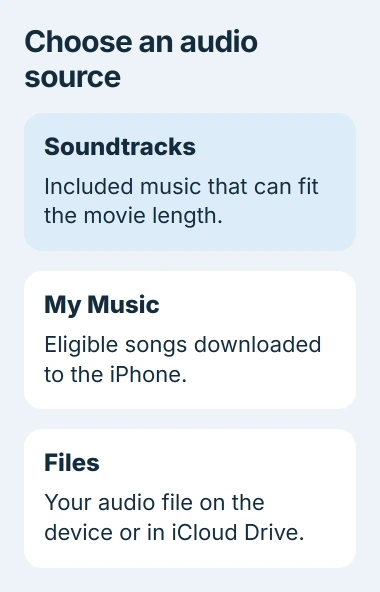
Tap Add Media, the plus button, then Audio > Soundtracks. Tap a track to preview it. A download symbol means its audio needs to be downloaded before it can be used.
Select the track, then tap Add Audio. Apple says its included soundtracks adjust to the movie's duration in the iMovie music guide.
Play the timeline from the beginning. Confirm that the chosen music is present before changing volume or trying to export. An item being previewed in the music browser has not necessarily been added to the project yet.
Use an eligible song or your own audio file
For downloaded library music, choose Add Media > Audio > My Music. Browse to the song, preview it, then use Add Audio. If it is dimmed, check whether the song has actually downloaded to the phone.
Apple states in its audio-import instructions that protected files cannot be used. Downloading protected subscription music does not remove that restriction; use an included soundtrack or eligible audio instead.
For a recording or music file stored in Files, choose Add Media > Files, locate it, and tap it to add it. Apple's supported examples include MP3, M4A and WAV files.
The iMovie guide also describes Audio > iCloud Drive in its audio list. Use the Files route when that category is absent in the installed version.
Our suggestion for a personal project is to use your own recording or music supplied for that use. Purchasing a song does not by itself settle permission to include it in a video being distributed.
Balance the music with speech
Tap the music clip in the timeline, choose Audio, and move its volume slider. Play a section with speech while adjusting it. Keep the spoken words understandable if they carry the point of the video.
For music without the original recording's sound, select the video clip instead, open Audio, and tap Mute. The clip gains a mute indicator. Selecting the music clip would mute the added track instead.
Apple documents automatic background-volume reduction during a video's sound in its audio adjustment guide. This is called ducking; it is not applied when that video's sound is off.
For a gentler musical ending, select the audio clip, choose Audio > Fade, and adjust its fade handle. Preview the ending to hear whether the track fades where intended.
After any video speed change, listen again to the edited section. A pace that suits the picture may no longer suit its speech or musical timing.
Save the finished video and play that copy
Tap Done, open the project's Share control, then choose Share Video or Save or Share Video, depending on the version. Select Options to review the offered resolution and other output settings.
Return from Options and choose Save Video for Photos. Save to Files saves a video file at a selected location instead. Apple's video-sharing guide documents both destinations.
Open the exported copy and listen to its beginning, speech and ending. Keep the project until that result is checked; the saved video is the item another person will play.
If music works in the preview but not the exported file, report the iMovie version, chosen audio source and output destination to Apple Support. A missing protected song needs eligible replacement audio, rather than repeated exports.
The Short Version
Create a Movie project, add a soundtrack or eligible audio, then balance it against the video's sound. Export through the video-sharing command and check the saved copy in Photos or Files.

Isaac Smith is the founder and editor of PC Glance, a website that covers computers, laptops, and technology. He is a tech enthusiast and a computer geek who loves to share his insights and help his readers make smart choices when buying tech gadgets or laptops. He is always curious and updated about the latest tech trends.