
Paragraph symbols in classic Outlook are editing aids that can be hidden with Show/Hide on the Format Text tab. On a US keyboard, Ctrl+Shift+8 toggles them too. Hiding the symbols preserves the paragraph breaks and spaces in the message.
If some marks remain, check the individual display options in Outlook's editor. Those preferences explain why the main toggle can appear to leave part of the formatting display unchanged.
Hide the marks from the message window
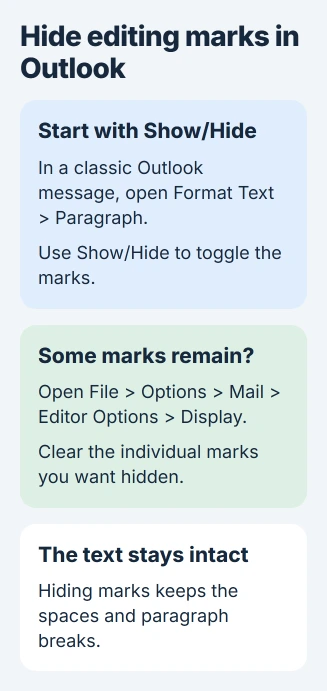
Open a new email in classic Outlook for Windows, then click inside its message body. Select Format Text and look in the Paragraph group for the button shaped like a paragraph mark.
Pointing at it displays the Show/Hide label. Click once and inspect the message. Microsoft documents this button in its formatting-mark instructions.
Status: Classic Outlook formatting-mark controls reviewed November 3, 2026. Microsoft's page covers Microsoft 365, Outlook 2024 and Outlook 2021; these are Windows desktop instructions.
Microsoft specifies Ctrl+Shift+* using the asterisk on the 8 key. On a US layout, that is Ctrl+Shift+8. Use the ribbon button if the keyboard layout places the asterisk elsewhere.
The change remains in effect for later messages, replies and forwards. There is no need to select the whole email before toggling this display preference.
Clear the individual display choices if marks remain
From a new message, open File > Options > Mail. Under Compose messages, select Editor Options, then Display.
Clear the checkboxes for marks that should no longer remain visible, including paragraph marks when that is the unwanted symbol. Confirm the options dialogs and return to the draft to check the result.
This affects the editor's display preferences. Microsoft states that these choices also persist in other editable Outlook items, including appointment and meeting bodies.
Keep the message text intact
Dots between words represent spaces, and paragraph marks identify paragraph endings. Microsoft says these editing marks do not appear on a printed message. Hiding them leaves the text's layout in place.
Deleting a paragraph ending is a different edit. It can join text that belongs in separate paragraphs, so avoid using Backspace to remove every displayed mark.
Microsoft's advanced editing options explain how paragraph marks participate in selecting and moving paragraphs. They are useful when diagnosing layout, even when hidden during ordinary writing.
If the actual letter size or typeface is wrong, change the Outlook composing font. The marks toggle does not change that formatting.
For extra spacing confined to the closing block, inspect the saved Outlook signature. Hiding marks can make the draft easier to read, but it will not repair unwanted blank paragraphs.
When the documented tabs are missing
These controls belong to classic Outlook's message editor. A window without its File and Format Text controls needs instructions for that Outlook edition; do not search the browser or phone app for the same Options dialog.
For symbols that persist after both checks, report the Outlook version and whether a fresh draft has the same behavior. Microsoft Support or workplace IT can examine that distinction without needing private email contents.
The Short Version
Use Show/Hide in classic Outlook's message window, then inspect Editor Options and Display if individual marks remain. Keep paragraph endings in the text unless the spacing itself needs an edit.

Isaac Smith is the founder and editor of PC Glance, a website that covers computers, laptops, and technology. He is a tech enthusiast and a computer geek who loves to share his insights and help his readers make smart choices when buying tech gadgets or laptops. He is always curious and updated about the latest tech trends.