
The Clear Cache extension for Chrome removes selected data from the toolbar. Check its publisher, Little Void LLC, then configure the removal categories before clearing anything. Cache, cookies and passwords have independent selections.
For occasional cleanup, Chrome already has a browsing-data dialog. The extension is useful when repeated clearing or a saved configuration is part of the work, but its toolbar action should never be treated as cache-only without checking.
Identify the extension before installing
Open the Clear Cache listing and check its publisher. The saved listing identifies Little Void LLC and version 2.5.1-build.1; similarly named extensions are separate products.
Google says in its extension installation guide to select Add to Chrome, review the requested access, then choose Add extension only when acceptable.
Status: Clear Cache's current store listing and publisher screenshots checked November 3, 2026. Configuration guidance only; the extension was not installed or benchmarked.
This is a desktop Chrome extension. Google states that Add to Desktop on a phone prepares installation for computer Chrome; it does not add the toolbar tool to mobile Chrome.
An organization may block installation. Ask its administrator about the required task instead of trying to sideload a copy around that restriction.
Choose the data and time range before clearing
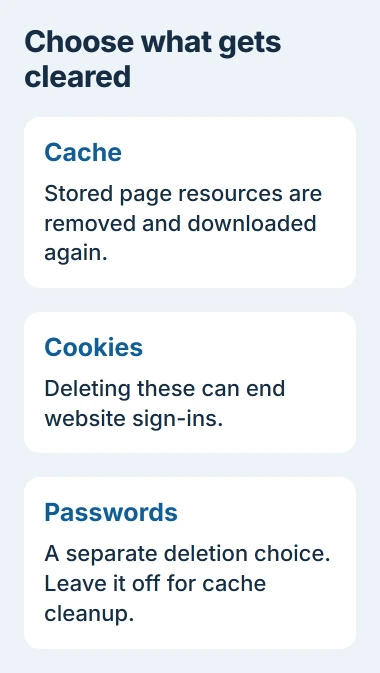
Open the extension's options from its toolbar icon's context menu. In Data to Remove, select Cache for ordinary cached page resources, and review every other checked category.
The publisher's screenshots show Cookies, Local Storage, History and Passwords as separate choices. Leave those unselected when they are outside the intended cleanup. Cache Storage is also a separate category from Cache.
Choose the Time range deliberately. The screenshot's Everything choice covers the full available period for the selected types; a short period can leave older stored data in place.
Review Active Tab Only and Auto Reload under Behavior. Decide whether the action should target the current tab's site and whether it should refresh afterward. Save any unfinished web form before a reload.
Use the confirmation preview, when shown, to check the planned removal. Then clear once and revisit the affected page. The useful result is corrected content or formatting, not simply a completion message.
Keep sign-ins and paid features separate
Deleting cookies can sign websites out; cookie removal has separate consequences. A cache refresh does not require selecting every browser-data type.
The listing describes ordinary use as free and reserves custom presets, per-type domain controls and scheduling for Clear Cache Plus. Do not start a subscription merely to perform a manual cache clear.
Its marketing claims are not an independent privacy audit. Read the current store disclosure and requested permissions before granting access, especially on a browser used for work accounts.
Use Chrome's own dialog when an extension is unnecessary
Select Chrome's three-dot menu, then Delete browsing data. Choose the time range and Cached images and files, leaving unrelated categories unselected. Confirm with Delete data.
For loading and formatting problems, cache removal is one option documented by Google. The Chromebook cache procedure explains the ChromeOS dialog too.
If only the extension fails, contact its publisher with the selected types, time range and error. If both methods finish but the webpage stays broken, report that result to its operator before deleting more data.
The Short Version
Check the publisher, inspect Data to Remove and choose the intended time and site scope. Keep cookies and credentials outside a cache-only clear. Chrome's built-in dialog remains available without installing an extension.

Isaac Smith is the founder and editor of PC Glance, a website that covers computers, laptops, and technology. He is a tech enthusiast and a computer geek who loves to share his insights and help his readers make smart choices when buying tech gadgets or laptops. He is always curious and updated about the latest tech trends.