
Repeated USB connector connected/disconnected notifications on Samsung can come from moisture, dirt in the port, or USB software. Unplug the cable and check the port first; if it's dry and clear, reset the USBSettings app.
Start by checking whether the alert appears with an empty port. A faulty charging cable can explain repeated alerts while charging, but it can't explain a phone reporting connections to an empty socket.
1. Unplug accessories and check what the phone reports
Unplug the charger, computer cable, USB adapter, and wired headphones. Leave the phone on its Home screen and watch for the notification again. Note whether it alternates between connected and disconnected or shows a water-drop warning.
Samsung says false USB notifications can appear even when no external device is attached. Its USB connection troubleshooting covers this fault.
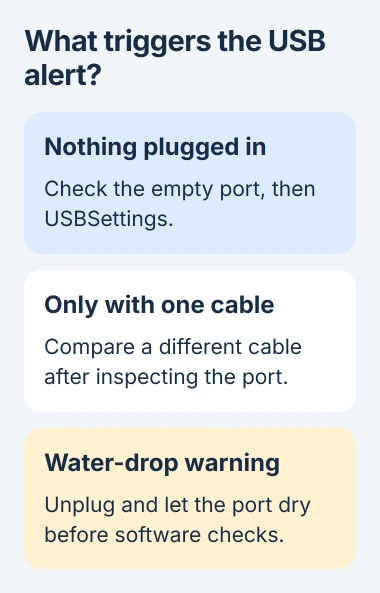
Status: checked November 3, 2026. Samsung lists port checks, a USBSettings reset, and safe mode for false USB alerts. A wet port needs drying before software checks.
If the messages stop with the cable removed, try a different compatible cable after inspecting the port. Keep the charger and outlet the same for that comparison. If the alerts return only with one cable, replace that cable.
If your phone also won't charge with several cables, the Android charging checks cover that problem. Continue with these steps if the alerts appear with nothing plugged in.
2. Deal with moisture or visible port damage first
Turn the phone off and look into its USB port under good light. Check for lint, moisture, corrosion, or a bent part. Don't force a tool into the opening to clear something you can't easily reach.
A water-drop icon means your phone has stopped charging to protect the port. Samsung advises unplugging the charger, wiping the outside with a dry cloth, and leaving the phone somewhere with good airflow.
Humidity can trigger the warning even without a spill. A phone coming out of a damp bathroom needs the same drying check as one that was splashed. Restart only after the port is dry.
If debris won't come out safely, or the socket looks damaged, arrange a Samsung service inspection. Clearing a software setting won't straighten a contact or remove something trapped against it.
If your phone is dry and undamaged but still reports a connection with nothing plugged in, try the software fix next. I'd do this before a factory reset because it only resets your phone's USB settings.
3. Clear USBSettings, then restart
USBSettings is the built-in app that handles your phone's USB settings. It can be hidden from the normal app list, so you may need to show system apps to find it.
- Open Settings, then Apps. Tap the Filter and sort control beside the app list.
- Turn on Show system apps and tap OK. Find USBSettings and open its app information.
- Choose Storage, then Clear data, and confirm when asked. Restart your phone afterward.
On older Galaxy software, Show system apps may be in the three-dot menu instead. Use the route for your Galaxy's software version.
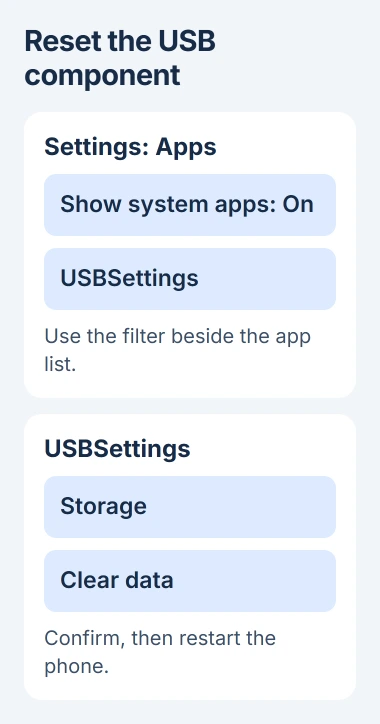
Samsung recommends this data reset for the repeated connection notifications. It clears the USB app's saved settings.
Select USBSettings carefully: leave other apps' data alone, and don't download a similarly named app or an unofficial replacement system package.
After restarting, leave the port empty for the first check. If the alerts have stopped, reconnect your usual accessory and check again. That tells you whether the software fix worked or your cable still causes trouble.
If USBSettings still isn't listed after you've shown system apps, ask Samsung how to find it on your model.
4. Use safe mode to check downloaded apps
Safe mode starts the phone without downloaded apps running. If the alerts stop in safe mode, an app you've installed may be causing them.
On a Galaxy, open the power menu by holding the Side and Volume Down buttons together. Touch and hold Power off, then select Safe mode. The Safe mode label should appear when the phone starts.
Watch for the alert in the same situation as before. If it usually appears only occasionally, give it longer to return. Keep the port empty if that's when you were seeing the alerts.
Google says a fault that disappears in Android safe mode can be caused by an app you've installed. Samsung includes this comparison in its USB troubleshooting too.
If alerts stop in safe mode, restart normally and remove recently installed or updated apps one at a time. Begin with changes made just before the alerts began. Check after each removal to see whether that app caused the notifications.
If the label remains after restarting, the safe-mode exit guide explains what to check. If alerts continued in safe mode itself, move to the final checks.
5. Separate a blocked data connection from false alerts
A message saying charging is allowed but USB data is blocked describes a security restriction. It isn't the same as repeated connect/disconnect alerts from an empty port.
Samsung describes this USB restriction on locked Android 15 phones. If you see that message, unlock your phone before checking the computer connection. Security controls can stay on if they aren't blocking the connection you need.
If false alerts continue after the port, USBSettings, and safe-mode checks, contact Samsung with the model and software version. Mention whether charging works and whether the warning appears without a cable.
Samsung includes a factory reset among its final software checks. Back up your photos, messages, and other important data first because a reset erases the phone. If the port looks damaged, have it inspected instead.
The Short Version
Check the empty port first. Dry a wet phone before resetting USBSettings, then use safe mode if the alerts return. Persistent messages with no accessory attached need Samsung's help checking the port and the phone's software.

Isaac Smith is the founder and editor of PC Glance, a website that covers computers, laptops, and technology. He is a tech enthusiast and a computer geek who loves to share his insights and help his readers make smart choices when buying tech gadgets or laptops. He is always curious and updated about the latest tech trends.