
PC fans that won't turn on may not be getting power, may have their speed set too low, or may be waiting for more heat. First, check which fan has stopped; a quiet graphics-card fan needs different checks from a stopped CPU cooler.
Lights on a fan don't tell you whether its motor has power. On many RGB models, lighting and rotation use separate connections.
1. Identify the stopped fan before running anything heavy
Look through the case as your computer starts. Check whether the stopped fan is on the processor cooler, the graphics card, or the case. Watch for blades that spin briefly at startup and then stop.
Status: checked November 3, 2026. Vendor instructions separate normal fan-stop behavior from missing power and incorrect speed control. Connector arrangements vary by model.
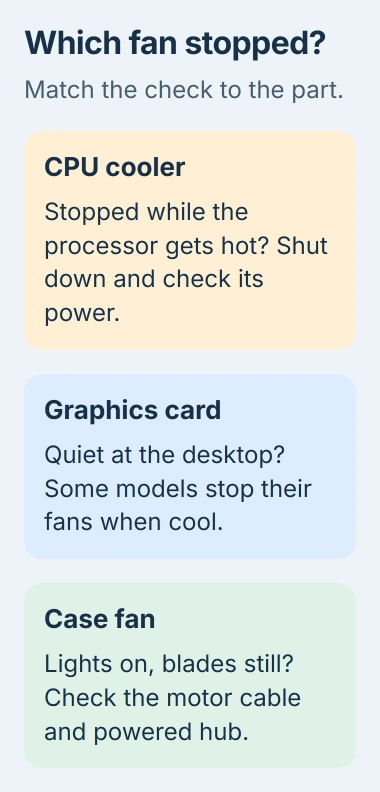
If a processor cooler's fan stays still while temperatures rise, shut the computer down. Don't launch a demanding game to see whether that fan eventually wakes up.
ASUS says some graphics cards stop their fans in 0dB mode when cooling demand is low. Its graphics-card cooling guide explains checking that mode before arranging a repair.
A graphics-card fan that starts during ordinary gaming and stops at the desktop can be working normally. If it stays stopped while the card overheats, close the game or app and follow the card maker's cooling checks.
If your computer doesn't respond at all, start with the PC power checks. Changing fan speed won't help if the PC isn't getting power.
2. Follow the motor cable, even when the lights work
Before touching internal connectors, shut down, unplug the PC, and follow its case-opening instructions. Microsoft documents the Windows Shut down command in the Start menu's Power choices.
Follow the cable from one stopped case fan. A standard fan motor usually connects to a motherboard fan socket or a powered controller. Look for a socket labeled CHA_FAN or SYS_FAN, depending on your board.
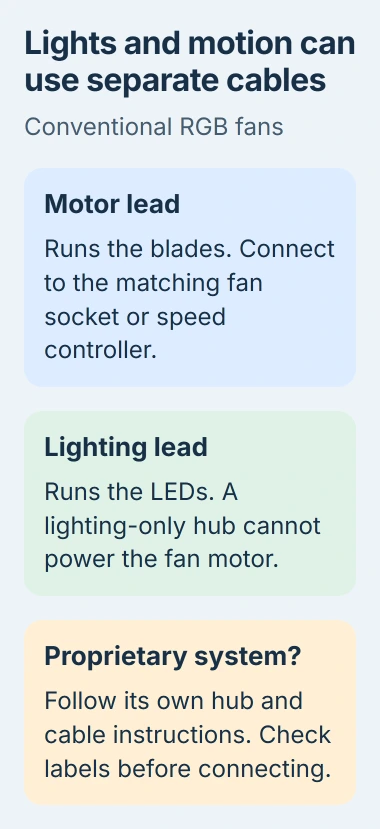
An RGB fan can have a second lead for its lights. Connecting only that lead can produce bright colors with no movement. Read the connector labels in your fan's manual instead of choosing a socket by its pin count alone.
Corsair's Lighting Node CORE, for example, controls lighting. Its Commander CORE XT also controls fan speed. Those different jobs are documented by the vendor.
If your fan has separate lighting and motor cables, check that each plugs into the socket its manual specifies. A standard PWM motor cable doesn't belong in an RGB socket just because both connectors have four positions.
Some fan systems use a special connector that combines power, lighting, and control. Use the matching hub and follow that system's manual; your fan may not use two separate cables.
Reconnect power after closing the case and check the same fan. If it starts spinning now, the connection was the problem. If every fan on one controller remains still, check that controller next.
3. Check the hub's power connection
Several stopped fans may share one controller or splitter. Check that shared connection before buying replacements. A powered hub needs the power cable its maker specifies, along with any control connection.
Corsair documents SATA power for the Commander CORE XT, while its iCUE LINK System Hub uses a six-pin PCIe power connection. An internal USB cable lets the hub communicate with the PC, but the hub still needs its power lead.
Unplug your computer again, then check that the correct cable is firmly connected at the hub and power supply. Use cables approved for your exact power supply; cables from another modular power supply may not be compatible.
I'd check the shared power connection and controller first when several fans stop together. That avoids ordering replacement fans one by one before you've checked what they have in common.
Once the hub is powered correctly, restart and watch those fans. If only one fan remains stopped, move to that fan's speed setting and connection. If the whole group stays off, keep the hub model handy for support.
4. Raise the starting speed and check PWM or DC mode
A fan that twitches, spins briefly, or stops after startup may get too little power at its quiet setting. Noctua explains this in its fan troubleshooting answers.
Open the motherboard's setup screen (BIOS or UEFI) using the startup key in its manual. Find the fan controls, often called Hardware Monitor, Q-Fan, or Smart Fan. Select the socket that actually powers the affected fan.
Write down the current setting, then try the board's normal or standard profile instead of its quietest one. If your fan now starts reliably, the old speed setting was the problem.
Check the control mode too. DC changes the supplied voltage. PWM uses a separate control signal on a four-pin fan. Noctua recommends selecting PWM for its PWM models when the board supports it.
Its fan-settings guide notes that automatic detection can choose voltage control for a PWM fan. At a very low setting, that can leave the motor unable to start.
Use your fan's specifications for its minimum working speed. A percentage copied from someone else's PC can be too low for your model. The Fan Control setup guide explains calibration once the hardware responds.
5. Test one case fan without the splitter
If power and settings look right, bypassing the hub can help you tell which part has failed. Try this only with a standard case fan whose connector and power requirements match a free motherboard fan socket.
Disconnect power before moving the cable. Connect that single fan directly, without its splitter or low-noise adapter, and use the board's normal fan profile. Keep the processor cooler connected throughout the check.
If the fan runs when plugged into the motherboard but stops on the hub, check the hub, its cable, and its settings. If it won't run on a compatible socket you know works, the fan itself needs attention.
If your prebuilt PC uses special connectors, ask its maker to check the fan and hub. Don't force a plug into a socket that looks similar or change its wiring without knowing what each pin does.
Give support the fan and motherboard models, whether the lights work, and which connections you checked. A fan that grinds, catches, or won't start with correct power needs replacement or warranty service.
The Short Version
Identify the fan first, then check motor power separately from lighting. A shared hub needs its own correct power connection. For a fan that starts and stops, check the control mode and minimum speed before replacing hardware.

Isaac Smith is the founder and editor of PC Glance, a website that covers computers, laptops, and technology. He is a tech enthusiast and a computer geek who loves to share his insights and help his readers make smart choices when buying tech gadgets or laptops. He is always curious and updated about the latest tech trends.