

Battle.net's Scan and Repair is the first fix to try when Call of Duty: Vanguard won't launch on your PC. Activision also names background utilities that can stop it opening, including MSI Afterburner, NZXT CAM and Razer Cortex.
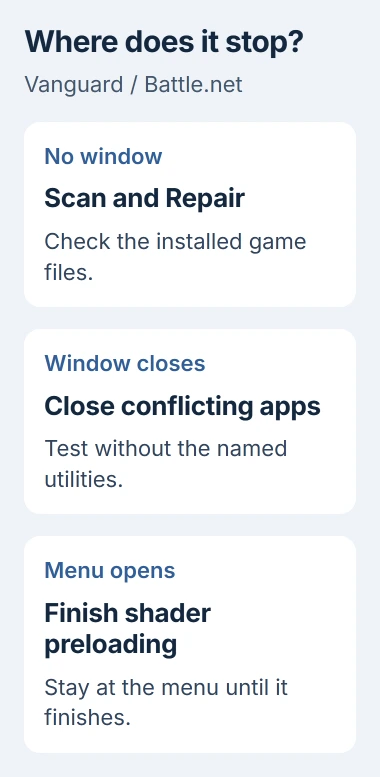
Work through the checks in that order. Battle.net returning to the Play button without opening the game is different from Vanguard reaching its menu and preparing its graphics.
1. Repair Vanguard's files in Battle.net
Open Battle.net and select Call of Duty: Vanguard in your library. Finish any download or update first, then open the options beside the Play button and select Scan and Repair.
Let the scan finish before launching again. It checks your installed game files and repairs damaged data, saving you a full download when only part of the installation needs fixing.
Status: reviewed November 3, 2026. Activision lists Battle.net repair and background-app checks for Vanguard. Its PC requirements still include DirectX 12 and an AVX-capable processor.
I'd start with this repair, documented by the vendor, before changing several Windows settings at once.
Watch what happens after you press Play. Note whether no window appears, a window opens and closes, or an error stays on screen. Copy the complete error text if you get one.
If Battle.net itself won't stay open, fix that first. You'll need to open Vanguard's page and its options to run the repair. When reporting the problem, say whether Battle.net or the game itself crashes.
2. Close the utilities Activision names
Exit NZXT CAM, MSI Afterburner and Razer Cortex if installed. Use each app's Exit command, checking its menu in the taskbar's notification area too. Closing its settings window may leave it running.
Try Vanguard again from Battle.net. Activision says these apps can interfere with it, though they don't cause trouble on every PC. See whether your game opens with them closed.
For Razer Synapse, Activision recommends updating to the latest driver. Get that update through Razer's official software and support, then restart if requested before trying the game again.
If Vanguard starts now, reopen the utilities separately and test between them. That lets you identify which one brings the problem back. Keep that program closed while playing and report the conflict to its maker.
I'd check these apps before a full reinstall. It changes much less, and if the game opens, you'll know one of the programs running alongside it was involved.
3. Compare the PC with Vanguard's requirements
Vanguard needs DirectX 12, a supported Intel or AMD processor with AVX, and a compatible graphics card. AVX is a processor feature used by the game; reinstalling Windows can't add it to a CPU that lacks it.
Open Settings > System > About to read the processor and installed memory. Use Device Manager > Display adapters for the graphics-card model, then compare the exact names with Activision's requirements.
For a desktop PC, Activision lists a minimum of 8GB RAM and a GeForce GTX 960 or Radeon RX 470 with 2GB video memory. Its minimum processor examples are the Intel Core i3-4340 and AMD FX-6300.
Check free space on Vanguard's drive too. Activision warns that required updates can need more storage, so the download sizes from launch day won't tell you how much space the game needs now.
Activision's table covers desktop PCs and warns that laptop graphics can differ. If you're unsure about your laptop, send support its full model name and graphics details to check whether it meets the requirements.
For a wider problem where several games fail, Windows game-crash checks may fit better. A fault limited to Vanguard is a reason to keep the repair focused on this game first.
4. Check whether security software blocked the game
Open your antivirus app's recent detections or quarantine list, where it keeps blocked files. Look for a Vanguard file flagged when you tried to launch it. That gives you a reason to check the antivirus further.
Activision recommends a game-folder exception for antivirus conflicts. Follow your security app's instructions for the specific detection it shows.
An exception can reduce scanning in that folder. Use it only for a verified Battle.net installation; don't disable protection across your PC or restore a file you can't identify to get past the error.
After fixing a confirmed block, repeat the game repair if the security app removed a file. Try launching once more. If the same detection returns, ask your security software's support team about it.
5. Test Vanguard with fewer startup apps
A clean boot starts Windows with fewer apps and services from other companies running in the background. Microsoft says it helps you check whether those programs are interfering. Activision links to these steps for Vanguard.
Follow Microsoft's clean-boot steps, starting from an administrator account. Keep a record of the items you disable so you can restore them afterward.
In System Configuration > Services, check Hide all Microsoft services. Disable the services left in the list. From Startup, launch Task Manager and turn off the enabled startup items you're testing.
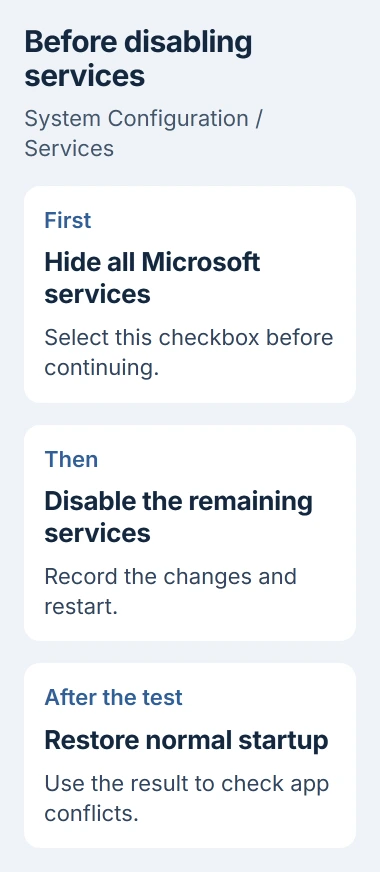
Restart, open Battle.net and try Vanguard. If it starts, turn the disabled items back on in groups. Restart and test after each change until you know which group makes the game fail again.
If it still fails, restore normal startup using Microsoft's instructions. Leaving those apps and services disabled won't help if the game still fails in the same way.
6. Undo a previous ASLR change
This applies only if you previously disabled ASLR, a Windows protection that changes where programs load in memory. Activision specifically says to re-enable it when Vanguard won't start after that change.
Microsoft documents these controls under Windows Security > App & browser control > Exploit protection. Use the Exploit protection settings to find the setting you changed.
Undo your earlier change instead of switching every protection on or off at once. A setting for one program can differ from the setting for Windows as a whole. If someone else manages these settings, ask your administrator for help.
When the menu opens or the game still fails
Once Vanguard reaches its main menu, allow shader preloading to finish there. Shaders prepare the game's graphics; Activision says leaving the menu interrupts that process and can cause performance problems.
If Vanguard still won't open, tell Activision how far it gets, the full error, your hardware details and the repair result. Include whether a clean boot helped. Those details give support more to work with than another blind reinstall.
Use the PC specification tools to collect the processor, memory and graphics details support requests. Include the error from this attempt rather than an unrelated crash from another game.
The Short Version
Repair Vanguard, close the utilities Activision names, and check your PC against its requirements. If it still won't launch, check your security app's logs and try a clean boot. Restore ASLR only if you changed it earlier.

Isaac Smith is the founder and editor of PC Glance, a website that covers computers, laptops, and technology. He is a tech enthusiast and a computer geek who loves to share his insights and help his readers make smart choices when buying tech gadgets or laptops. He is always curious and updated about the latest tech trends.