
The iPhone 8 Plus supports True Tone. Check Display & Brightness and the accessibility options that can disable it; if the switch disappeared after a screen replacement, return to the repairer.
True Tone adjusts the screen's colors to suit the light around you. If the switch has disappeared, you'll need different checks from someone who can turn it on but barely sees a change.
1. Check the True Tone switch in Settings
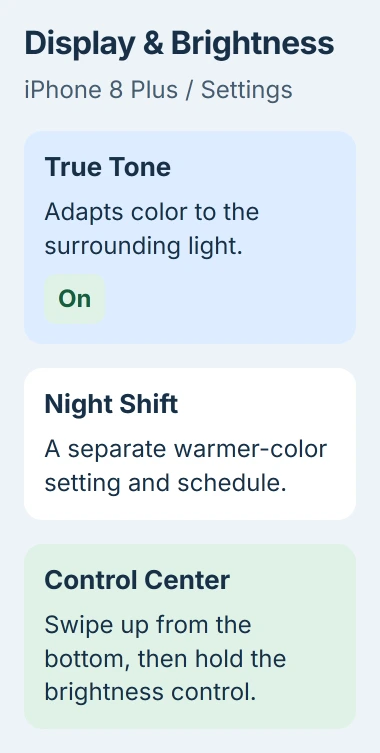
Open Settings, tap Display & Brightness, and look for True Tone near the brightness controls. If the switch is present but off, turn it on and look at a white page in ordinary room lighting.
Apple says the feature adjusts color and intensity using the surrounding light in its brightness and color instructions. Its effect isn't the same as simply raising the brightness slider.
Status: checked November 3, 2026 for iPhone 8 Plus. Apple lists True Tone support, accessibility conflicts and possible replacement-display problems. A missing switch needs those checks.
On an iPhone 8 Plus, open Control Center with an upward swipe starting at the screen's bottom edge. Hold the brightness control to check its True Tone option too. Face ID models use a top-right swipe instead.
If you can see True Tone in Settings, the feature is still there. Turn it off and on to compare how your screen looks. Keep the room lighting the same for both checks.
If the control is missing in both places, check the accessibility settings next. Night Shift has its own warmer-color setting and schedule, so turning it on won't tell you whether True Tone works.
2. Check the display accessibility options
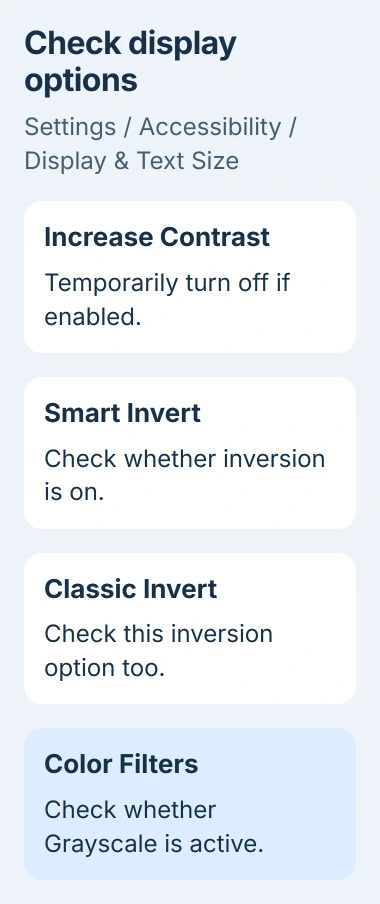
Open Settings > Accessibility > Display & Text Size. Look at Increase Contrast, Smart Invert, Classic Invert, and Color Filters. Inside Color Filters, check whether Grayscale is selected.
Apple states that Invert Colors, Grayscale and Increase Contrast can turn off True Tone. Check these before assuming your screen needs repair.
Turn off one option from that list that's currently on, then check True Tone in Display & Brightness before changing another. Turn the option back on afterward if you need it to read comfortably.
Apple's display accessibility guide explains these controls. Smart Invert changes many interface colors while preserving some images; Classic Invert reverses the whole display. Grayscale removes color.
If True Tone comes back after one of these changes, choose whichever setup helps you most. Keep the accessibility option if it makes your phone easier to read than True Tone does.
If True Tone is still missing, put your settings back and continue. Auto-Brightness and Reduce White Point affect screen brightness, but Apple doesn't list them among the settings that can turn off True Tone.
A screen that gets dimmer while the True Tone control remains available has a different cause. The iPhone dimming checks separate brightness controls from color changes; use only the features your model has.
3. Restart once and check the model's software
On a responsive iPhone 8 Plus, keep its side button pressed until the shutdown slider appears, then drag it. Once the phone is off, hold that button again, releasing it when Apple's logo appears.
Apple documents this button arrangement in its iPhone restart guide. After the phone starts, enter your passcode and check Display & Brightness again.
If True Tone comes back after the restart, you had a temporary software problem. If it's still missing, restarting over and over won't help you narrow it down. Next, think about whether the screen has been repaired.
For available software updates, open Settings > General > Software Update and use the version offered for this phone. Back up before installing an update. Don't follow an upgrade path intended for a newer iPhone.
These menu paths apply to iOS 16 on the iPhone 8 Plus. Apple lists this model as compatible with iOS 16, and True Tone was part of its original specifications. You don't need a newer iPhone for the feature.
4. If it vanished after a screen replacement, contact the shop
Think back to when the switch disappeared. If it was there before a screen replacement and gone when you got your phone back, tell the repairer. Bring your receipt and the date of the repair.
Apple lists faulty True Tone behavior among possible problems with nongenuine screens in its replacement-display guidance. The shop needs to check screen compatibility even if touch and brightness still work.
The missing switch alone can't tell you which screen was fitted. Ask the shop to check the replacement screen, sensor connections and repair work, then explain whether it can bring True Tone back.
I'd go back to the repairer before paying for another screen. They know what they fitted and whether their repair warranty covers the fault. Let them check the problem before deciding you need another replacement.
Don't open the phone just to reconnect a cable. The screen has delicate connections, and an unfinished repair can cause another problem. Have a technician check the screen and its related parts together.
If the display also flickers or shows unstable colors, mention that in the same repair request. The iPhone flickering-screen guide covers those symptoms separately.
5. Don't rely on Parts and Service History on this model
Advice for newer iPhones often sends you to Settings > General > About > Parts and Service History. Apple's supported-parts list doesn't include the iPhone 8 Plus.
A missing repair-history section can't tell you whether your screen is original. For this model, check the repair paperwork and have a technician inspect what was replaced.
Apple's iPhone 8 Plus specifications list both a True Tone display and an ambient-light sensor. The feature shouldn't disappear just because this is an older Plus model.
If your phone hasn't been repaired and the settings checks don't bring True Tone back, contact Apple Support or a repair provider. Give them your model, software version, missing controls, and details of any drops or liquid damage.
Before booking, ask whether they can service this older phone and get the parts it needs. Have the display and sensors checked instead of erasing your data in the hope of bringing the switch back.
The Short Version
The iPhone 8 Plus has True Tone. Check its Settings control, accessibility conflicts and a restart. If it vanished after display work, return to the repairer. This model doesn't offer Parts and Service History.

Isaac Smith is the founder and editor of PC Glance, a website that covers computers, laptops, and technology. He is a tech enthusiast and a computer geek who loves to share his insights and help his readers make smart choices when buying tech gadgets or laptops. He is always curious and updated about the latest tech trends.