

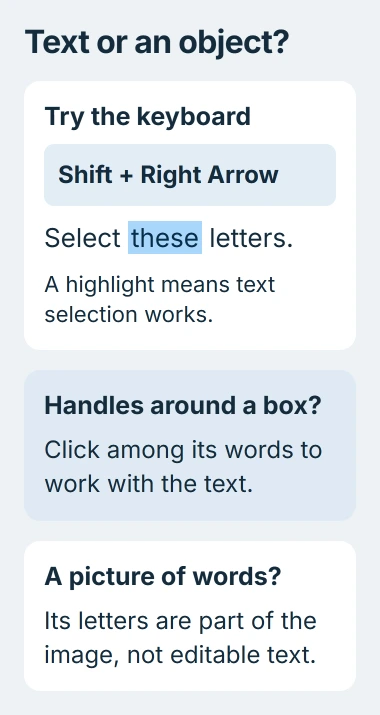
When Word won't let you select text with the mouse, try Shift+Right Arrow inside a paragraph. If the letters highlight, selection still works; check mouse input, add-ins and background utilities before changing the document.
Save the document before restarting Word. Check whether selection fails only in this file or also in a new blank document; that tells you whether to focus on the file or the app.
1. Check where the cursor is and try the keyboard
Click between two letters in a normal paragraph, then hold Shift and press Right Arrow a few times. You should see the highlight spread across nearby letters without moving or deleting them.
Microsoft documents mouse and keyboard selection in its Word text-selection guide. Double-clicking a normal word should select it; dragging from the start of a passage should extend the highlight.
Status: Word selection and Safe Mode checked November 3, 2026. The Synergy workaround comes from older Office reports and applies when that utility is involved.
To check selection across the document, click in the text and press Ctrl+A. The Select All instructions explain why the cursor's position changes what gets selected.
If small handles appear around a box, you've selected the object rather than its words. In desktop Word, click inside a text box's text before selecting it. A picture of text doesn't have letters Word can edit.
Our Word text-box guide shows how to work with the box and the text inside it separately. Check those controls if just one caption or floating section won't let you select its words.
In Word on Mac, Command+A selects the document's content. The repair commands later in this guide only apply to desktop Word on Windows. They aren't commands for Mac Terminal or Word in a browser.
2. Compare a new document and another app
Create a blank Word document, type a short sentence and try dragging across it. Then try selecting text in another app. This checks whether the problem is with Word, your document or the mouse or touchpad you're using.
If selection works in the new document, return to the original and try a normal paragraph. When only one file, picture or text box has the problem, you don't need to start by repairing the mouse across Windows.
If dragging fails in other apps too, reconnect your mouse or try the laptop's touchpad. If the touchpad works but the mouse doesn't, check the mouse, its connection and its software.
If Windows warns that the document's selection is locked, write down the exact message and check its editing permissions. That's a different problem: you may be able to select text but not change it.
If every Word document fails but other apps select text normally, save your work, close all Word windows and start Word again. Microsoft says restarting an Office app can resolve some application faults.
Notice what happens just before selection stops working again. A shortcut, an add-in command or switching control between computers gives you something specific to check.
3. Check mouse-sharing tools if the fault returns
Programs such as Synergy let one keyboard and mouse control multiple computers. Older reports linked a Word and Outlook selection problem to this software, particularly after pressing Ctrl.
In a Super User discussion, an owner restored selection by uninstalling Synergy. Another reply confirmed that stopping it was enough, without uninstalling.
If Synergy is running, pause sharing or quit it through its usual controls. Try the mouse and keyboard connected directly to this computer. Restart Word if needed, then check text selection again.
If dragging works again, update Synergy with its official updater. The discussion later reports a fix in Synergy 1.8.2. That's why this utility is a useful check, though the cause in a current version could be different.
Pressing the Windows key also temporarily restored selection for owners in that discussion. Close Start and try selecting again. This may get you through an urgent edit, but continue the checks if the problem returns.
I'd check a running mouse-sharing tool before reinstalling Office. The original asker had already tried an Office reinstall and registry changes, and neither fixed selection.
If you aren't running a mouse-sharing tool, move on to Safe Mode.
4. Open Word in Safe Mode and compare
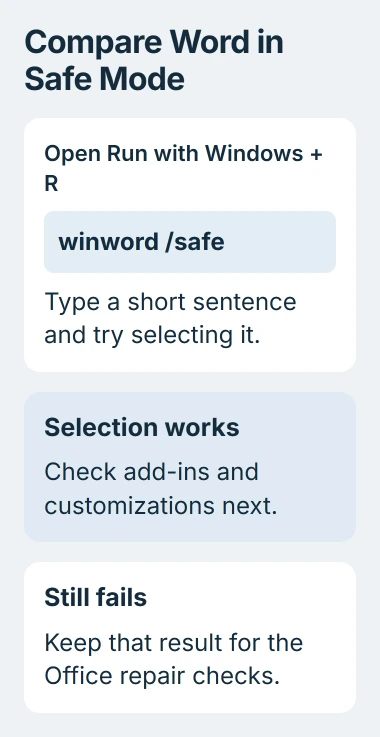
Save your work and close Word. Press Windows+R, enter the following command, then select OK:
winword /safeMicrosoft's Office Safe Mode instructions give this command for Word. It opens the app with some extra features and custom settings turned off.
Type a few words in a blank document and try selecting them. Try your affected file too if it opens in Safe Mode. If selection now works, an add-in or custom setting may be the cause. Check the add-ins next.
To leave Safe Mode, close Word and open it normally. You're only changing how Word starts for this check; you don't need to restart Windows in Safe Mode.
5. Disable Word add-ins one at a time
When Safe Mode works, inspect File > Options > Add-ins in normal Word. Use the Manage list near the bottom to choose COM Add-ins (extra tools installed for Word), then select Go.
Microsoft states in its Word COM add-in instructions that clearing a checkbox turns that add-in off. Clear one box, then confirm.
Write down which boxes are checked before changing them. Restart Word and test selection after each change. That way, you'll know which add-in you turned off when selection starts working again.
If selection fails with one add-in on and works with it off, leave it off and ask its maker about an update. Give them the add-in's version and explain what you do in Word that brings back the problem.
If none of the add-ins changes the result, put the checkboxes back as they were and continue. Safe Mode changes more than COM add-ins, so selection working there doesn't mean you need to remove them all.
6. Repair Office if selection still fails
For Windows 11, open Settings > Apps > Installed apps. Locate your Office or Microsoft 365 entry, open its three-dot menu and choose Modify. Windows 10 uses Apps & features for this route.
Microsoft's Office repair procedure offers Quick Repair for damaged program files. With Click-to-Run, a type of Office installation, Online Repair does a more complete repair.
Close your work in all Office apps before starting because the repair affects more than Word. Follow the repair prompts, restart if asked, then test selection in a new document before opening your original.
If selection still fails, tell Microsoft Support your Word version, mouse type and what happened in a blank file and Safe Mode. Name any utility or add-in that affected selection so they can follow up on it.
The Short Version
Check keyboard selection and where your cursor is first. Try a blank file, another app and any mouse-sharing tool. If Safe Mode helps, test add-ins one at a time. Try an Office repair if those checks don't get selection working.

Isaac Smith is the founder and editor of PC Glance, a website that covers computers, laptops, and technology. He is a tech enthusiast and a computer geek who loves to share his insights and help his readers make smart choices when buying tech gadgets or laptops. He is always curious and updated about the latest tech trends.