
Find My Friends is now in the People section of Find My on your iPhone. Open Find My and share your location with a friend, then ask them to share back if you want to see each other on the map.
Each person chooses whether to share. Sending your location doesn't let you see your friend's, and saving someone in Contacts doesn't turn on sharing.
Start with the phone that should share your location
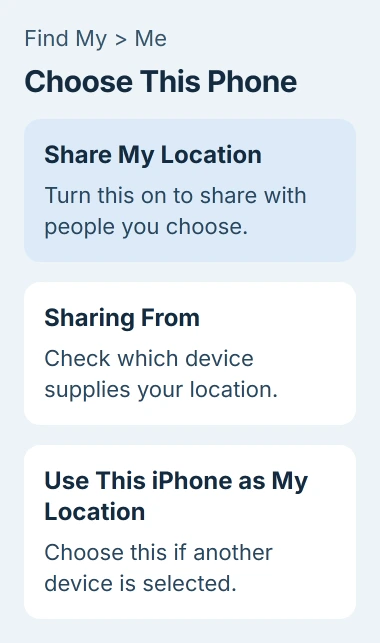
Open Find My on the iPhone you carry with you, then tap Me. Turn on Share My Location and check the device named beside Sharing From.
If it names another device, tap Use This iPhone as My Location. Find My will then share this phone's position instead of, for example, an iPad you've left at home.
Apple's location-sharing instructions explain these controls. You can also find the setting for your account in Settings > your name > Find My.
If the Find My app is missing from your Home Screen, find or restore the Apple app. You don't need a separate subscription app named Find My Friends to use this feature.
Keep your Apple Account password private. Each person uses their own account and approves sharing on their own phone, so you don't need to exchange passwords.
Invite a friend and choose the sharing time
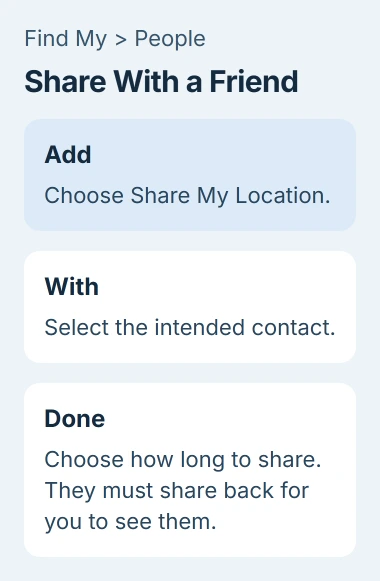
Tap People, then Add near the top of the names list. Choose Share My Location and type your friend's name in the With field, or choose them from Contacts.
Make sure you've selected the right contact, especially if names look alike. Tap Done, then select a sharing duration. An older version may show Send instead.
For a short meeting, choose a time limit. Use ongoing sharing if you both want it to stay on. If Custom appears, you can set a duration or an end time.
I'd use a time limit for a one-off trip. Your friend gets your location for that occasion, and you won't have to remember to turn sharing off afterward.
Go back to People after sending and check that the right person appears. They can now see the location you've shared; you'll see theirs only after they share their location back.
If a friend sends you a sharing request, open their entry in People, tap Share, and select a duration. Choose Cancel if you don't want to share your location with that person.
Open your friend's position on the map
Once your friend has shared with you, tap People, then their name. If their location is available, Find My displays them on the map.
Read the label under your friend's name too. Can see your location means they can see you, but you aren't following their location. Ask them to share from their phone if you want to see each other.
If your friend has agreed to share but you can't see a location, try the Find My location-message guide. It helps you check whether the position is missing or sharing hasn't been set up.
To see distance information, open Settings > Privacy & Security > Location Services > Find My and turn on Precise Location. This lets Find My use a more exact position instead of an approximate area.
Map sharing doesn't need the hardware used by Precision Finding, the separate feature for finding someone nearby. Use the map and Directions even if your phone doesn't have that close-range option.
Get directions or contact the person
Open the friend's card in People and tap Directions. Maps opens with directions to their location, so you can choose the travel option that fits your journey.
Agree on a meeting place if your friend is on the move. The map shows the phone's reported position, but it can't tell you where your friend plans to stop.
Tap Contact on the same card to see ways to reach your friend. Use it to ask about meeting details instead of trying to guess them from the map.
To put a friend near the start of your list, swipe left on their name in People and tap the star. The friend-location guide shows this favorites option.
Favorites make people you check regularly easier to find. They change your list order without changing who can see your location or which device your friend shares from.
End one sharing arrangement or stop them all
To end sharing with one person, open People, choose their name, and tap Stop Sharing My Location. Confirm with Stop Sharing Location when asked.
To stop sharing with all contacts through this feature, open Me and switch off Share My Location. This controls sharing with people; the settings for finding a lost iPhone are separate.
On some versions, a friend's More menu has Hide Location. That pauses sharing with them until the next day. Choose Stop Sharing My Location if you want sharing to stay off.
Apple's sharing and privacy guide explains that someone may notice when you stop sharing. Even if they don't get an alert, they may still see that your location is gone.
Check requests and notifications if needed
In Me, switch off Allow Friend Requests to stop new location-sharing requests. This won't end existing sharing, so check the People list too if you want to stop sharing with someone already there.
Find My can send alerts when a location changes. In Me, look for Notifications About You, if shown. Open each entry to check its details and remove any notification you don't want.
If sharing fails, tell Apple Support which step goes wrong, your iOS version, and whether it affects one contact or all contacts. That gives them specific account and app behavior to check.
The Short Version
Open People in Find My, check Sharing From on your phone, and choose how long to share. Your friend needs to share back before you can see them. Directions helps you meet up; Stop Sharing My Location ends sharing with that person.
Checked November 4, 2026.

Isaac Smith is the founder and editor of PC Glance, a website that covers computers, laptops, and technology. He is a tech enthusiast and a computer geek who loves to share his insights and help his readers make smart choices when buying tech gadgets or laptops. He is always curious and updated about the latest tech trends.