
An iPhone screen can stay upright because rotation is locked or the app doesn't support a sideways view. Turn off Lock Rotation in Control Center, then open Safari and tilt your phone sideways to check whether it's just that app.
If Safari stays upright too, check that you can find the rotation control before arranging a repair. Then try the Measure app to see whether your phone responds when you tilt it.
1. Release Lock Rotation in Control Center
How you open Control Center depends on your iPhone. Without a Home button, swipe down from the upper-right corner. If your phone has a Home button, swipe up from the screen's bottom edge.
Find the padlock inside a circular arrow. Current iPhone instructions call it Lock Rotation; some support instructions use Portrait Orientation Lock. Both names refer to the same control.
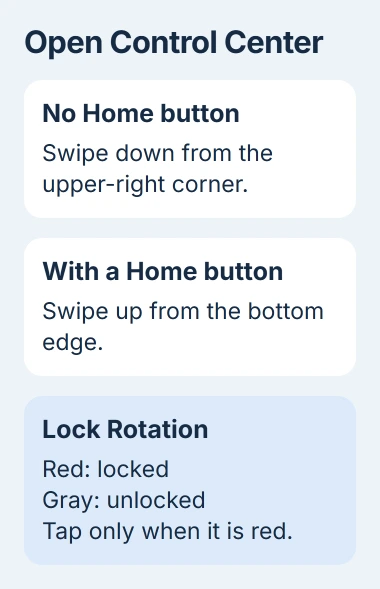
A red control means rotation is locked. Tap it to turn the lock off; it turns gray. Leave an already-gray control alone so you don't switch the lock on by mistake.
Close Control Center, open Safari, and turn your phone sideways. Watch whether Safari turns after you've closed the panel. Don't wait for Control Center itself to rotate.
For another handset running Android, Pixel and Galaxy rotation controls use Auto-rotate and differently named orientation locks.
Apple's screen-rotation instructions suggest trying Safari or Calculator if the original app won't turn. Another app with a landscape, or sideways, view tells you more than turning the phone on a screen that stays fixed.
This lock only controls which way the picture turns. It doesn't unlock a passcode or set how long the screen stays lit. If your display won't go dark, use the iPhone screen timeout checks.
2. Restore the rotation control if you can't find it
Control Center can have several groups of controls. Look through them in case the rotation control moved to another page. If the tile is missing, that doesn't mean your phone can no longer rotate the screen.
If your version lets you edit Control Center, tap its plus button to start. Choose Add a Control, search for Lock Rotation, and tap the matching result.
Finish editing and check the new control's color. You've put the switch back, but its color tells you whether the lock is on.
The Control Center customization guide explains how to choose and group controls. Older versions have a fixed panel and won't show these editing options.
If you can't open the panel inside an app, turn on Settings > Control Center > Access Within Apps. Or leave the app, change the rotation control from your Home Screen, then reopen the app.
Once the control is available, use the Safari comparison. If the phone still stays upright there, continue with the checks that follow.
3. Separate a fixed app layout from a phone-wide failure
Some apps only work upright. Others have individual screens that stay fixed while the rest of the app rotates. Turning off the lock can't add a sideways layout to an app that doesn't have one.
Try Safari and another app that supports rotation. If both turn, your phone is responding when you change its position. Focus on the original app and the particular screen that won't rotate.
If that screen used to rotate, close the affected app and reopen it. On a phone without a Home button, swipe up from the bottom, pause midway, then swipe the app preview upward. With a Home button, double-click it to reach the previews.
If reopening doesn't help, check the App Store for an update. The app troubleshooting procedure recommends closing and reopening the app, restarting, and checking updates before you remove it.
I wouldn't reinstall an app that works otherwise just to test a layout it may never have had. Check its help or ask the developer whether it supports landscape.
Try typing to see the difference: apps that support landscape have more room across the screen when you turn your phone. The iPhone keyboard sizing guide explains that wider layout and other ways to make text easier to read.
4. Check whether Measure responds to a tilt
Open Measure and tap Level. Hold your phone against an object such as a picture frame, then slowly change the angle. Watch whether the level reading changes as you move it.
The display turns green when the object is level. This lets you see whether the phone responds to being tilted, separately from the app that wouldn't rotate.
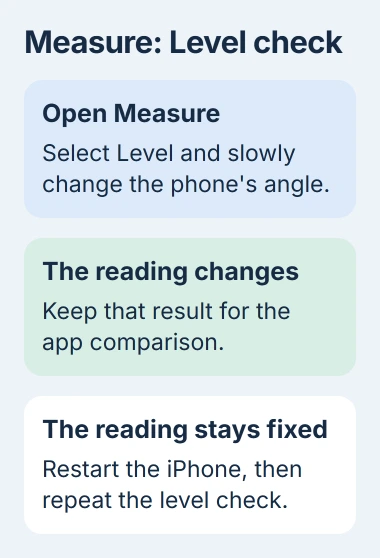
Tell support whether the level reading changes and whether Safari turns. These checks help describe the problem, but they don't check every app or every sensor that detects movement.
Restart your iPhone if the level reading stays fixed as you tilt it. That's the recommended next step on the rotation support page.
5. Restart once, then check the same apps again
For iPhone models without a Home button, press and hold two buttons: Side and either Volume. Keep holding until you see the shutdown control, then drag its slider. Wait 30 seconds for shutdown.
For iPhone 6, 7, 8, and the second- or third-generation SE, hold the side button alone to show that slider. The original SE and iPhone 5 or earlier use the top button.
Hold the side or top button again until the Apple logo appears. These are the normal restart steps; a phone with frozen touch controls needs its model's force-restart procedure instead.
After your phone starts, try Safari and Measure again with rotation unlocked. If only the original app won't turn, tell its developer which screen is stuck and which app version you're using.
If apps that support rotation and the level still don't respond, contact Apple Support. Explain when it started, whether you dropped the phone beforehand, and what each check showed. Support can then check the software and hardware.
The Short Version
Release Lock Rotation, compare Safari with the affected app, and restore the control if it was removed. Use Measure's Level for a second motion check, then restart. Contact support if apps that support rotation still won't turn.
Checked November 4, 2026.

Isaac Smith is the founder and editor of PC Glance, a website that covers computers, laptops, and technology. He is a tech enthusiast and a computer geek who loves to share his insights and help his readers make smart choices when buying tech gadgets or laptops. He is always curious and updated about the latest tech trends.