
Stop Chrome asking where to save files by turning off the prompt in Settings > Downloads. Normal downloads will then go to the folder beside Location, so check that folder before trying another download.
This setting chooses where Chrome saves files. You may still see security warnings, requests to download several files, or an app's own Save As window because those do different jobs.
Open Downloads settings and turn off the prompt
In Chrome on your computer, open the three-dot menu, select Settings, then Downloads. For a direct route, type chrome://settings/downloads into Chrome's address bar, then use Enter to open it.
Turn off Ask where to save each file before downloading. Google says this option controls whether Chrome asks you to choose a folder for each file.
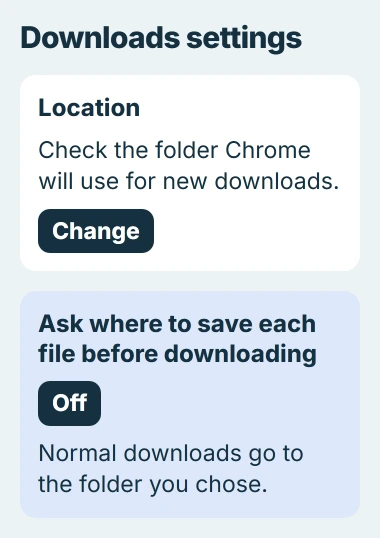
Check the folder beside Location. With the prompt off, ordinary downloads go straight there, so make sure it's the folder you want to use.
These steps work in Chrome on Windows, Mac, and Linux. The save window on your phone and apps outside Chrome have their own controls; this switch doesn't change how they save files.
To choose a folder each time again, come back to this page and turn the switch on. Changing it leaves your browsing history and saved files alone.
Choose one folder for future files
Click Change beside Location, choose a folder you can access, and confirm your choice. Return to Downloads settings to check that it shows the right folder.
The usual Downloads folder keeps files in one familiar place. A separate folder can help with work you do often, as long as Chrome can still reach it when saving files.
I'd use a folder on the computer for the first test. A disconnected external drive or unavailable network folder adds another problem when you're only trying to stop the location prompt.
Chrome will use the new folder for future downloads. Anything you've already saved stays where it is; changing the setting won't move those files.
To put an existing download somewhere else, move it in File Explorer or Finder once it finishes downloading. Use Chrome's folder setting for the next file you download.
Test with a normal download from a trusted site
Try a small file you need from a trusted site. Click its normal download button for this check, since a Save As command opens a window for choosing where to save it.
Watch the download indicator beside Chrome's address bar. Once the file finishes downloading, open Downloads from the three-dot menu and check its entry. Make sure it saved in the folder you chose.
The setting worked if the file saves in your chosen folder without asking where to put it. You don't need to open the file itself to check where it landed.
If you can't find the file, use the folder control on its download entry. Clearing the entry from Chrome's history leaves the saved file where it is, so that won't fix a download saved in the wrong folder.
If File Explorer hangs while opening the folder, use the checks for a stalled Downloads folder. Chrome's prompt setting can't repair a folder that Windows itself won't open.
Identify the prompt that still appears
A window with folders and a filename is asking where to save the file. A warning about a dangerous file is asking you to check its safety. Read the message so you know which setting needs attention.
Commands such as Save image as and Save link as save the item you've selected. They can still ask you to choose a folder, even after you've turned off the prompt for normal downloads.
When you export a document from a web app, the site may ask for a name or format before sending the file to Chrome. Chrome's folder setting doesn't control those choices inside the site.
The Automatic downloads permission is different too. It controls whether a site can download related files together. Stopping the folder prompt doesn't require permission for every site to download multiple files.
If PDFs open when you want them to download, or the other way around, check the PDF opening controls. That choice is separate from the folder Chrome uses to save a downloaded PDF.
Keep Chrome's safety warnings on. If a download is blocked, check where it came from and why it was flagged. You don't need to turn off protection to stop choosing a download folder.
Check a setting that is locked or keeps changing back
Look for Managed by your organization in Chrome's menu. Your school, employer, or a management tool installed on the computer may control settings you'd normally be able to change.
Type chrome://policy to see the rules that control your browser. Note the names and status of any rules about downloads. Opening this page only shows those rules; it doesn't change them or stop the computer being managed.
The managed-browser explanation covers how to view these rules. If this is a work computer, give IT the details and ask whether they've set where downloads must go.
Change the setting in the Chrome profile you use to download files. With several profiles open, you could be changing one window's settings and testing the download in another.
If the switch changes back on your own computer, note when it happens and whether Chrome says it's managed. Those details will help support check why it changed. Repeatedly clearing browser data won't tell you that.
Handle a file that fails to save
Read the error beside the download. Disk full means the place you're saving to is out of space. Insufficient permissions or System busy means Chrome couldn't save the file in the folder you chose.
Cancel that failed attempt and retry into a folder you can write to, such as your own Documents folder. The download-error guidance explains these messages and the next checks.
A Forbidden or authorization error means you don't have access to the file on the site. Sign in if the site requires it, or contact its owner. Choosing another folder on your computer won't give you access.
If a normal download still asks where to save, give support your Chrome version, operating system, and the sites it happens on. Include whether the switch stays off and whether Chrome is managed.
The Short Version
Turn off the prompt in Chrome's Downloads settings, check the folder beside Location, and try a normal download. A security warning, PDF setting, website export choice, or rule set by your organization needs a separate check.
Checked November 4, 2026.

Isaac Smith is the founder and editor of PC Glance, a website that covers computers, laptops, and technology. He is a tech enthusiast and a computer geek who loves to share his insights and help his readers make smart choices when buying tech gadgets or laptops. He is always curious and updated about the latest tech trends.