
The Samsung One UI 8.5 update started rolling out on May 6, 2026, but that date doesn't mean every Galaxy gets it. Check the version offered in Software update first; your model, country and carrier decide what appears there.
If the update isn't listed, check whether your model can get it. If the download keeps failing, work through the download checks. Your installed version and the message on screen will help you choose where to start.
1. Check the installed version and exact Galaxy model
Open Settings > About phone > Software information. On a Galaxy tablet, use About tablet instead. Read One UI version, then return to About phone and note the model number.
Two phones sold as the same Galaxy can have different carrier software. The product name alone can be misleading, so keep your model number and current version handy when asking about an update.
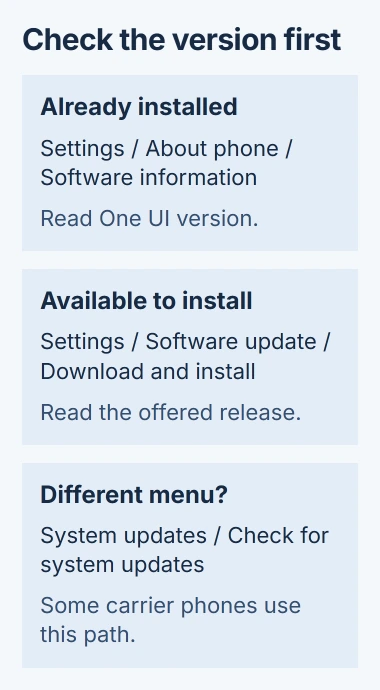
If One UI version already says 8.5, the upgrade has installed. A later download may be a security patch or another release. Read its description instead of assuming every update notification is the upgrade you searched for.
If your phone shows a newer One UI version, you don't need to install 8.5 first. Check the details of the version your phone offers instead of downgrading a working phone to 8.5.
If your tablet's menus look different, the Galaxy tablet update steps show where to check. As on a phone, check whether an update is available before trying to fix a download.
2. Compare your model with the announced rollout
Samsung says in its One UI 8.5 announcement that the rollout started in Korea on May 6, with other regions following. That didn't mean every supported Galaxy worldwide would get it that day.
The announcement names the Galaxy S25 series and S25 FE, S24 series and S24 FE, Z Fold7 and Z Flip7, Z Fold6 and Z Flip6, and the Tab S11 and Tab S10 series.
That announcement only covers the models it names, not every later release. An older Galaxy isn't eligible just because its model name starts with S or A.
For a model outside that list, check what its Settings app offers. To find out whether it can get 8.5, give support your model number and country so they can check the right device.
A phone bought from a carrier can still follow that carrier's update schedule after you've unlocked it for other SIM cards. Updates work differently on a phone bought factory unlocked and one unlocked later.
This matters most with imported or secondhand phones. A nearby friend getting 8.5 doesn't mean it's ready for your model and carrier too.
3. Install the update offered in Settings
Back up anything you can't replace before starting. Connect to reliable Wi-Fi and charge the phone; Android's update preparation calls for at least 75% battery.
Open Settings > Software update > Download and install. Some carrier versions use System updates > Check for system updates. Let the check finish before leaving the screen.
If an update appears, read its version and download size. Choose the download or installation option shown, then follow the prompts. The phone will restart during installation and won't be available for normal use or calls then.
I'd start this when you can leave the phone alone, especially if you depend on it for travel tickets or a work call. Downloading and installing are separate stages, so a finished download doesn't mean the new software is running yet.
Once the phone returns to its lock screen, unlock it and check Software information again. The new version number confirms the installation; a notification disappearing doesn't tell you that.
Check for updates again after the restart. A phone that has missed several updates may need more than one installation to reach the version currently available for it.
4. Handle an up-to-date message without resetting the phone
Your software is up to date means the update service isn't offering your phone a newer version right now. Compare the installed version with the one you wanted before treating this as a failed download.
When the phone is still on an older version, check its original carrier and country of sale. Updates can arrive in stages, and some carrier models need that carrier's SIM to receive their software updates.
Ask the original carrier whether the release is available for your exact model. Mention any change of network or country so they can check whether your phone can receive it, instead of asking you to repeat the scan.
If the release isn't offered, you have no download to retry. Clearing photos or repeating a factory reset won't change which models it supports; save those steps for a message about storage or another problem on the phone.
If Settings itself has stopped responding, restart the Galaxy normally and reopen it. Once the screen works, use the displayed update result to choose the next step.
5. Fix a download that starts but won't finish
Stay on Wi-Fi if the update requests it. Some carriers don't allow these downloads over a cellular connection, even when your plan has enough data left. Reconnect and resume an interrupted download when the screen offers that choice.
For a storage warning, free the amount the update asks for by moving or removing files you no longer need, then check again. The space needed varies by release, so follow that prompt rather than a target meant for another update.
If the download repeatedly fails on a stable connection, try the desktop update route. Open Smart Switch on a Windows PC or Mac, connect the phone by USB, and allow the connection prompts on the phone.
When needed, select Transferring files / Android Auto in the phone's USB options. Wait for Smart Switch to identify the device. If compatible software is available, it shows an Update option.
Choose Update and follow the prompts, leaving the cable connected until it finishes. Smart Switch gives you another way to install an available release, but it can't make an unsupported model eligible.
If neither route offers an update, contact the carrier or Samsung with the model and installed version. For a failed installation, include the error and whether the phone still starts, so support can choose the right recovery steps.
The Short Version
Read your installed One UI version, then check Software update. A missing release calls for a model and carrier check; a failed download calls for connection, storage or Smart Switch checks. Confirm the installed version after the restart.
Checked November 4, 2026.

Isaac Smith is the founder and editor of PC Glance, a website that covers computers, laptops, and technology. He is a tech enthusiast and a computer geek who loves to share his insights and help his readers make smart choices when buying tech gadgets or laptops. He is always curious and updated about the latest tech trends.