
The message Your computer can't come out of hibernation means Windows couldn't restore its saved session. Start Windows normally using the option on that error screen, then rebuild the hibernation file once you're back at the desktop.
This advice applies to a resume error that names hiberfil.sys or restoration data. For a dark monitor with no error text, check the display instead; Windows may already be awake.
1. Start Windows without restoring the failed session
Read the whole error screen before pressing a key. Write down its Status code, File entry and Info line. Different errors can share the same hibernation heading, so support will need all three details.
Choose a normal startup if the error screen offers it. On older Windows Boot Manager screens, the choice may say to discard the restoration data, meaning the saved session, and start Windows again.
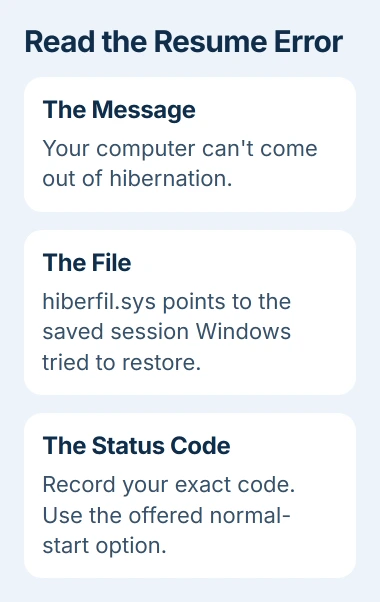
Discarding that session loses any work you hadn't saved before hibernation. Documents you already saved to disk stay there. Once Windows opens, check the affected apps for a document recovery option.
If Windows can't start normally either, use Windows recovery or your computer maker's startup diagnostics. A failure without the saved session points to a wider startup problem.
If Windows starts normally but can't restore the saved session, try rebuilding the file that holds it. That's the next step.
2. Recreate the hibernation file from Windows
Save any open files, then exit their apps. Search Start for Command Prompt, then choose Run as administrator. Approve the request and enter this command:
powercfg.exe /hibernate offThis turns off hibernation and removes hiberfil.sys, the file that holds your saved session. Let the command remove it instead of trying to delete it through File Explorer.
Microsoft lists these off and on commands. While hibernation is off, hybrid sleep loses its saved copy of your session on disk, so it can't use that copy to protect your work if power fails.
Choose Restart from Start's power menu. After signing in again, reopen an administrator Command Prompt and enter:
powercfg.exe /hibernate on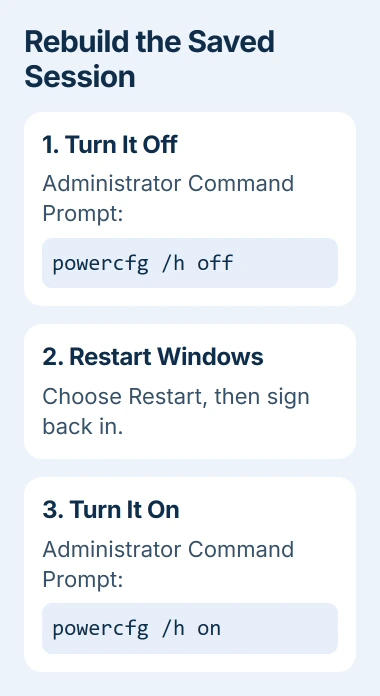
If Windows says you need administrator privileges, close Command Prompt and reopen it with Run as administrator. The command can't change this setting from an ordinary window.
An owner on Microsoft's forum recovered from this error after switching hibernation off, restarting, and enabling it again. They reported three successful resumes on Windows 7.
The error also occurs beyond Windows 7, and the commands are still in the current Windows instructions. That owner fixed it without the disk defragmentation suggested later in the discussion.
3. Test a new session before relying on it overnight
Open a small document, save it, and leave its app open. Choose Hibernate from the power menu if available. Let the PC finish powering down before disconnecting its power or moving a docked laptop.
Press the power button to resume. Your open document should return without the restoration error. Using a saved document makes the session easy to recognize and keeps unsaved work out of the test.
Once the short test works, try your usual overnight routine. Note whether the error happens only with the dock, after a longer wait, or on battery power. Those details help a technician decide what to check next.
I'd keep testing with saved documents until your usual overnight resume works too. A short test can succeed even if it hasn't repeated the conditions that caused the original error.
If your PC hibernates when you expect it to stay awake, check its separate Hibernate after timer. That timer changes when it hibernates; it won't repair a failed resume.
4. Restore a missing Hibernate option
On Windows 11, search for Control Panel and open System and Security > Power Options. Use the Choose what the power buttons do link to reach the shutdown controls.
Select Change settings that are currently unavailable. This unlocks the shutdown choices so you can edit them.
Select Hibernate under Shutdown settings, then save. As the power-menu instructions explain, showing Hibernate in the menu is a separate step from turning hibernation on.
If the checkbox remains absent, open the administrator Command Prompt and run:
powercfg /aThis lists the sleep options your PC supports and explains why others aren't available. Read the reason beside Hibernate: the PC's built-in software, called firmware, may limit it, or its file may be set up only for Fast Startup.
If Windows says the file type doesn't support full hibernation, use this setting from the powercfg reference:
powercfg /hibernate /type fullA reduced file works for Fast Startup but can't hold your whole session. Use the full type for Hibernate, then check the power menu again. Leave file-size percentages alone unless the error or support gives you a reason to change them.
5. Check whether shutdown triggers the same failure
Fast Startup uses saved system data even when you choose Shut down. That's why an error restoring that data can appear after what looked like a normal shutdown. Restart starts Windows differently.
Compare Restart with Shut down followed by powering on. If restarting works but shutdown consistently leads back to the error, return to the power-button settings you opened in step 4 and unlock them again.
Clear Turn on fast startup (recommended) if it's shown, save, and test shutting down again. This lets you check whether Fast Startup is involved while keeping full Hibernate available.
The restart and shutdown explanation covers why the two actions behave differently. Keep a note of which action produces the error when you contact support.
6. Escalate a resume error that keeps returning
If the error returns, check your computer maker's driver and firmware advice for your model. Tell them about any recent changes to memory (RAM), storage or your dock, since the saved file isn't always the cause.
Run the maker's diagnostics if normal startups also fail sometimes or your PC crashes while awake. Those problems alongside the resume error are a reason to have the hardware or driver checked too.
Until it's fixed, keep your work saved and choose Shut down with Fast Startup disabled if that works reliably. Give support a photo of the error, your Windows version and the results of your short and overnight tests.
The Short Version
Get back into Windows, disable hibernation, restart, and enable it again. Test a newly saved session. If the same failure follows shutdown, compare Fast Startup; if ordinary startup fails too, move to startup diagnostics.
Checked November 4, 2026.

Isaac Smith is the founder and editor of PC Glance, a website that covers computers, laptops, and technology. He is a tech enthusiast and a computer geek who loves to share his insights and help his readers make smart choices when buying tech gadgets or laptops. He is always curious and updated about the latest tech trends.