Codes 641 and 80070641 during Windows Update mean Windows can't access the Windows Installer service. Check that service before retrying the updates, especially if installing or removing programs gives you the same Installer message.
These aren't the same codes as 643 or 80070643. Copy the full number and update title first, because a .NET repair meant for a different error can leave you working on the wrong problem.
In this guide
1. Check Windows Installer in Services
Press Windows + R, enter services.msc, and press Enter. Find Windows Installer, open its properties, and check its Startup type and service status. Make any changes using an administrator account.
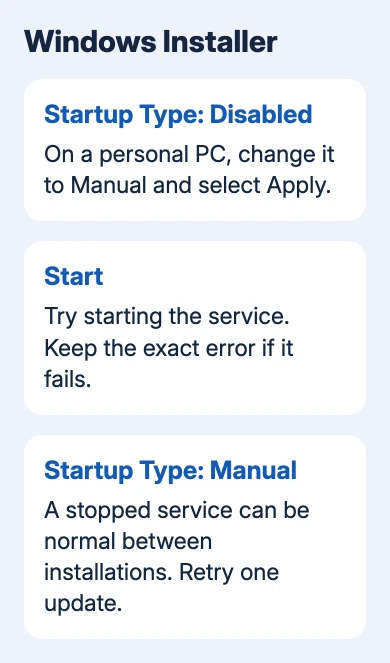
If the service is Disabled on your personal PC, change its startup setting to Manual, select Apply, then select Start. If it starts, close Services and retry one of the failed updates. On a managed PC, have IT review a disabled setting.
A service set to Manual can be stopped when no installation is running. That isn't the same as Disabled, which prevents it from starting. Don't change every stopped Windows service to Automatic while looking for this one.
Microsoft explains in its Installer error reference that error 1601, hexadecimal 641, means the Windows Installer service is inaccessible. The longer 80070641 includes that same Windows error.
If Start fails, write down its exact message. If Windows Installer is absent from the list, record that instead. A missing service, a disabled service and a service that fails to start need different repairs.
2. Retry outside Safe Mode and finish a restart
Restart into normal Windows if you're currently using Safe Mode. Windows Installer isn't normally available there. A failed install in Safe Mode isn't a reason to create registry entries to force the service on.
Save work, close application setup windows, then choose Restart from Start's power controls. Once Windows returns, open Windows Update and retry one recorded package before starting other software installers.
Use Settings > Windows Update on Windows 11. On Windows 10, open Settings, then Update & Security, then Windows Update. In Windows 7 or Vista, search Start for Windows Update and open that Control Panel result.
Check Update history or View update history for that package's result. If one update succeeds but another fails, keep each name with its own code. A mixed list doesn't mean every failure comes from the same component.
If the code is actually 643 on a .NET package, use the error 643 framework checks. If it remains 641 or 80070641, continue with Installer rather than removing framework versions.
I'd check one failed package at a time after the service starts. It's easier to tell whether Installer is working when the result belongs to the same update you recorded before making the change.
3. Undo a recent cleaner change through its own controls
If the trouble began immediately after a registry cleaner or optimizer ran, open that program's history or backup controls. Use its supported undo option for the recent changes, then restart and check Windows Installer again.
The original question came from a Vista user who had used System Mechanic. An adviser blamed registry changes and proposed two registry imports. None of the replies shows that those imports worked for an owner.
Don't copy registry files from another Windows version. A Vista service definition isn't a Windows 10 or 11 repair. Ask the cleaner's support team to review its log and restore what its tool changed.
If the PC worked before the change, System Restore is another recovery option if a saved restore point predates the trouble. Back up personal work before recovery and review the affected-programs list before confirming it.
The Windows recovery options explain restoring a PC after a recent application or system change. Use a point from before the failure, rather than choosing one only because it is newest.
4. Check a clean boot that disabled Installer
A clean boot reduces the third-party apps and services that run at startup. It can cause an installation error if system services were disabled too. Think back: did installation stop working right after you changed the startup settings?
Open msconfig from the Run dialog and review Services. When setting up a clean boot, hide Microsoft services before turning off the remaining entries. Windows Installer is a Microsoft service and needs to stay available.
The clean-boot troubleshooting instructions include a specific section for the Installer service. They explain that clearing Load system services prevents it from starting.
Use your notes to restore the normal-startup settings, restart and retry. If you don't know what was changed, ask the person who configured the clean boot to restore it. Don't blindly enable every previously disabled service or startup app.
If normal startup restores installation, the service settings were part of the problem. If Installer still won't start, keep the start error and move to system repair rather than repeating the startup changes.
5. Repair current Windows system files
On Windows 10 or 11, open Command Prompt as administrator. Run these commands separately, letting each finish before entering the next:
DISM.exe /Online /Cleanup-image /Restorehealth
sfc /scannow
The first repairs the Windows component store, which supplies system repair files. The second checks protected system files for damage and tries to replace damaged copies. Restart after the checks and retry the recorded update.
The System File Checker instructions give that order for current Windows. Save each command's final message. It tells you whether repairs succeeded, not just that the command finished.
If DISM can't find repair files, the component-store repair guide explains that separate error. These current DISM steps aren't a Vista repair procedure.
When Installer remains missing or inaccessible
Report the error to IT if they manage your PC. For your own PC, choose Contact Support in Get Help. Send the update title, Windows version, service startup setting, exact Start error and command results.
Ask support to check Windows Installer's registration and service configuration. A repair installation may be needed if parts of Windows remain damaged. Have a current backup of personal files ready before the repair starts.
For Vista or Windows 7, ask a repair technician about restoring personal files and moving to a supported system. Restoring an old Installer service doesn't restore the operating system's security support.
The Short Version
Check Windows Installer and retry in normal Windows after a restart. Undo relevant cleaner or clean-boot changes, then repair current Windows system files. Ask support to review a missing or failing service.
Checked November 26, 2026.
 If you have any business, I can build it online