Error 0x80091007 with Source: Download means the troubleshooter couldn't verify its package. Retry once before changing settings. A Windows 7 incident cleared without local repairs, but waiting didn't help every later case.
On current Windows 11, use the available Get Help troubleshooter instead of trying to revive an old diagnostic download. The same error inside a company app installer needs a different repair, so check the window's title first.
In this guide
1. Read the package details before running repairs
Open the error's details and record Package ID, Path, Error code and Source. The original Performance troubleshooter report named PerformanceDiagnostic, Non-local Package, 0x80091007 and Download.
Those details show that the failure happened while getting the diagnostic package. The troubleshooter hasn't necessarily checked your computer yet. A failed download isn't a result saying that Windows found a damaged disk.
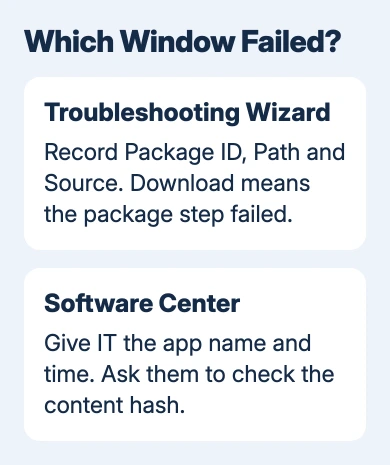
Context: Elevated means that attempt already had administrator access. Opening the identical wizard as administrator again doesn't address a package-verification failure just because the error looks technical.
The verification value, called a hash, is calculated from a file's contents. This code reports a mismatch. It doesn't tell you which download, server or part of Windows caused the mismatch.
The application error-code reference also lists this code for application installation. If your window belongs to Software Center rather than a troubleshooter, use step 5.
2. Retry once, then check the original problem separately
Close the failed troubleshooter and open it again from the Windows setting you used. If it now runs through its diagnostic questions, continue with its results. The package can now download successfully.
A Microsoft staff member thought the original incident was a server-side issue. They reported recovery without running the suggested cleaning tools. Several owners also got it working around that time.
That was a particular incident in January 2010. Owners reported the same error again in August, October and later. A repair announced in that old conversation won't tell you when today's failure will clear.
If a second attempt fails with the same Download details, stop reopening it. Work on the actual fault through the relevant Settings page or Get Help, rather than spending the whole session repairing an optional diagnostic wizard.
For example, an update that won't install needs its KB number and update error. The Windows Update error guide helps follow that failure without depending on this particular troubleshooter.
A disk check that won't start needs its own command and response. CHKDSK can work while the troubleshooter still fails to download. Keep both results rather than assuming that one repair has addressed both symptoms.
I'd keep the original problem written beside the wizard's error. Otherwise it's easy to finish a long round of changes and discover the printer, update or slow startup hasn't been checked at all.
3. Use the available Windows 11 troubleshooting route
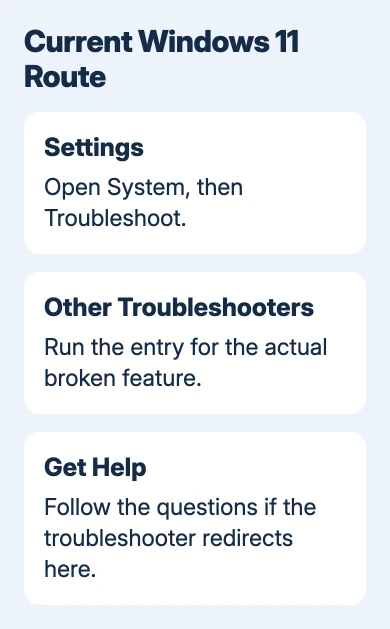
On Windows 11, open Settings > System > Troubleshoot > Other troubleshooters. Select the troubleshooter for the feature that's failing, such as Windows Update, audio or network access, and use Run when offered.
Some entries open Get Help, which replaces several older diagnostic tools. Follow its questions for the actual feature. If the app asks permission to run a repair, review the action before accepting it.
If Get Help opens, Windows has sent you to the replacement troubleshooter as expected. You don't need to recover the older package just to regain that wizard's layout.
The legacy troubleshooter retirement notice distinguishes tools redirected to Get Help from tools removed entirely. Not every old diagnostic has a direct replacement.
For an old Performance wizard with no matching entry, describe the actual symptom in Get Help. Slow sign-in, high processor use and an app that stops responding are different problems, even when all three feel like poor performance.
If Settings opens Get Help but that app fails too, record its own message. If the app won't launch, follow that error rather than the old wizard's Download error. Don't label every failure 0x80091007 unless that code appears.
4. Keep Windows 10 and Windows 7 instructions separate
On Windows 10, the older settings route is Settings > Update & Security > Troubleshoot > Additional troubleshooters. Open the entry matching the broken feature if it's available on your installation.
The retirement notice doesn't apply in the same way to Windows 10 or Windows 11 22H2 and earlier. A missing entry on a newer Windows 11 release and a download error on Windows 7 aren't automatically the same retirement behavior.
For the Windows 7 incident, the Performance troubleshooter was reached through Action Center. Its downloaded package depended on an online service. A local restart couldn't repair a package problem at the service end.
Keep older computers offline when they're only needed to recover files or run a legacy program. For continuing daily internet use, plan a supported replacement instead of depending on an aging diagnostic service.
Several January 2010 replies credited a registry cleaner, but other owners recovered without it and the error later returned. The replies don't show whether the cleaner helped or the service recovered. I wouldn't install one for this error.
For a slow sign-in or long startup, the Windows startup-app checks help reduce background launches. Use them for that symptom rather than running disk repairs only because the wizard failed to download.
5. Escalate a persistent download or managed-app failure
For a home PC, open Get Help from Start and describe the original fault plus the complete package error. If offered, use Contact Support and choose Windows technical support. Include the Windows version and when the failure began.
For 0x80091007 in Software Center, send IT the failed app's name and installation time. Ask them to check the deployment content and hash mismatch. The troubleshooter's old service repair doesn't fix that package.
Don't turn off package verification to get past the error. It checks whether the content matches what the installer expects. Support needs to fix the mismatched content or delivery problem, rather than teach the installer to accept it.
A successful diagnostic should reach its questions or results without the Download error. Then check whether the original problem is fixed too. A wizard opening again tells you the tool works; it doesn't mean its repair has already worked.
The Short Version
Read the failed window's package details, then retry the diagnostic once. Use Get Help when offered. An old wizard service failure, a managed-app install failure and the original device problem need separate attention.
Checked November 26, 2026.
 If you have any business, I can build it online