Code 0x8024402F means Windows Update couldn't process a cabinet file it downloaded. If your network uses Lightspeed Rocket, ask its administrator to exempt your device. Otherwise, try another trusted connection before repairing Windows.
The same code appears in old Windows XP and Windows 7 discussions. Their retired Fix it downloads aren't the current repair route, and the code doesn't mean every affected computer uses the same filter.
In this guide
1. Check for a filter between Windows and the update service
For a school-owned or company-managed PC, ask the network administrator whether Lightspeed Rocket filters its internet access. Send your device name and full code so they check filtering rather than grant a general antivirus exception.
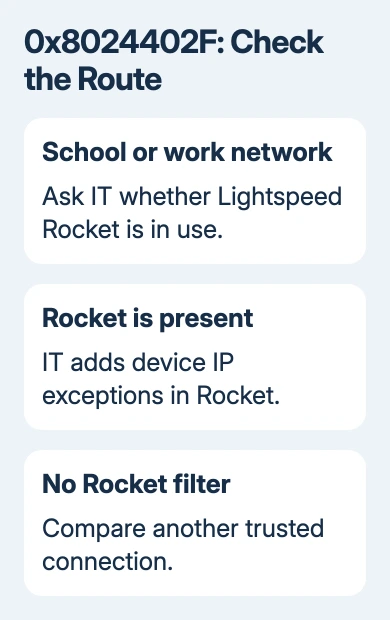
Microsoft's specific 0x8024402F mitigation says Rocket filtering might cause this error. Its remedy is to add the IP addresses of devices that need updates to Rocket's exceptions list.
The filter's administrator needs to make that change. No new Windows firewall rule is needed on your PC. Leave its protection on without installing a different security program.
After IT applies the exception, retry Windows Update. Check that it can search and install the package successfully. Write down any new error code, since it can need different checks.
If the organization doesn't use Rocket, continue with the connection comparison. Other filtering or download problems need their own evidence; don't copy Rocket's fix into another product's settings by guesswork.
2. Compare another trusted network
On a personal PC, disconnect a personal VPN temporarily and retry the update over your normal connection. If that doesn't help, try another trusted network or a phone hotspot, allowing for the update's data usage.
Keep the PC and update unchanged during this comparison. If the update works on the second connection, have the original router, proxy or filter checked before repairing Windows components.
For a managed laptop, ask IT whether a network comparison is allowed. Some organizations require their own update server or VPN. Disconnecting that required connection can prevent updates for a separate reason.
A browser page loading successfully doesn't settle the question. Updates and their compressed downloads can receive different handling. Tell IT which connections you tried and the time the update failed.
If the error follows both connections, record that and continue. Don't change DNS, proxy settings and Windows services together. Several simultaneous changes make it difficult to know what needs restoring.
For a proxy-related failure with different digits, use the Windows Update error-code checks. A full code match matters more than a similar-looking update screen.
3. Run a diagnostic after checking the network
In Windows 11 Settings, choose System, then Troubleshoot. Open Other troubleshooters and run its Windows Update entry. Follow the diagnostic in Get Help. When it finishes, return to Settings > Windows Update and retry.
For Windows 10, launch Get Help, enter Windows Update troubleshooter and follow the diagnostic. It replaces retired diagnostic downloads; use the current app instead of searching for an old Fix it installer.
If pressing Run doesn't open a working diagnostic, use the diagnostic launch repair steps. That addresses the help tool; it doesn't mean the failed update has already been repaired.
Check the actual installation result afterward. On Windows 11, select Update history. On Windows 10, choose View update history from its Windows Update page. Keep the package's KB number with its result.
The historical thread includes an owner whose troubleshooter didn't fix the fault, but a Windows 10 upgrade did. That was a 2016 outcome. It isn't a reason to run an old upgrade tool on a current Windows 11 computer.
4. Repair Windows components when the network isn't the difference
If the fault follows both networks, check Windows' repair files. Locate Command Prompt with Start search. Its result menu has Run as administrator. Use that option and enter each command separately on Windows 10 or 11:
DISM.exe /Online /Cleanup-Image /RestoreHealth
sfc /scannow
Wait for DISM before starting SFC. DISM repairs the component store, where Windows keeps repair files. SFC checks protected Windows files for damage.
Keep the final error message from either command. After restarting Windows, attempt the update again.
Windows Update supplies DISM's repair files by default. If it can't download them, tell support. You may need a matching copy of Windows for the repair instead of trying the same blocked download again.
These commands aren't for XP machines from the historical discussion. Tell a technician the installed version and arrange file recovery or migration. Fixing an old download won't restore current security support.
5. Reinstall the current version from Recovery
Open Settings > System > Recovery. If Fix problems using Windows Update appears, choose Reinstall now. It reinstalls the installed Windows version while preserving apps, files and settings.
Back up important work before repairing, and keep power and internet available until it finishes. Company update policies or missing prerequisite updates can hide this choice. Fix known filtering first so the repair can download.
For an unavailable button or failed repair download, request help through Get Help. Ask for a repair source or installation method suitable for your Windows version, rather than choose a reset without checking what it removes.
What to send support if the error returns
Give IT or Windows support the full error, Windows version, failed KB, network comparison, Rocket status and diagnostic results. Ask them to check download filtering and the Windows Update logs for the failed cabinet-file processing.
For an older unsupported PC, ask the PC manufacturer or a local repair shop to save your files and help you choose a supported replacement system. Don't rely on a retired Fix it download as an ongoing update plan.
The Short Version
Check Rocket on managed networks, then compare connections and use the current diagnostic. Examine the download route before repairing Windows components. Treat historical XP, Windows 7 and Windows 10 upgrade advice separately.
Checked November 26, 2026.
 If you have any business, I can build it online