Error 80240016 means Windows Update can't start installation because another installation is running or Windows needs a restart. Let the current installation finish, then use Restart before trying the failed update again.
The message can mention other updates even when no installer window is visible. Windows may also need a restart to finish earlier work, so repeatedly pressing Install won't clear it.
In this guide
1. Finish the installation that's already running
Look for an open software installer, an Office update or a Windows Update progress screen. Let that job finish before starting another installation. Connect the charger so the laptop stays powered throughout installation.
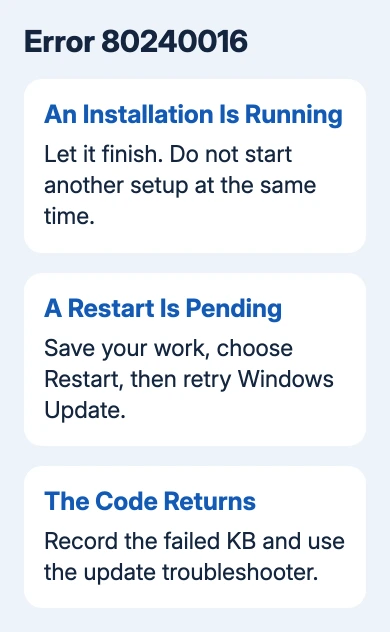
Microsoft's update error reference describes this as WU_E_INSTALL_NOT_ALLOWED. It lists both another installation in progress and a required restart as reasons for the code.
Check the progress in the installer itself. If the installer's progress is still moving, leave it running. A completed setup screen with Finish or Restart needs that final action before you open another updater.
Don't force-close msiexec.exe or the Windows Modules Installer just because Task Manager lists them. They handle installation work, and their names appearing in the process list don't tell you whether setup has stalled.
If the machine is already on an update screen during startup or shutdown, let Windows finish that stage. Use these checks once you can reach the desktop. Don't interrupt a screen telling you updates are being applied.
2. Restart once and retry through Windows Update
Save documents, close applications and choose Start > Power > Restart on Windows 10 or 11. On Windows 7 or Vista, open Start, expand the shutdown options and choose Restart.
After signing back in, give the desktop time to finish loading. Open Windows Update before starting a separate app installer. If Windows was waiting for a restart, the next installation can now proceed.
Use Settings > Windows Update on Windows 11. On Windows 10, use Settings > Update & Security > Windows Update. Select Check for updates and allow any offered installation to finish.
Windows 7: open Control Panel > System and Security > Windows Update > Check for updates. In Vista, search Start for Windows Update, open it, and select Check for updates.
Both systems have expired support. A working service doesn't mean new update packages are available.
If the error remains after a completed restart, record it and move to the history check. The old question's asker had already restarted without success. Try one restart, then move on if it hasn't helped.
I'd use Restart directly instead of testing several shutdowns. If the code returns, you can tell support that a full restart didn't clear it. That also helps separate a failed installation from one still waiting to finish.
3. Identify which package is failing
On Windows 11, select Windows Update > Update history. On Windows 10, select Windows Update > View update history. Record the failed update's full name, KB number, time and complete code.
On Windows 7 or Vista, choose View update history in the Windows Update window. Right-click the failed entry and open View Details. Read the error from the latest attempt, rather than an older row with a similar title.
The code may appear as 0x80240016 with 0x at the start. That's the same code. A different number after restarting means Windows has reached a different failure, and the repair should follow that new number.
For a changed code, the Windows update code lookup explains the common groups. For example, damaged system files and download timeouts need different work from an installation being busy.
If only an app update fails, close its updater and use the app's repair option or contact its support team. Keep the app's name with the error, because installers don't all use the same update process.
4. Let the supported troubleshooter repair the update service
Open Get Help from Start and search for Windows Update troubleshooter. Run its automated checks and follow any administrator prompt. When it finishes, read its summary, restart if requested, and retry the package you recorded.
On Windows 11, the Settings route is System > Troubleshoot > Other troubleshooters > Windows Update > Run. It can direct you to Get Help. On Windows 10, the older route is Update & Security > Troubleshoot > Additional troubleshooters.
The supported troubleshooter instructions include restarting and checking for updates after the repair. Judge the result by that installation, not just a message saying a problem was repaired.
Without the administrator sign-in details, sign in with an authorized administrator account, or get approval from the PC's owner. Bypassing the prompt won't give the update service permission to complete the repair.
A continuing error on Windows 11 can also need the Windows component repair route. Use that if a repair fails or support recommends it rather than running a collection of commands while an installer is active.
5. Check software interference with a clean boot
On Windows 10 or 11, try a clean boot if restarting and troubleshooting fail. It starts Windows with fewer third-party services and startup apps, while leaving the Microsoft services needed for updates running.
Press Windows + R, enter msconfig, and open Services. Check Hide all Microsoft services first. Only then choose Disable all. In Startup, select Open Task Manager. Note each enabled startup app before turning it off.
Restart and retry that update before opening another installer. If it succeeds, bring the recorded startup items back in groups to find the conflict. Ask that program's maker for a repair or update.
Use the clean-boot instructions to return to normal startup afterward. Don't change the Boot tab or leave previously disabled items enabled by mistake.
The old thread discusses Vista, antivirus remnants and a later 80072EFD connection error. The reply marked as accepted addresses that later error. It doesn't confirm that removing a particular antivirus fixes every 80240016 failure.
When Windows still says another update is installing
For a work device, open a help-desk case. For a personal Windows 10 or 11 PC, choose Contact Support inside Get Help. Send the KB number, winver details, latest code, restart result and clean-boot comparison.
Ask support which installation still needs to finish or why Windows hasn't cleared the restart requirement. For Vista or Windows 7, ask a technician how to move your data to a supported system.
The Short Version
Finish other installation work, restart, and retry the recorded Windows update. If 80240016 stays, use the supported troubleshooter and a clean-boot comparison, then ask support what installation work is still waiting to finish.
Checked November 26, 2026.
 If you have any business, I can build it online