
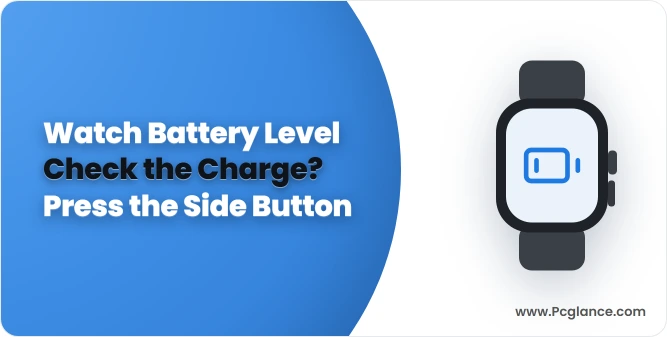
One press of the Apple Watch's side button opens Control Center and shows its remaining battery percentage. Tap that percentage for a larger charge display; you can also keep the level on your watch face or your iPhone.
To see how your battery has aged, use Settings > Battery > Battery Health on the watch. The two readings tell you how much charge is left now and how much the battery can hold compared with when it was new.
Press the side button for the current charge
Wake the watch and briefly press the side button, the flat button beside the Digital Crown. Control Center opens. Find the percentage control, scrolling through the panel if it isn't immediately visible.
Give the button a brief press; holding it opens other controls. The Digital Crown is the round, rotating control, so pressing it won't open Control Center this way.
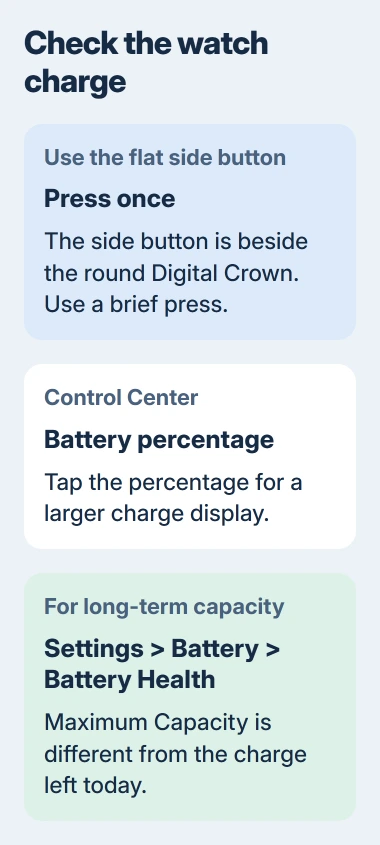
Apple explains this route and the alternative watch-face and iPhone displays in its battery guide. Tap the percentage to see a larger charge ring and the Low Power Mode button.
You don't need to turn on Low Power Mode to read the battery. Close the panel by pressing the side button again or lowering your wrist. Checking the percentage doesn't change a charging limit or battery-health setting.
On watchOS 9 and earlier, swipe up from the watch face to open Control Center. Current watchOS uses the side button instead. Use the method for the version installed on your watch.
If the percentage control has been moved, scroll through Control Center before changing anything. Its customization controls let you rearrange the panel so frequent controls are easier to reach.
Keep the percentage on the watch face
A complication is a small display of information on your watch face. Add Battery to see your charge without opening Control Center, as long as your chosen face and position offer it.
Touch and hold the current watch face, then tap Edit. Swipe left to the complications screen. Select a position, turn the Digital Crown to browse its choices and choose Battery when offered.
Save the change with the Digital Crown, then tap the face to return to it. Check that your chosen position shows the battery level. The complication-editing steps explain how to make the change.
If Battery isn't available there, try another position or a face with more spaces for complications. Choices vary between faces and positions. You can still read the charge in Control Center if your chosen position doesn't offer Battery.
I'd use the watch-face display if checking the charge is part of your morning routine. Keep Control Center as the quick alternative when you'd rather use that face position for a timer, weather or another app.
Add a Batteries widget to the paired iPhone
The iPhone's Batteries widget can show the charge of your connected Apple Watch. It's handy while your watch charges nearby and the phone is already in your hand.
On the iPhone Home Screen, hold a finger on a blank area until the icons jiggle. Tap Edit, then Add Widget. Find Batteries, select a layout and tap Add Widget, then Done.
The iPhone widget instructions show how to add and resize widgets. Pick a layout with enough room to tell your phone, watch and other accessories apart, then read the watch's entry rather than the first percentage.
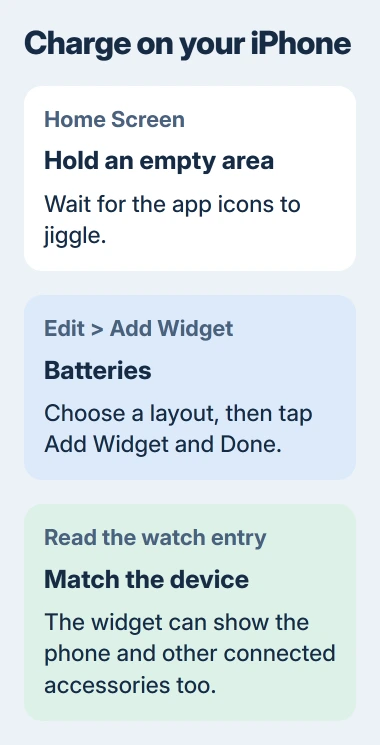
Check the device name or watch symbol beside the number. Your iPhone has its own percentage, and connected headphones may also appear. It's easy to mix them up when their charge levels are similar.
If the watch doesn't appear, check its connection to the paired phone. Our Apple Watch connection checks cover a disconnected watch. Read the watch's own Control Center while reconnecting it.
Today View is another place for the same widget. Swipe right from the Home Screen, keep a finger on a blank spot, then use Edit and Add Widget. Choose the location you'll actually look at during the day.
Read the charge history in Battery settings
On the watch, open Settings, then Battery. This screen includes the remaining percentage, a graph of recent charge history and information about when the battery was last charged.
Use this screen to see how the level changed after charging. Control Center shows the charge left now, without that history.
Compare the charging information with when you last put the watch on its charging puck. If you took it off before it finished, remember that it started with a partial charge when you're judging the later reading.
The battery-history guide explains this screen in the watch's Settings app. The graph shows charge history, rather than power use by individual apps.
For a percentage while the watch is charging in Nightstand mode, tap the charging button on its screen. That is another way to check the current charge without removing it from the charger.
Open Battery Health for maximum capacity
In Settings > Battery, tap Battery Health and scroll to Maximum Capacity. This compares how much your battery can hold now with how much it held when new. It doesn't show the charge left for today.
For example, your watch can be fully charged while its maximum capacity is less than 100 percent. Charging fills the capacity it has now; it doesn't reverse the battery's aging.
A low current charge means the watch needs charging. If maximum capacity has fallen and your watch runs for less time, check its service options.
If your watch shows a battery-service message, use the Apple Watch battery-service guide to check your options. Control Center's charge reading won't tell you whether it qualifies for service.
For a watch that won't display any battery information because it won't turn on, start with its charging connection and the charging warning shown on screen. Contact support if a working compatible charger still can't bring it back.
When asking for help with short battery life, give the current percentage, last-charge information, maximum capacity and watchOS version. These help tell an incomplete charge apart from a battery that has lost capacity.
The Short Version
Use the side button, a watch-face complication or the iPhone Batteries widget for current charge. Settings > Battery holds the charge history. Battery Health shows maximum capacity, a separate measurement.
Checked November 4, 2026.

Isaac Smith is the founder and editor of PC Glance, a website that covers computers, laptops, and technology. He is a tech enthusiast and a computer geek who loves to share his insights and help his readers make smart choices when buying tech gadgets or laptops. He is always curious and updated about the latest tech trends.