
To turn on an ASUS laptop, connect the charger it came with, open the lid and press the power button. If it's brand new and hasn't started yet, let it charge for 30 minutes or more before trying the button.
Some new ASUS laptops use a battery shipping mode and need the charger to start. A laptop that worked earlier needs a different check: it may be asleep or already running with a dark screen.
Locate your model's power button
Check for the power symbol on the keyboard area and around the laptop's edges. Its position depends on the model, so don't assume a button shown on another ASUS laptop will be in the same place on yours.
If you can't spot the button, check the model name printed underneath your laptop and find its power button in the matching quick-start guide. A series name such as VivoBook can cover several layouts.
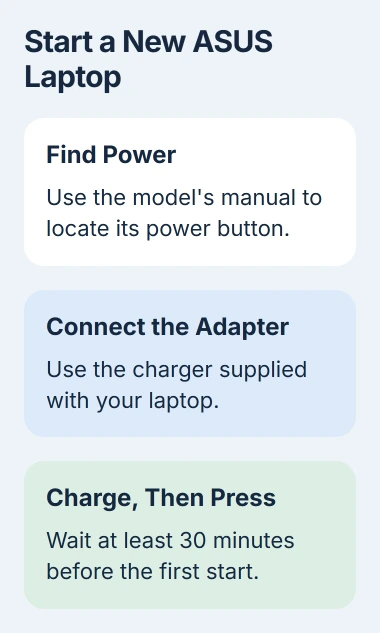
Your laptop has its own serial number, but it's the model name that tells you which manual to use. Give support that name if you need help locating the power button.
If the printed guide is missing, search for the model in the ASUS Download Center. Choose its Manual & Document > Manual section. Open the English manual and find the hardware overview.
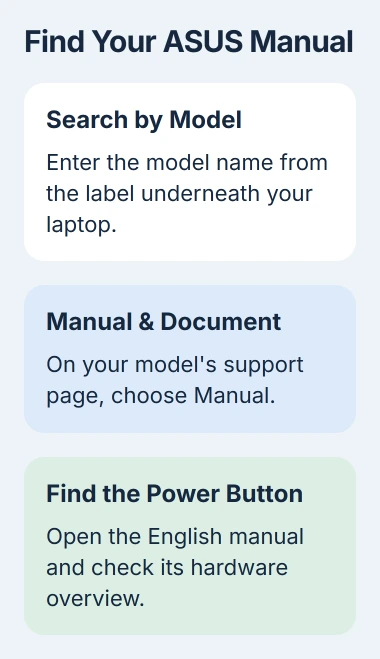
I'd check that diagram before trying unfamiliar buttons. Keys for keyboard lighting, the microphone or an app can sit near the power button, but they won't start the laptop.
Connect power before the first startup
Connect the adapter's cable sections, plug it into a working wall outlet, then connect it to the charging socket shown in your laptop's manual. For this first check, use the ASUS adapter that came with the laptop.
If your laptop charges through USB-C, use the charging port shown in its guide. A plug can fit a USB-C socket even when that socket can't charge the laptop or the charger doesn't supply enough power.
ASUS's first-start instructions call for at least 30 minutes of charging before pressing Power on a new laptop. Look for the steady orange battery light described in those instructions.
Check the charging light instead of waiting for the screen to come on by itself. If your model uses a different light, check what its manual says it means. A charging light doesn't always mean the laptop has turned on.
If the charging light stays off, unplug and reconnect the cables, then check the outlet with another working device. Leaving the laptop plugged in won't charge it if power isn't reaching it.
Stop using a visibly damaged adapter or cable. If you didn't get the original charger, ask ASUS which adapter fits your exact model before assuming the laptop itself is faulty.
Press Power normally and watch what appears
After that first charge, open the lid, press the power button and release it. Leave the charger connected while the laptop starts. You don't need to hold the button down as you would for a reset.
Watch for the ASUS logo, Windows setup, or your usual sign-in screen. Seeing one of these tells you the laptop has started, rather than just receiving power from its charger.
On a new Windows laptop, follow the prompts for your region, keyboard, network and account. If you see those prompts, the laptop has started. Any account or network error at that point is a setup problem.
Once the desktop appears, the first-session laptop guide explains the touchpad, keyboard, Wi-Fi and basic Windows controls. Leave unfamiliar settings for the laptop's built-in software alone during a normal first start.
If lights come on but the screen stays dark, note whether this followed a battery change, memory upgrade or change to the laptop's built-in software. The ASUS black-screen checks cover startup and display faults.
Repeatedly pressing Power while the laptop is starting makes its response harder to follow. Watch the screen and indicators after the normal press so you can describe the actual result if it needs support.
A sleeping laptop needs a wake, not another setup
To wake a laptop that worked earlier, lift the lid, press a key or touch the trackpad. If it remains asleep, press Power briefly. The available wake methods depend on the hardware and its power settings.
Microsoft's power-state guidance explains that some PCs wake from a key, mouse, lid movement or power-button press. Hibernation can take longer to return than sleep.
If your previous apps reappear, you're probably returning to a saved session. That's different from setting up Windows for the first time on a new computer.
Once Windows is running, a short power-button press can trigger the action selected in power settings. It isn't always an off switch. To finish a normal session, save your work and choose Start > Power > Shut down.
Avoid holding the button down just to close the lid or finish using the laptop. Only force it off when it won't respond, because you could lose unsaved work.
When a new laptop still doesn't start
When the first attempt after 30 minutes gets no response, keep the supplied adapter connected and let the total charging time reach three hours. Then try another normal power-button press.
That longer charge is a step for a new laptop that hasn't started yet. If you see damage to the adapter, port or laptop, stop charging it.
With no response after that, contact ASUS or the retailer with the model, charging-light behavior and total charging time. Ask for the next step for that exact model while the machine is still new.
Support may next suggest an EC/RTC reset, which restarts the hardware that controls power inside your laptop. How long you hold the button depends on the model, so follow the instructions for yours.
For a laptop that powers up but never reaches Windows, describe the last visible logo or message. That gives support a different starting point from a laptop with no lights and no response at all.
The Short Version
Find the correct power button, connect the supplied adapter and give a new ASUS laptop its initial charging time. A logo or setup screen confirms startup; no response, sleep and a powered black screen need different follow-up checks.
Checked November 4, 2026.

Isaac Smith is the founder and editor of PC Glance, a website that covers computers, laptops, and technology. He is a tech enthusiast and a computer geek who loves to share his insights and help his readers make smart choices when buying tech gadgets or laptops. He is always curious and updated about the latest tech trends.