
Operating a laptop starts with powering on, signing in and learning key controls: the touchpad moves the pointer, Start opens apps, and File Explorer manages files. Practice opening an app and saving a file before installing more software.
These instructions use Windows 11. A MacBook or Chromebook has different menus. Check the name shown during startup or the device's manual if the operating system is unfamiliar.
Power on and reach the desktop
Place the laptop on a firm surface with its ventilation openings clear. Connect its compatible charger if the battery needs power. Press the power button once, then wait for the screen instead of repeatedly holding the button.
A new laptop may show setup questions first. Follow its language, keyboard and account prompts. On a configured laptop, choose the intended account and use its PIN, password or configured fingerprint or face sign-in.
Status: Beginner instructions checked October 26, 2026, for Windows 11. Button positions depend on the laptop. Practice tasks are suggested, not actions performed on this computer.
The desktop is the main workspace after sign-in. The taskbar runs along the screen edge and contains Start and application icons. The mouse pointer moves over these controls; moving it alone does not open them.
If there is no picture or the laptop never reaches sign-in, use its manufacturer's startup support. A power fault needs its own diagnosis before any Windows lesson can begin.
Practice selecting, opening and scrolling
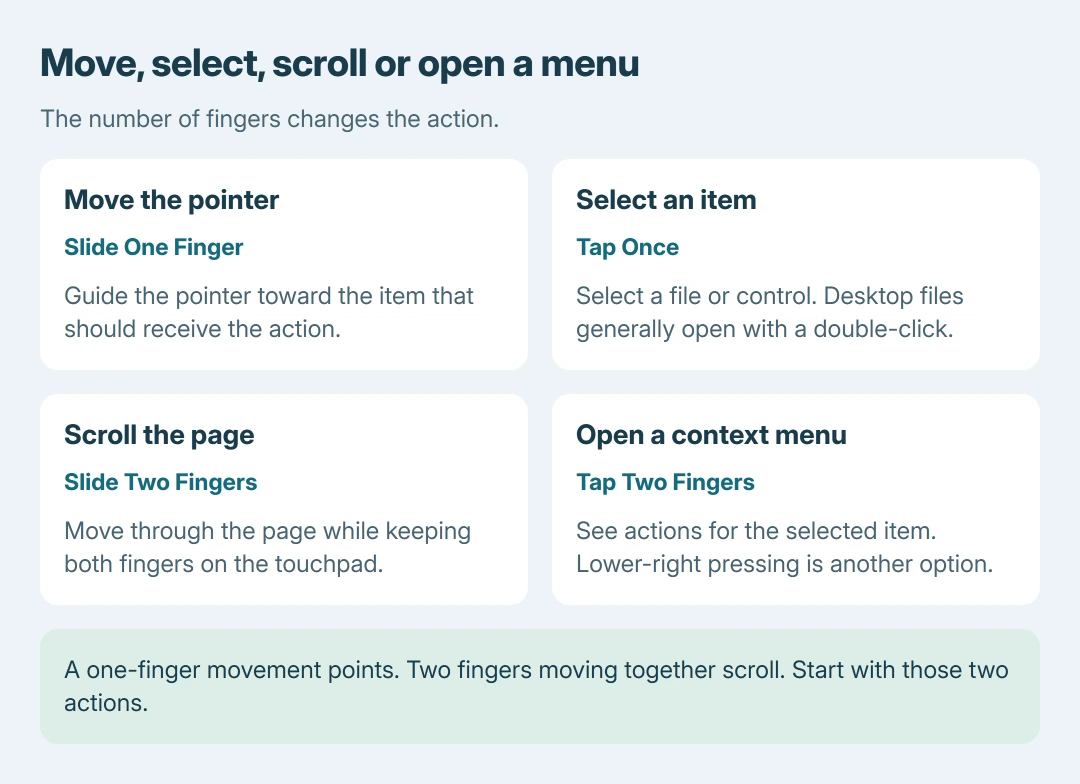
Slide one finger across the touchpad to move the pointer. Tap once to select an item. Double-click a desktop file or shortcut to open it; buttons and taskbar icons generally need one click.
For a context menu, tap with two fingers or press the lower-right part of the touchpad. Microsoft documents these actions in its Windows gesture guide.
To scroll a long page, move two fingers together across the touchpad. This differs from moving the pointer with one finger. Some advanced gestures need a Precision Touchpad, so start with these basic actions.
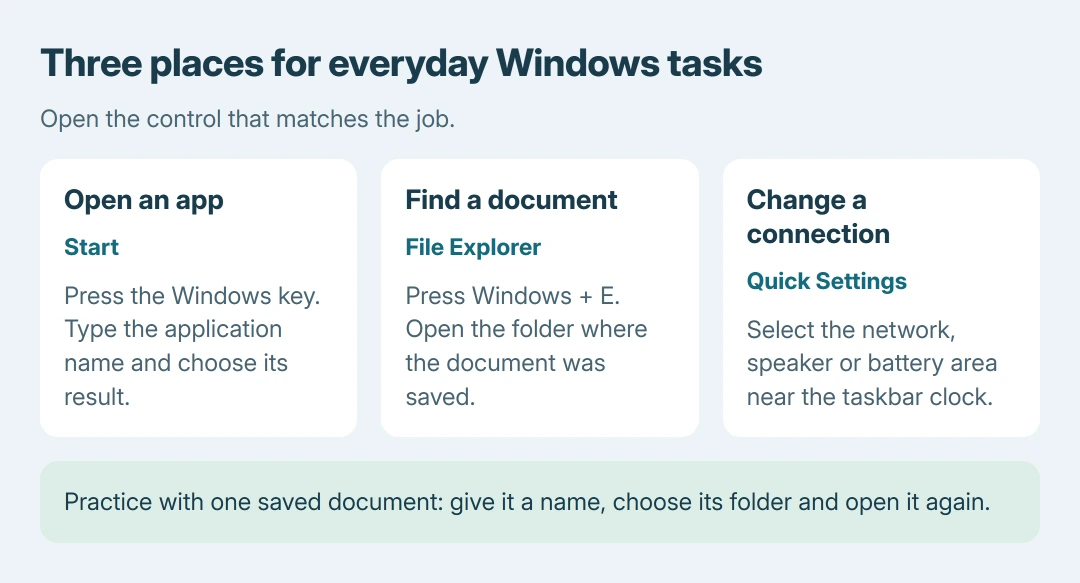
Press the Windows key, type Notepad, and choose the application result. Click inside the text area and type a short practice sentence. Backspace removes the character immediately before the text cursor.
The pointer and text cursor do different jobs. The pointer selects a position; the blinking text cursor shows where the next typed character goes. Click inside the document when typing does not appear there.
Connect to Wi-Fi and open a website
Select the network, speaker or battery area near the taskbar clock to open Quick settings. Open the Wi-Fi connection list, choose the intended network and select Connect. Enter that network's password when prompted.
Microsoft's Wi-Fi instructions call the list control Manage Wi-Fi connections. Its arrow sits beside the Wi-Fi control; the Wi-Fi button itself switches the radio on or off.
Open Microsoft Edge from Start. Click its address bar, type a familiar web address and press Enter. The address bar also accepts search terms when the aim is to look something up.
A webpage loading confirms this browsing task works. If the network asks for a password again or the page cannot load, check the chosen network and connection status before installing a different browser.
For additional software, follow the laptop app download guide. A browser search result, downloaded installer and installed application are different stages.
Save the practice file and find it again
Return to Notepad using its taskbar icon. Choose File > Save as, select Documents, and give the practice file a recognizable name such as Laptop practice.txt. Confirm with the dialog's save control.
Opening a fresh tab or closing the window is not a substitute for deliberately choosing a saved file location. For this exercise, remember both the name and the folder.
Press Windows + E to open File Explorer. Microsoft says its file-management controls provide access to files and folders. Choose Documents in the navigation pane and open the practice file.
If Documents was unpinned, use File Explorer's Home view or its address bar to navigate there. Current Windows 11 puts common folders in Quick access rather than listing all of them under This PC.
Reopening the saved sentence is the useful result. This practice sequence is ours: completing it checks selection, typing, saving and retrieval without needing a paid app or a complicated document.
Finish with the right power command
Save changes before ending the session. Microsoft states that the shutdown command is Start > Power > Shut down. Wait for shutdown to finish before packing the laptop away.
Sleep is for a short pause with work ready to resume. Restart stops and starts Windows again, often when an update or repair requests it. Closing the lid follows a separate configured action.
Check the laptop lid behavior before assuming that a shut lid means a shut-down computer. The laptop may still be sleeping or running.
If a basic control still fails, tell the laptop maker or Microsoft Support which task fails: power-on, sign-in, pointer movement, internet access or opening the saved file. That detail makes the next instruction specific.
The Short Version
Sign in, practice touchpad selection, open an app through Start and connect to Wi-Fi. Save one document into a named folder and reopen it in File Explorer. Finish with a deliberate power command after saving changes.

Isaac Smith is the founder and editor of PC Glance, a website that covers computers, laptops, and technology. He is a tech enthusiast and a computer geek who loves to share his insights and help his readers make smart choices when buying tech gadgets or laptops. He is always curious and updated about the latest tech trends.