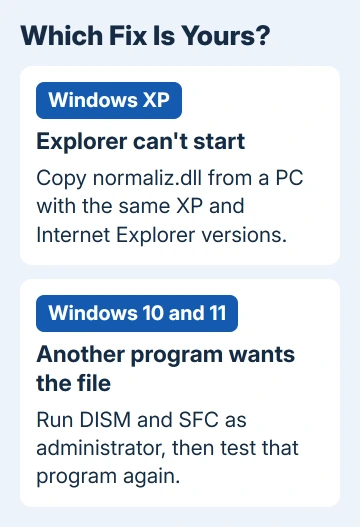
A missing normaliz.dll that stops Explorer.exe from starting is a Windows XP problem. On XP, that file came with Internet Explorer updates rather than with Windows itself.
Without it, Explorer can't draw the desktop, so the screen stays blank while Task Manager still opens. What fixed it was copying normaliz.dll from a PC running the same XP and Internet Explorer versions.
Windows 10 and 11 keep the file as a protected part of Windows. On a modern PC, a normaliz.dll error comes from some other program that wants the file, and System File Checker puts the file back.
In this guide
Which Windows is showing the error?
On XP, the box is titled Explorer.EXE and reads Unable To Locate Component, saying the application failed to start because Normaliz.dll was not found. The desktop never appears, even in Safe Mode, but Task Manager works.
On Windows 10 or 11, look at the title of the error box: it names the program that wants the file. That's the program you'll test again once the repair is done.
1. Windows XP: copy the file from a matching PC
XP never treated normaliz.dll as a protected file. It isn't on the XP installation CD either, so System File Checker has nothing to restore it from.
One owner got their desktop back with a good normaliz.dll from a working XP PC that had the same service pack and Internet Explorer version. Copy it onto a USB stick from that PC's C:\Windows\System32 folder.
On the broken PC, press Ctrl + Shift + Esc for Task Manager. If the error box keeps popping up, click OK and carry on; it can return while you work.
To confirm the file is really gone first, choose File > New Task > Browse, set Files of type to All Files and look in C:\Windows\System32.
Then hold Ctrl while you click File > New Task, and Task Manager gives you a Command Prompt rather than the Run box. Type this, with your USB stick's letter in place of d:, and press Enter:
copy d:\normaliz.dll c:\windows\system321 file(s) copied means it worked. Restart, and the desktop should come back as normal.
2. Don't download normaliz.dll from a DLL site
The adviser who walked owners through the XP fix put it plainly: "There is a also great computer security risk in downloading normaliz.dll from some Internet site."
The copy you want comes from a PC you trust on XP, or from Windows' own repair tools on newer versions. A loose DLL from a download site can be the wrong version or carry malware, and it won't fix whatever removed the original.
3. Windows 10 and 11: restore it with DISM and SFC
On Windows 10 and 11, normaliz.dll is a protected system file. On a Windows 11 PC it sits in C:\Windows\System32 as the Unicode Normalization DLL, owned by TrustedInstaller, the account Windows uses to guard its own files.
That protection is good news, because Windows keeps a spare copy and System File Checker can put the file back.
If the desktop is gone, press Ctrl + Shift + Esc. On Windows 11, select Run new task at the top of Task Manager; on Windows 10, choose File > Run new task.
Type cmd, tick the administrative privileges box under the text field and select OK.
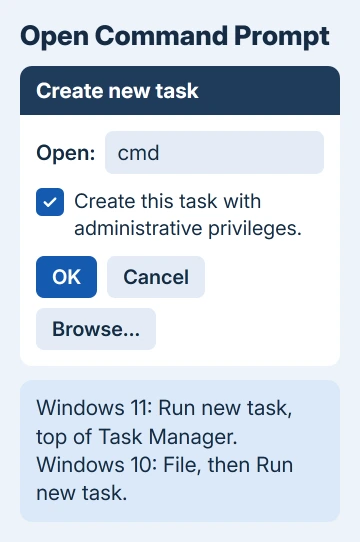
If your desktop works, you can open Terminal (Admin) from the Start button's right-click menu instead (Windows PowerShell (Admin) on Windows 10).
I'd run these two before reinstalling anything, because they repair the file without touching your apps. DISM goes first, since it repairs the stock of files SFC copies from:
DISM.exe /Online /Cleanup-image /Restorehealth
sfc /scannow
DISM fetches clean files through Windows Update, so keep your PC online while it runs. Each command can take several minutes. Don't close the window until SFC reaches 100 percent.
SFC should end by saying it fixed the damaged files. Restart and open the program that showed the error. If SFC reports corrupt files it couldn't fix, run DISM a second time, restart and repeat the scan.
When SFC reports no integrity violations and the same program still complains, the file is fine and the program is at fault. Reinstall it, or send its publisher the exact wording of the error.
4. Repair from the recovery menu if Windows won't settle
If the commands fail or your PC won't stay usable, the Windows Recovery Environment can run the same scan without Windows running. It starts by itself after two failed attempts to start Windows.
Turn the PC on, and when the spinning dots appear, keep holding power until the PC shuts off. Do that twice. On the repair screen that follows, choose Advanced options, then Troubleshoot > Advanced options > Command Prompt.
In this mode, your Windows folder can sit on a letter other than C:. Type dir C:\Windows and press Enter; if the reply is File Not Found, switch to D:. Then run the offline scan with whichever letter shows the folder:
sfc /scannow /offbootdir=C:\ /offwindir=C:\WindowsThe same menu has System Restore under Advanced options. If a restore point is older than the error, rolling back to it brings normaliz.dll back along with everything else from that day.
Why it goes missing
Normaliz.dll handles Unicode text and international domain names, the web addresses written in non-Latin scripts. On XP, Explorer needed it to start, which is why one missing file took the whole desktop down.
On the Windows 11 PC we checked, none of the 258 files Explorer loads depends on normaliz.dll. That's why the desktop itself doesn't fall over on newer Windows, while a program that does use the file can still complain.
Sometimes the cause is simpler: one owner admitted they'd deleted something they shouldn't have. If a security scan reported removing a file around the time this started, check its quarantine for normaliz.dll and restore it from there.
If the error still won't go away
On an XP machine that won't take the copied file, a repair shop can copy it across from outside Windows, or move your data to a newer PC.
The recovery menu on Windows 10 and 11 also has Troubleshoot > Reset this PC. Pick Keep my files and it replaces Windows but leaves your documents and photos alone. Your apps will need reinstalling afterward.
The Short Version
On XP, copy normaliz.dll from a PC with the same XP and Internet Explorer versions, using a Command Prompt opened from Task Manager.
On Windows 10 and 11, run DISM and sfc /scannow as administrator, then test the program that showed the error. Never download the DLL from a website.
Checked November 19, 2026.