Error 0xc00000e9 means Windows lost contact with a drive partway through starting and couldn't read the files it needed.
A USB stick, memory card or external disk left plugged in is the usual trigger, ahead of a cable that's worked loose or an internal drive that's failing. Unplug all but the keyboard and mouse and restart before you try anything deeper.
In this guide
What the error screen is telling you
The wording changes with the Windows version, but it's the same fault:
- Windows 7 and Vista show a black Windows Boot Manager screen about a problem communicating with a device connected to your computer, ending in Status: 0xc00000e9 and An unexpected I/O error has occurred.
- Windows 8, 10 and 11 show a blue Recovery screen with An unexpected I/O error has occurred or There was a problem with a device connected to your PC, plus Error code: 0xc00000e9.
Your screen may add a File: line, such as \Windows\system32\winload.efi or \Boot\BCD. That's just the file Windows was reading when the drive stopped answering, and the file itself may be fine.
I/O just means input and output, the reads and writes between the PC and its drives.
Microsoft's support engineers have long described it as a hardware error, where the computer "is not able to reliably communicate with the hard drive". So work from the outside in.
Start with what's plugged in, then firmware settings, cables and boot records, and leave the drive itself for last.
1. Disconnect every extra device and restart
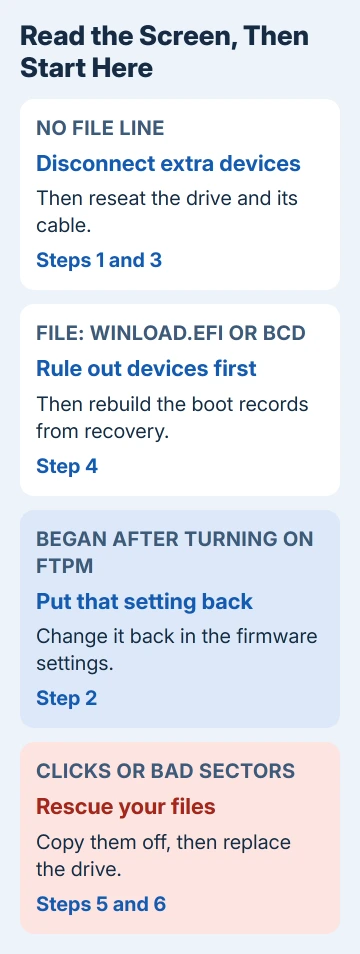
Shut the PC down. Unplug USB sticks, card readers, external drives, phones, printers and docks, keep just the keyboard and mouse, then start it. On the blue screen, Enter tries again and Esc opens the firmware settings.
The error's own text points the same way: it tells you to make sure "removable storage is properly connected and then restart your computer". A failing USB drive, or one the PC tries to boot from, is enough to stop Windows loading.
Once Windows starts, plug your devices back in one at a time. Whichever one brings the error back is the one to replace.
While you're in the firmware settings, check that the internal drive, usually listed as Windows Boot Manager, comes first in the boot order.
2. Undo a firmware change you just made
On AMD Ryzen desktops, switching on fTPM, the firmware version of the security chip Windows 11 asks for, has produced this exact screen with File: \Windows\system32\winload.efi.
One owner found that "disabling fTPM in bios fixes everything": Windows started again, and their Windows USB stick booted again too.
Another owner on a similar board could boot with fTPM off but then got a warning that the PC no longer met Windows 11's requirements. A third, on a newer AMD board, updated the BIOS and still saw the error with fTPM on.
So if the error began right after a firmware change, open the firmware settings with Esc or your PC's setup key, put that setting back and save. Windows should start again.
You can then look for a newer BIOS on your board maker's support page, or ask their support about the fTPM fault.
3. Reseat the drive and its cable
A drive that's lost its connection gives the same error as one that's dying, and reseating it is free. Laptops that took a knock or a short drop are a classic case.
Switch the PC off and unplug it first. Pressing the power button while it's unplugged drains any charge that's left, so do that before you open anything.
- Desktop: unplug the drive's SATA data and power cables at both ends, then push them back firmly. Try a spare SATA cable or another motherboard port if you have one.
- M.2 drive: remove its single screw, lift the drive out of the slot and refit it until it sits flat.
- Laptop: take out the battery if it comes out, open the drive cover or the bottom panel and refit the drive.
I'd reseat the drive before running any repair command. A loose cable makes every software fix look like it failed.
With the warranty still running, ask the maker before you open it, because on some models opening the case can affect that cover.
4. Rebuild the boot records from recovery
When the drive shows up in the firmware settings but Windows still won't start, rebuild its startup records. You'll need a Windows installation USB.
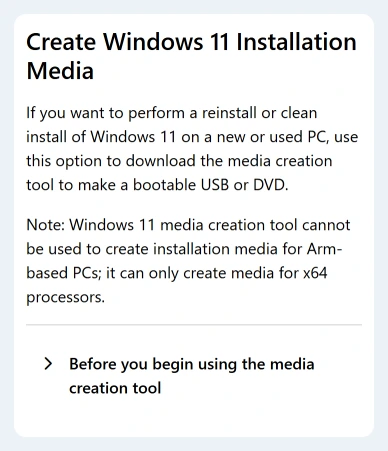
If you don't have one, make it on another PC with the media creation tool from Microsoft's download page. Use a USB stick of 8GB or more that you don't mind erasing.
Start the broken PC from the stick and choose Next > Repair your computer > Troubleshoot > Advanced options > Command Prompt. On Windows 7, use its original disc and choose Repair your computer > Command Prompt.
Run these four commands, pressing Enter after each:
bootrec /fixmbr
bootrec /fixboot
bootrec /scanos
bootrec /rebuildbcd
Those four commands got one PC past 0xc00000e9 after a Windows upgrade failed with a USB hard drive attached. Its owner unplugged every USB device except the mouse and keyboard, then ran them from a Windows disc.
The PC "rebooted into Windows successfully" even though scanos found 0 installations.
On newer UEFI PCs, bootrec /fixboot can fail with Access is denied. If you get that, bcdboot rebuilds the boot files and does the same job there.
5. Check the drive for errors
This error is sometimes a sign that the drive itself is failing, so a disk check comes next. Run it from the same recovery Command Prompt.
Find the Windows drive first, because recovery often gives it a different letter. Type dir C:\Windows and then dir D:\Windows until one lists folders. Then check that letter:
chkdsk D: /rWith /r, chkdsk hunts for bad sectors and recovers readable data from them. On a big hard drive that can run for hours, so leave the PC powered on until it's done.
If chkdsk reports bad sectors, or the drive clicks or disappears from the firmware settings, rescue your files before anything else.
6. When the drive is failing
A drive that keeps dropping out needs replacing, and the sooner you copy your files, the more you'll get back.
Take the drive out, put it in a USB enclosure or adapter and plug it into another computer, then copy your folders across. The unmountable boot volume page covers the same rescue for a drive that stopped mounting.
Then fit a new drive, use the USB stick from step 4 to put Windows on it and copy your files back once it's running.
If nothing here gets it to start
Contact the PC maker, or the drive maker if you fitted the drive yourself, and ask for a hardware diagnostic or a warranty repair.
Tell them the error code, the File line if there was one, and that unplugging devices and rebuilding the boot records didn't help.
If the drive no longer shows up anywhere and the files matter, stop and ask a data recovery service before you run anything else on it.
The Short Version
Disconnect all but the keyboard and mouse and restart. Undo any recent firmware change such as fTPM, then reseat the drive and its cable.
Next, rebuild the boot records with bootrec from a Windows USB. If chkdsk finds bad sectors, rescue your files and fit a new drive.
Checked November 19, 2026.
 If you have any business, I can build it online