BEX in a crash report means Windows shut the program down on purpose. It caught the program doing something unsafe: running code from memory meant for data, writing past the end of a buffer, or handing bad values to a runtime function.
On a 64-bit program the same report says BEX64.
Two lines in that report point you to the fix. Application Name is the program that crashed and Fault Module Name is the file it was running at the time. The fix is usually to update or repair whichever of the two is to blame.
In this guide
Read the lines that name the culprit
The full report sits in Reliability Monitor, which keeps a dated list of what has failed on your PC.
Type reliability in the Start search, open View reliability history, select the red X on the day of the crash and choose View technical details.
On older versions of Windows, the crash box itself has a View problem details link that shows the same lines. Four of them matter:
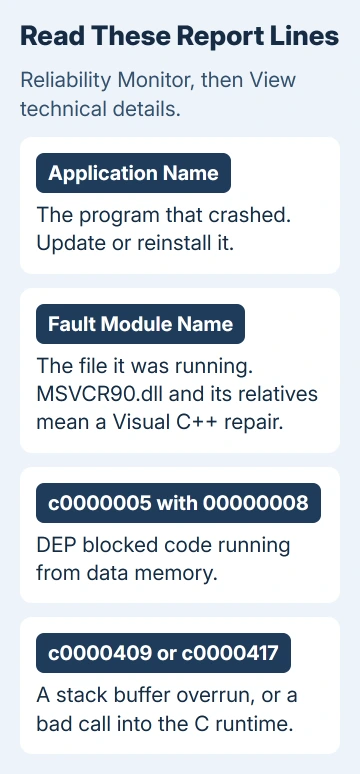
- Application Name: the program that crashed, such as fsx.exe or iexplore.exe in the reports owners posted.
- Fault Module Name: the file that was running. unknown, or a name starting with StackHash, means the crash didn't happen inside a named file.
- Exception Code: why Windows stepped in.
- Exception Data: extra detail for that code.
Exception Code c0000005 with Exception Data 00000008 means Data Execution Prevention (DEP), a Windows protection, blocked the program from running code in memory marked as data. The exception record reference is where that 8 comes from.
Code c0000409 means Windows caught a stack buffer overrun: the program wrote past the end of a block of its working memory, the kind of slip an attacker could use to take over a program.
Code c0000417 means the program passed a bad value to a C runtime function (one of the basic building blocks programs written in C and C++ rely on), so the fault module is often a Visual C++ file.
1. Update or reinstall the program that crashed
When Application Name and Fault Module Name point to the same program, or the module is unknown, the program itself is at fault. Install its latest version from the publisher, or uninstall it, restart and install it fresh.
Old programs hit this more than new ones. Some build code as they run without marking it as code, and some built with certain early Microsoft libraries try to run code from memory that DEP protects. Windows closes them as soon as they try.
If the program came with a patch or update tool, run it before anything else.
2. Repair the Visual C++ runtime in the report
If Fault Module Name is a Visual C++ runtime file, repair that runtime. One owner whose Internet Explorer kept crashing in MSVCR90.dll fixed it by replacing that file with a downloaded copy.
Repairing the package that installs the file gets you the same result without trusting a random download. I'd do this before reinstalling the program, since it's the file the report blames.
The number in the file name gives the version: MSVCR90.dll is Visual C++ 2008, version 9.0, and MSVCR100.dll is 2010.
Open Settings > Apps > Installed apps on Windows 11, or Apps & features on Windows 10. Find the matching Microsoft Visual C++ Redistributable, choose Modify, then Repair if it's offered.
If no repair option appears, reinstall the package from the Visual C++ downloads page, which still carries 2008 under versions no longer supported.
What matters is the program, not Windows: a 32-bit program needs the x86 package, even on 64-bit Windows.
For MSVCP140.dll or VCRUNTIME140.dll, it's the current package, and installing both the x86 and x64 versions covers every program.
If the module is ucrtbase.dll, that file is part of Windows 10 and 11, so install any waiting Windows updates instead.
Don't download a single DLL from a DLL website. A file from an unknown site can carry malware, and it skips the rest of the package the program expects.
3. Find the add-on that crashes several programs
When Fault Module Name is a file from another company, such as a screen overlay, an antivirus add-in or an old plugin, update or remove whatever installed it. A web search for the file name usually tells you which program owns it.
When several unrelated programs crash with BEX, look for something that loads into all of them. A clean boot loads Windows with nothing but Microsoft services. If the crashes stop, a third-party service or startup app was behind them.
Press Windows + R, type msconfig and open the Services tab. Tick Hide all Microsoft services, select Disable all and Apply.
On the Startup tab, select Open Task Manager and disable each enabled startup app, keeping a note of which ones you changed. Restart and use the programs that crashed.
If they behave, turn the services back on half at a time until the crash returns; the last batch you turned on holds the culprit. The clean boot steps also cover putting everything back afterward.
4. Switch DEP off for one old 32-bit program
Use this only for an old 32-bit program you trust when its publisher has nothing newer. Microsoft's exploit protection notes say DEP can be switched off only for 32-bit programs; for everything else it's always on.
Open Windows Security > App & browser control > Exploit protection settings. Under Program settings, choose Add program to customize > Choose exact file path and select the program's .exe file.
Find Data Execution Prevention (DEP), tick Override system settings, switch it Off, select Apply and start the program again.
Windows may refuse to do this for its own programs. One asker couldn't exclude wuauclt.exe, a Windows Update program, on Vista.
One adviser suggested turning DEP off for the whole PC with the bcdedit setting nx AlwaysOff. Skip that: it turns DEP off for every program, and Windows then ignores any attempt to turn it back on for a single program.
If it keeps crashing
Send the publisher the full report from Reliability Monitor, including the Exception Offset line, which shows their developers where in the module it failed.
If the crashing program is part of Windows, run a full scan in Windows Security, install any waiting updates, then send Microsoft support the report details from the Get Help app.
The Short Version
Open the crash in Reliability Monitor and read Application Name and Fault Module Name. Update or reinstall the program, and repair the Visual C++ runtime when the module is one of its files.
Use a clean boot when many programs crash. Turn DEP off only for an old 32-bit program, never for the whole PC.
Checked November 19, 2026.