

Photos Legacy can be slow to open its collection even when single pictures load normally. Try opening one small photo directly; if that hangs too, update the app and try Windows' Repair option before resetting it.
Before using Reset, check for albums or unfinished Video Editor projects in Legacy. They're saved in the older app, so backing up your pictures alone won't protect everything.
1. Compare one photo with the full collection
Close Photos Legacy, then find a small JPEG picture already stored on your PC. Right-click it in File Explorer, choose Open with, and select Photos Legacy. Use Choose another app if the first menu doesn't list it.
Pick a picture outside OneDrive, or one that's already downloaded, so you aren't waiting for a download during this check. Open that file in Paint too, without editing or saving it.
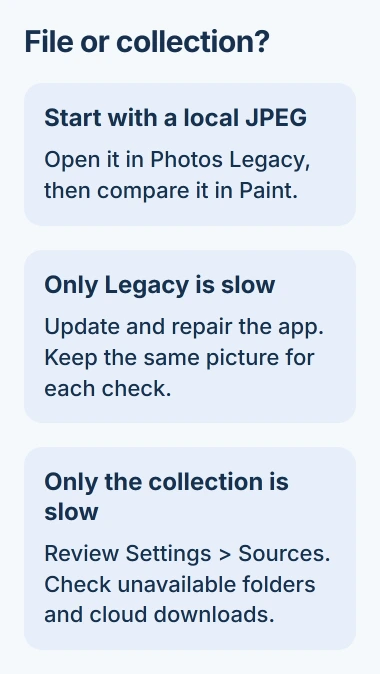
If Paint opens it quickly but Photos Legacy stalls, work through the app repairs in the next sections. If both struggle with that file, try another JPEG before treating this as a Photos Legacy problem.
If single pictures open quickly but the collection is slow, remember that result for the folder check. The app is taking time to load your collection, rather than to display one picture.
Also check the app's name, since you can have both Photos and Photos Legacy installed. Legacy has Collections, Albums and the older Video Editor. Changing settings in the other app won't fix Legacy.
Blank previews in File Explorer are a separate symptom. The missing thumbnail guide covers those, including pictures that are still stored only in OneDrive.
2. Install the available app and Windows updates
Open Microsoft Store from Start and check its Downloads page for available updates. On Store layouts that put this control in Library, open Library and choose Get updates.
Let any Photos Legacy update finish, then close and reopen Legacy. Try the same local picture and collection again so you can tell whether the update helped.
The Store's app update controls also let you manage automatic updates. Photos Legacy updates come from the Store, even when Windows itself is up to date.
Then open Settings > Windows Update > Check for updates. Install available updates and restart if Windows requests it. Save work in other apps before restarting.
If the delay returns after the restart, move to Repair. Repeatedly reopening the same slow collection won't tell you whether an app setting or a folder is responsible.
3. Repair Photos Legacy before using Reset
In Windows 11, open Settings > Apps > Installed apps. Find Photos Legacy, select its three-dot menu, and open Advanced options. Scroll to Repair and run it if available.
Microsoft recommends trying Repair before Reset. Repair can get the app working again while keeping its saved data.
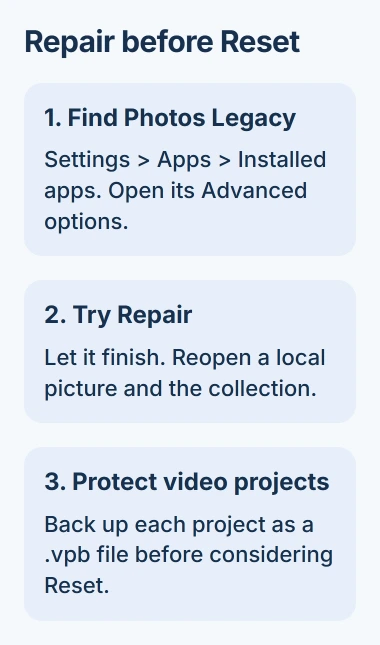
When the repair finishes, open Legacy from Start and try the picture and collection again. If it helped, you should be able to open or browse the view that was slow without the same long pause.
If you don't see Advanced options, check that you've selected Photos Legacy. Some apps don't have this control. A Reset button for Photos or Microsoft Store applies to that app, not Legacy.
I'd try Repair before removing picture folders. Leave the files as they are so you can see what Repair changes.
4. Check the folders included in the collection
Open Legacy's Settings > Sources and check the folders you've added. Look for a disconnected drive or a network folder you can no longer open in File Explorer.
Remove one unwanted folder from Sources, then reopen your collection to see whether it's faster. Removing it from this list doesn't move the folder or delete its files from your PC.
The guide to Photos Legacy explains the difference. Don't select pictures and press Delete for this test, because that deletes the actual photo files.
If the collection is faster without that folder, check that the folder still opens before adding it again. If removing it made no difference, put it back through Folders > Add a folder and continue with the app checks.
Once a OneDrive picture has downloaded, open it again. If only downloading is slow, check your connection or sync. If the downloaded copy still opens slowly, keep checking the app.
Once viewing works again, the Windows photo rotation steps explain how to save a separate edited copy. Keep editing out of these checks so the original test picture stays unchanged.
5. Back up video projects before a reset
If you use Legacy's Video Editor, open each unfinished project and choose See more > Back up project. Save the resulting .vpb backup file in a folder you can find outside the app.
This project backup method lets you keep editing the project later. Saving just its photos in OneDrive won't keep your clip order, text and timing.
The Video Projects page has See more > Import backup beside New video project. Check that your backup file is saved. If Legacy won't stay open long enough to back up important projects, ask support for help before Reset.
Once your projects are backed up, return to Legacy's Advanced options in Windows Settings. Read the warning beside Reset before using it: this clears the app's saved data and settings.
Afterward, reopen Legacy and start with one local picture. Add your sources again as needed, then import project backups. If that same picture still hangs, resetting the app again is unlikely to help.
6. Use Photos for viewing while getting further help
The newer Photos app can run alongside Legacy, so try Open with > Photos for ordinary picture viewing. You can leave Legacy installed while deciding what to do with its older albums and video projects.
The two apps have different features. Using Photos to view pictures doesn't automatically move Legacy's Video Editor or your existing projects into the newer app.
When you ask support for help, give them your Legacy and Windows versions. Explain what happened with the local JPEG and collection, whether Repair helped, and whether one folder slowed things down.
The Short Version
Compare a local picture with the collection, update Legacy, and try Repair. Check source folders if only the collection is slow. Back up video projects before Reset, or use Photos for viewing while you get help.
Checked November 4, 2026.

Isaac Smith is the founder and editor of PC Glance, a website that covers computers, laptops, and technology. He is a tech enthusiast and a computer geek who loves to share his insights and help his readers make smart choices when buying tech gadgets or laptops. He is always curious and updated about the latest tech trends.