
A sideways photo can be rotated in Windows Photos through Edit image > Crop. Use a quarter-turn control for its orientation, or the slider for a small tilt. Flipping creates a different result: a mirrored image.
Work on a copy when the original needs to stay unchanged. After saving, reopen the resulting file to confirm that its orientation was saved, rather than judging only the editing preview.
Open the picture in the Photos editor
Locate the image in File Explorer, right-click it, and choose Open with > Photos. If it is still on a phone, import the photo to the PC before working with the local file.
Select Edit image, or press Ctrl+E while viewing the picture. Microsoft documents this shortcut and the editing tools in its Windows photo-editing guide.
Status: Rotation controls documented by Microsoft, reviewed November 1, 2026. Photos editions have different save controls. No personal image or app was opened.
Choose Crop to reach the rotation controls. Decide whether the whole picture is sideways, the horizon is slightly tilted, or the image is mirrored before applying an edit.
Choose rotation or flip for the actual problem
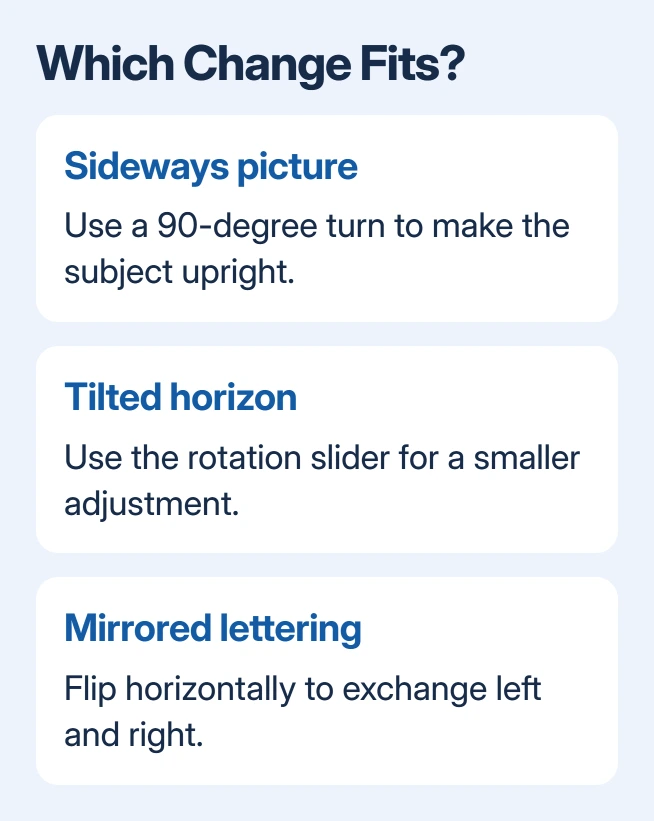
For a sideways picture, select the clockwise or counterclockwise rotation control. Each quarter turn changes the orientation by 90 degrees. Repeat until the subject is upright; an upside-down image needs two quarter turns.
For a small tilt, move the rotation slider instead. Watch the edges as the picture moves within the crop area. Avoid cutting off a person's head or a detail that needs to remain visible.
Use Flip horizontally when left and right need to swap, such as mirrored lettering in a camera image. Rotation changes which way the picture faces; it cannot turn backward lettering into normal lettering.
Microsoft says Reset cancels the edits applied in the editor. Use it before saving if several adjustments made the picture worse, then try only the change that the original needed.
Save the edit and inspect the saved file
Use the editor's Save as copy control to keep a separate version. Choose a distinct filename and folder so the edited image is easy to distinguish from its source.
Older Photos layouts use a different route. Microsoft's rotation instructions for an email picture show the viewing toolbar's Rotate control, followed by the three-dot menu and Save as.
Choose the route matching the app on screen. Microsoft states that Photos is receiving an updated gallery and editor in its Photos overview, so the toolbar need not match an older picture exactly.
Close the editor and open the saved copy from its folder. Confirm the top of the picture, readable lettering and the remaining edges. Use that filename when attaching the image, rather than selecting the unchanged original beside it.
Pictures made with the Windows Camera app can be opened from their saved folder for the same review. A preview thumbnail is less useful than checking the full image.
If the picture stays sideways elsewhere
First confirm that the other app received the edited file. Compare its name and folder with the copy just reopened in Photos. Reattaching the original repeats the problem even when the edit succeeded.
If the saved copy looks correct in Photos but wrong in another app, report that difference to the receiving app's support team. Include its version and a nonprivate sample. Avoid repeatedly changing an already-correct original.
The Short Version
Open the image in Photos and enter Crop through Edit image. Use quarter turns for sideways pictures, the slider for a tilt, and a horizontal flip for a mirrored view. Save a copy and reopen that file before sharing.

Isaac Smith is the founder and editor of PC Glance, a website that covers computers, laptops, and technology. He is a tech enthusiast and a computer geek who loves to share his insights and help his readers make smart choices when buying tech gadgets or laptops. He is always curious and updated about the latest tech trends.