
A laptop camera can take a picture without joining a video call or visiting a webcam website. Open Camera from Start, select Photo, then press the capture button. The new thumbnail confirms that Windows saved a shot.
Use this for a camera photo of yourself or something held in front of the lens. Capturing the contents of the laptop's display is a screenshot, which uses a different tool.
Open Camera and select the lens
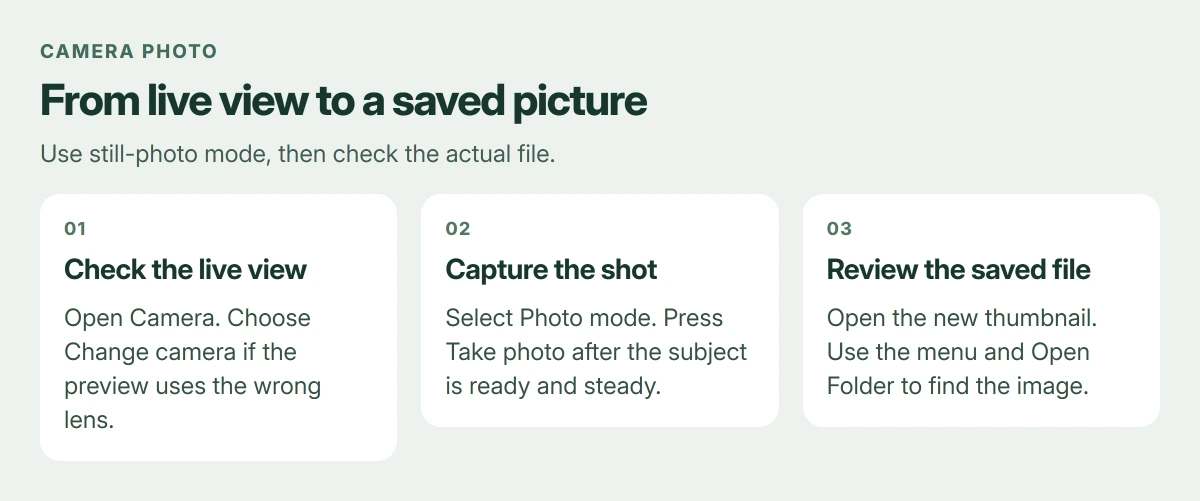
Press the Windows key, type Camera, and open the app. Allow camera access if Windows asks. A live preview should appear before you try taking the picture.
Microsoft documents Change camera at the top right for devices with more than one camera. Use it when the preview comes from a USB webcam instead of the built-in lens, or shows the wrong side of a tablet.
Status: Microsoft's Windows capture, privacy and Camera Roll pages reviewed on 23 October 2026. The camera was not operated for this article.
Keep the subject facing a light source. A bright window behind your head makes the face harder to see. Open a physical privacy shutter if the preview is completely dark.
Select Photo, then take the picture
Microsoft's Camera app instructions distinguish selecting the mode from taking the shot. Choosing Photo changes the button to Take photo.
- Select the still-photo mode on the right side of Camera.
- Check the preview and hold the laptop or subject steady.
- Select Take photo to capture the image.
- Open the new thumbnail at the bottom right and check the result.
A video button starts a recording instead. If the controls look different after an app update, read the button's label before pressing it. The photo thumbnail, rather than a running timer, is the result you want.
Find the saved file before attaching it
In the current app, open the captured thumbnail, choose the three-dot menu, then Open Folder. This reaches the actual saved image, including when Windows uses a customized picture location.
Microsoft says camera captures go to Camera Roll by default. In File Explorer, check Pictures > Camera Roll if your app version does not offer Open Folder.
Open the file from that folder before uploading it. Check the face or object is sharp and the picture contains only what you intend to share. A thumbnail alone is too small to judge detail.
On a Mac, use the separate Photo Booth capture and export steps. The Windows Camera controls do not apply to macOS.
Camera opens but permission is denied
On Windows 11, open Settings > Privacy & security > Camera. Enable Camera access, Let apps access your camera, and the individual Camera app switch. On Windows 10, begin at Settings > Privacy > Camera.
Microsoft states that Microsoft Store apps have individual camera permissions. The desktop-app switch governs a different group, so a working Teams call does not establish that the Camera app has permission.
Reopen Camera after changing its access. For an absent camera, an error code, or a preview that remains black, use the webcam troubleshooting checks. Those symptoms need more than a capture-button change.
A preview appears, but the shot will not save
An error about a missing Camera Roll concerns the save destination. Microsoft's Camera Roll repair page identifies 0xA00F4275 for this case.
In Windows 11, open Settings > System > Storage > Advanced storage settings > Where new content is saved. Read New photos and videos will save to. Reconnect an external drive if that destination points to one.
Windows 10 calls the Storage link Change where new content is saved. If the destination is available but saving still fails, follow Microsoft's folder and permission checks on that repair page.
For a managed laptop with locked permission controls, contact its administrator. A camera missing from every app after the hardware checks belongs with the laptop or webcam maker's support team.
The Short Version
Use Camera's Photo mode, capture the shot, and review the new thumbnail. Open Folder reveals the saved image. Permission failures and Camera Roll save errors concern different parts of the process.
Where to Next
Attach the finished image from its saved folder. Close Camera when finished, especially before opening another app that needs the webcam.

Isaac Smith is the founder and editor of PC Glance, a website that covers computers, laptops, and technology. He is a tech enthusiast and a computer geek who loves to share his insights and help his readers make smart choices when buying tech gadgets or laptops. He is always curious and updated about the latest tech trends.