
An MSI laptop's camera key can disable the webcam before Windows or a meeting app can use it. Check the camera-marked key and any physical privacy switch, then open Windows Camera to test the preview.
The key isn't identical on every MSI model. Some use F6, others F4, and Fn Lock can change whether you press the key alone or hold Fn with it.
1. Turn the camera on with the correct key
Look along the function-key row for a camera symbol. Use that key rather than assuming every MSI laptop uses Fn + F6. The model's manual identifies the correct shortcut and any separate privacy switch.
MSI's camera control instructions cover F4 and F6 models and show how Fn Lock changes the shortcut. On the listed models, hold Fn with the camera key when the Fn Lock indicator is lit.
With Fn Lock off on those models, the camera key works on its own. Press the correct key or combination once, then test the camera. Pressing it again before checking can turn the webcam straight back off.
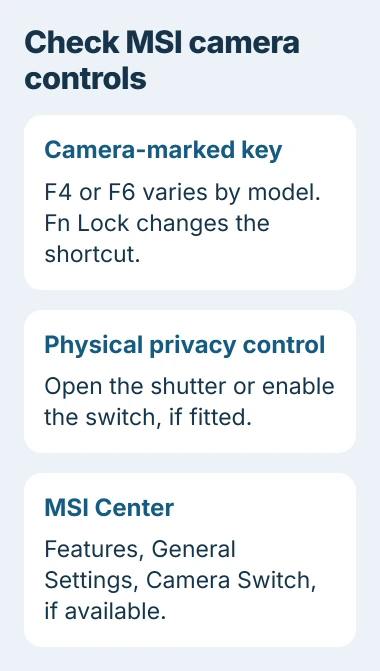
Check the laptop's edges and the area around the webcam for a physical control too. Some Summit models have a side switch. A shutter covering the lens can also leave the camera available but give you a black picture.
Open the shutter all the way or move the privacy switch to the enabled position shown by its markings. If your laptop has neither, move on; not every MSI notebook has these controls.
2. Check Camera Switch in MSI Center
If your laptop has MSI Center, open Features > General Settings and look for Camera Switch. Turn it on if your model offers that option.
The switch varies by model. Stick with the software made for yours instead of installing extra MSI control centers to look for a button from another laptop.
Next, close meeting software and any browser tabs using the camera. Open Start, search for Camera, and launch the Windows app. Allow access if it asks, then look for a live preview.
If the preview works, Windows can use your webcam. Check permissions next if Zoom, Teams or a browser meeting still fails. If Camera says no camera is attached, check access first, then continue to Device Manager.
I'd try Windows Camera before changing a driver. It can save you reinstalling camera software when only one meeting app is blocked.
3. Allow the app to use the camera
On Windows 11, open Settings > Privacy & security > Camera. Turn on Camera access. Also enable Let apps access your camera, then check that the app you're using is allowed in the list.
Also scroll down to check Let desktop apps access your camera. Browsers and many meeting programs need this separate permission; allowing only the listed Store apps can still leave your call blocked.
On Windows 10, open Settings > Privacy > Camera and check device, app and desktop-app access. The labels are slightly different, but Windows still needs to let your app use the camera.
Microsoft's camera troubleshooting instructions explain these controls. If your organization has locked a setting, ask its administrator to allow access rather than trying to remove the restriction.
Once you've changed access, restart the affected app. In its video settings, select the built-in webcam. It may still be set to a disconnected USB camera or a virtual camera created by software.
4. Fix browser access when Camera already works
For a meeting in Chrome, enter chrome://settings/content/camera in the address bar. Check the selected camera and allow sites to ask for permission. Look through the sites that aren't allowed to use your camera.
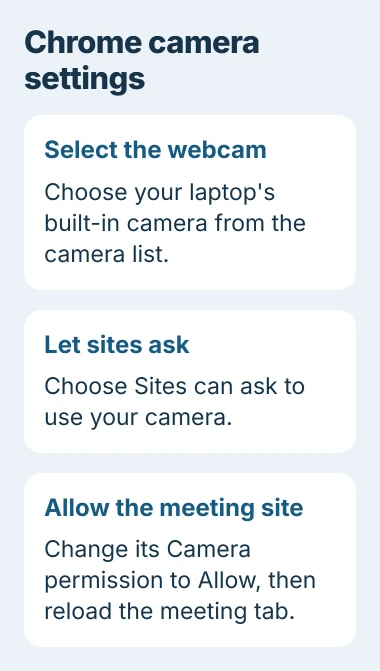
Find the meeting site's entry, open its permissions and change Camera to Allow when you want that site to use it. Return to the meeting tab and reload it before testing its preview again.
Follow the browser permission steps to choose a default camera if several are listed. Pick your laptop webcam rather than a capture card or software camera you're not using.
If the site says the camera is busy, quit other meeting apps and close their tabs. When only one website fails and Windows Camera works, check that site's permission and camera choice first.
If several apps still fail after these checks, use the general webcam fault guide for other Windows error codes and blocks caused by security software.
5. Check a missing camera or driver warning
Right-click the Start button and select Device Manager. Expand Cameras, then look under Imaging devices if it's missing. Some systems list the webcam under Sound, video and game controllers instead.
If it isn't listed, choose Action > Scan for hardware changes, then restart and look again. An error such as 0xA00F4244 means Windows can't detect a camera, so recheck the camera key and privacy controls from the first steps.
If the webcam has a warning, open Properties and read Device status. Write down the message before making changes so support can tell whether it's a driver problem or a camera that's turned off or disconnected.
If the problem started immediately after a driver update, open its Driver tab and choose Roll Back Driver when available. Restart, then test the Windows Camera preview again.
If you can't roll back a faulty webcam driver, select its entry and use Uninstall device, then Action > Scan for hardware changes and restart. Check that you're removing the webcam, leaving other USB devices alone.
6. Get the built-in camera checked
If the camera is turned on but still missing, send MSI support your laptop model, Windows version and what Device Manager shows. Tell them whether Windows Camera gives an error or a black preview.
A USB webcam can keep your calls working while the built-in camera is checked. Tell support if the USB webcam works; that helps them check for a fault with the internal camera or its cable.
Once the preview works, you can take a photo with the Windows Camera app to confirm the saved image also looks right before your next call.
The Short Version
Check your model's camera key, Fn Lock and privacy controls, including MSI Center. Test Windows Camera before changing app or browser permissions. Seek hardware support if the webcam remains missing from Device Manager.
Checked November 4, 2026.

Isaac Smith is the founder and editor of PC Glance, a website that covers computers, laptops, and technology. He is a tech enthusiast and a computer geek who loves to share his insights and help his readers make smart choices when buying tech gadgets or laptops. He is always curious and updated about the latest tech trends.