

A switched-off touchpad can leave an MSI Katana's pointer stuck. Press the keyboard key with the touchpad symbol, then check Windows' touchpad switch before changing drivers.
The key number matters: MSI's general troubleshooting page mentions Fn+F3, but keyboard layouts vary. Use the symbol and your exact Katana manual instead of repeatedly pressing a shortcut from a different MSI laptop.
In this guide
1. Turn on the touchpad with the correct keyboard control
Find the key with the touchpad symbol in the function row. Hold Fn while pressing it, then slide a finger over the pad. An on-screen notification may show whether you've just turned the touchpad on or off.
Try the marked key by itself if pressing it with Fn doesn't work. Your function-key mode determines whether you need Fn. Stop pressing the key once the notification says the touchpad is on.
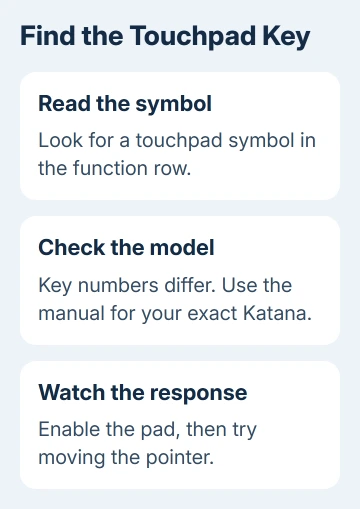
If the pointer moves again, the touchpad was switched off. That doesn't call for a driver reinstall. Keep the correct shortcut handy, especially if the problem returns after someone else uses the laptop.
If the notification says the touchpad is on but it still doesn't respond, move to Windows Settings. A USB mouse makes the remaining checks easier, but you can open Settings with the keyboard too.
2. Check the Windows switch and the mouse setting
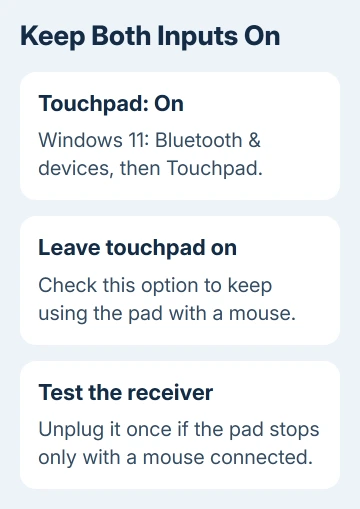
Press the Windows key, type touchpad settings, and press Enter. In Windows 11, the page is under Settings > Bluetooth & devices > Touchpad. Windows 10 uses Settings > Devices > Touchpad.
Turn Touchpad on. With keyboard navigation, use Tab to reach the switch and Space to change it. Expand the touchpad options if needed and check Leave touchpad on when a mouse is connected.
Leave that option checked to use both devices. Clearing it lets Windows turn the pad off when it detects a mouse. Unplug any wireless mouse receiver as well as the mouse to check whether that's stopping the touchpad from working.
MSI's older touchpad troubleshooting page describes the shortcut, but its wording about this mouse option is contradictory. Follow the meaning of the Windows checkbox.
Windows can detect the receiver while its wireless mouse is powered off. If removing it brings the pad back, fix this preference rather than removing the receiver's driver.
If the Touchpad page or its switch is missing, move on to the driver checks. Check whether the touchpad appears in Windows before looking for more settings to change.
3. Reload Windows and inspect device detection
Save open documents, then select Start > Power > Restart. This reloads Windows and the software that controls your devices. Try the touchpad before opening your usual games or plugging in extra devices.
Next, press Windows+X and open Device Manager. Inspect Human Interface Devices and Mice and other pointing devices. Touchpads can appear in either group.
Look for a touchpad entry or a device with a yellow warning symbol. Open Properties and read Device status. Keep the exact error code if Windows reports one; it will help support choose the next step.
Don't uninstall every HID-compliant mouse in the list. Several entries can belong to different controls, and their generic names don't identify the built-in pad reliably.
If the touchpad is listed as disabled, enable it and try it. If it has a warning, or it disappears after an update, work on its driver next rather than changing unrelated mouse settings.
For pointer trouble that also affects an external mouse, the broader Windows pointer checks cover that separate branch.
4. Repair the driver for the identified pad
Microsoft's touchpad repair instructions recommend Windows Update first, then Device Manager when an update doesn't solve the fault.
In Windows 11, open Settings > Windows Update > Check for updates. In Windows 10, open Settings > Update & Security > Windows Update. Accept available updates, including any requested restart.
If the fault remains, return to the identified touchpad in Device Manager. Open Update driver and let Windows search. Test the pad after the update instead of changing several devices at once.
For a reinstall, right-click that touchpad entry and choose Uninstall device. Restart so Windows can attempt to install the device again. Keep an external mouse available for this step.
I'd check carefully that it's the touchpad before uninstalling it. Removing a random input device can leave you with another control that doesn't work, without helping you fix the Katana's touchpad.
If Windows can't supply the driver, look up your complete Katana model code and operating system on its support page. A Katana 15 model code and a Katana GF66 model code aren't interchangeable just because both names contain Katana.
5. Match firmware work to the exact Katana model
Find the full model on the laptop's underside label. Write it down before looking for a manual, BIOS file, or controller-reset procedure. The embedded controller handles basic hardware functions inside the laptop.
A controller reset is different from resetting Windows. Follow the maker's instructions for that model, including its power-adapter steps. Don't assume every Katana has the same reset opening or button-hold sequence.
BIOS updates also need the exact model's instructions. Plug in the power adapter throughout the update and let it finish. If the download page doesn't clearly match the model, have support confirm which package belongs to your laptop.
Leave firmware changes until later because a Windows switch or missing driver can cause the same problem. A BIOS update makes little sense if changing a setting has already brought the touchpad back.
If the camera also fails, the MSI camera-switch checks explain that control. Its keyboard shortcut is separate from the touchpad's.
6. Arrange service when the controls and driver don't restore it
Contact MSI support with the full model, Windows version, device-status error, and whether the touchpad appears in Device Manager. Explain whether the failure followed an update, a spill, a drop, or physical pressure.
Ask them to confirm the model's touchpad shortcut, required driver, and controller-reset procedure. If those checks fail, request a touchpad and internal-connection inspection under the applicable warranty or repair service.
Stop using the pad if it has lifted or the case has bulged. The laptop needs a physical inspection rather than another Windows setting change. Don't try to force the surface down.
The Short Version
Identify the Katana shortcut by its touchpad marking, enable it in Settings, and review the mouse preference. Then repair the identified driver. Match any controller reset or BIOS work to the full model before arranging service.
Checked November 15, 2026.
 If you have any business, I can build it online






